Getting Started with Nano Banana MCP for Image Workflows in Claude, VS Code, and Cursor
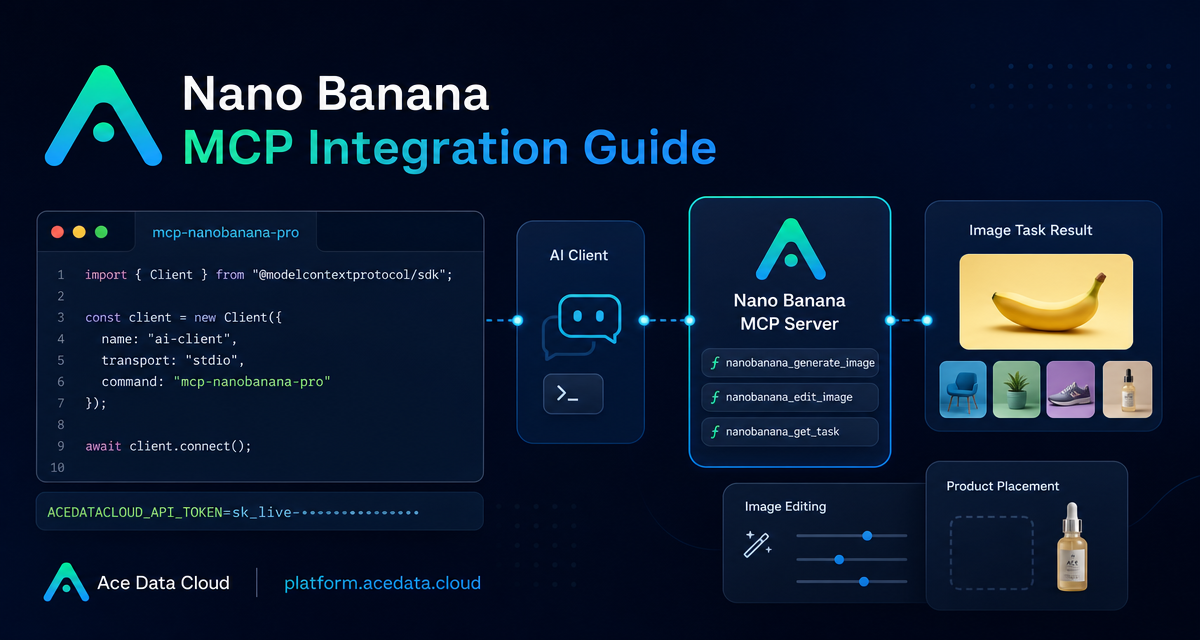
When image generation or editing becomes part of your day-to-day build loop, copying prompts between a chat app, a browser tab, and a design tool gets old quickly. A cleaner pattern is to expose image tools directly inside the AI client where you are already planning, coding, or reviewing assets.
This guide walks through the Nano Banana MCP Server from Ace Data Cloud: what it can do, how to configure it in Claude Desktop, VS Code, or Cursor, and how to think about practical workflows such as prompt-to-image drafts, image edits, product placement, and task tracking.
What you can do
The Nano Banana MCP Server gives an MCP-compatible client access to a small set of image workflow tools. According to the integration guide, the core capabilities are:
- Image generation: create images from text prompts.
- Image editing: modify existing images or combine multiple images.
- Virtual try-on: dress clothing on photos of people.
- Product placement: place products in real scenes.
- Multi-model support: use
nano-banana,nano-banana-2, ornano-banana-pro. - Task querying: monitor image generation progress and retrieve results.
The important thing is not just that these actions exist. It is where they run. Once the MCP server is configured, you can ask for image work from inside an AI client such as Claude Desktop, VS Code, or Cursor instead of switching contexts.
How it works
MCP, or Model Context Protocol, standardizes how AI clients call external tools. In this setup, the client starts a local command called mcp-nanobanana-pro. That command exposes Nano Banana tools to the AI client, and it authenticates to Ace Data Cloud with an ACEDATACLOUD_API_TOKEN environment variable.
The server exposes four tool names in the integration guide:
nanobanana_generate_imagefor generating images from text prompts.nanobanana_edit_imagefor editing or combining existing images.nanobanana_get_taskfor querying a single task.nanobanana_get_tasks_batchfor querying task statuses in batch.
That shape is useful for builders because image jobs are often asynchronous. You ask the client to create or edit an image, then use task lookup to monitor progress and fetch the result when it is ready.
Install the MCP server
The recommended installation path in the guide is a Python package install:
pip install mcp-nanobanana-proIf you prefer source installation, the guide also documents cloning the repository and installing it in editable mode:
git clone https://github.com/AceDataCloud/NanoBananaMCP.git
cd NanoBananaMCP
pip install -e .
After installation, the command you configure in your MCP client is mcp-nanobanana-pro. Keep the API token out of prompts, screenshots, and shared config examples. Put it in the environment block your client uses to start the server.
Configure Claude Desktop
For Claude Desktop, edit the client configuration file. The documented paths are:
- macOS:
~/Library/Application Support/Claude/claude_desktop_config.json - Windows:
%APPDATA%\Claude\claude_desktop_config.json
Add the server under mcpServers:
{
  "mcpServers": {
    "nanobanana": {
      "command": "mcp-nanobanana-pro",
      "env": {
        "ACEDATACLOUD_API_TOKEN": "Your API Token"
      }
    }
  }
}
The guide also supports a uvx configuration, which lets the client run the package without installing it ahead of time:
{
  "mcpServers": {
    "nanobanana": {
      "command": "uvx",
      "args": ["mcp-nanobanana-pro"],
      "env": {
        "ACEDATACLOUD_API_TOKEN": "Your API Token"
      }
    }
  }
}
After saving the file, restart Claude Desktop. If the server starts correctly, you can ask for tasks like generating a watercolor landscape, applying clothing to a person photo, placing a product in a café scene, or using the nano-banana-pro model for a high-quality portrait.
Configure VS Code or Cursor
For project-based work, VS Code and Cursor can use a repository-local MCP configuration. Create .vscode/mcp.json in the project root:
{
  "servers": {
    "nanobanana": {
      "command": "mcp-nanobanana-pro",
      "env": {
        "ACEDATACLOUD_API_TOKEN": "Your API Token"
      }
    }
  }
}
Or use the documented uvx variant:
{
  "servers": {
    "nanobanana": {
      "command": "uvx",
      "args": ["mcp-nanobanana-pro"],
      "env": {
        "ACEDATACLOUD_API_TOKEN": "Your API Token"
      }
    }
  }
}
This setup is especially handy when image work belongs to a codebase: a landing page, an e-commerce prototype, a content pipeline, or a product demo. The model can reason over your implementation context and then call the image tools from the same workspace.
A practical workflow
A simple builder workflow looks like this:
- Describe the asset you need in the AI client, including layout, style, and constraints.
- Ask the client to use
nanobanana_generate_imagefor a first draft. - If you already have source images, ask for
nanobanana_edit_imageto modify or combine them. - Use
nanobanana_get_taskornanobanana_get_tasks_batchto check progress and retrieve completed results. - Review the output, then iterate with narrower prompts instead of starting over.
For example, in a Cursor project for a product page, you might ask: “Place this product in a café scene that matches the page’s warm visual direction, then keep the result suitable for a hero image.” The useful part is that the request lives next to the work. You can refine the image while also editing copy, CSS, or layout code.
Where to go next
If you are already using MCP clients, Nano Banana is a straightforward way to bring image generation and editing into the same loop where you build. Start with one narrow workflow, such as product placement or a landing-page hero image, then add task querying once you are generating multiple assets at a time.
Read the full Ace Data Cloud documentation here: Nano Banana MCP Integration Guide.


Comments
Post a Comment