Getting Started with Nano Banana MCP for Image Generation and Editing in Your IDE
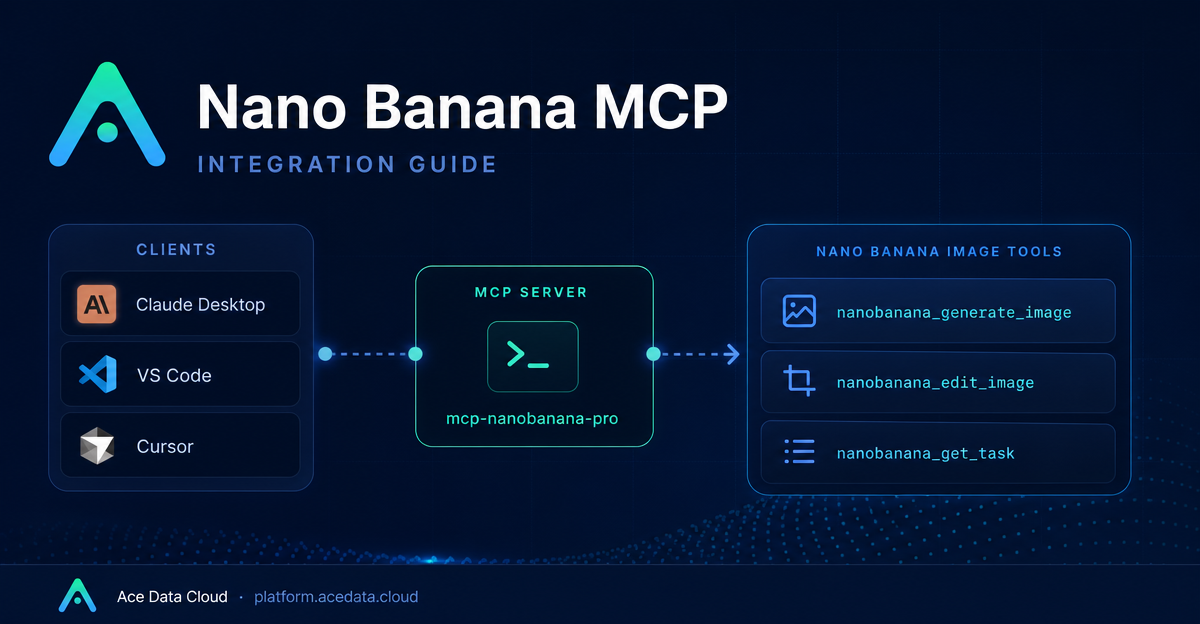
If your image workflow already starts in an AI chat or coding editor, switching tabs to a separate image tool can break the flow. The Nano Banana MCP Server lets you keep that workflow inside clients such as Claude Desktop, VS Code, and Cursor by exposing image generation and editing as MCP tools.
What you can do
The Nano Banana MCP Server is documented as a bridge between MCP-compatible AI clients and Ace Data Cloud's Nano Banana image capabilities. Once configured, the client can call a small set of tools directly from the conversation or editor context.
- Generate images from text prompts with
nanobanana_generate_image. - Edit or combine existing images with
nanobanana_edit_image. - Try visual workflows such as virtual try-on and product placement, where an existing person, garment, or product image is part of the task.
- Track asynchronous work with
nanobanana_get_taskor batch status checks withnanobanana_get_tasks_batch. - Choose among supported models:
nano-banana,nano-banana-2, andnano-banana-pro.
The important detail for builders is that you do not need to design a custom UI first. You can start by wiring the MCP server into the environment where you already write prompts, review files, and iterate on outputs.
How it works
MCP, or Model Context Protocol, gives AI clients a standardized way to call external tools. In this case, the external tool server is installed locally and launched with the mcp-nanobanana-pro command. The server receives an ACEDATACLOUD_API_TOKEN through the client configuration, then exposes Nano Banana tools to the client.
The high-level flow is simple:
- Install the Nano Banana MCP package.
- Add an MCP server entry to your AI client configuration.
- Restart the client so it discovers the server.
- Ask for generation, editing, try-on, product placement, or task status in natural language.
Install the MCP server
The recommended installation path is pip:
pip install mcp-nanobanana-proIf you prefer to work from source, the documentation also shows the repository-based path:
git clone https://github.com/AceDataCloud/NanoBananaMCP.git
cd NanoBananaMCP
pip install -e .
After installation, the server can be started through the mcp-nanobanana-pro command. In normal use, you usually do not run it manually; your MCP client starts it from configuration.
Configure Claude Desktop
For Claude Desktop, edit the configuration file for your operating system:
- macOS:
~/Library/Application Support/Claude/claude_desktop_config.json - Windows:
%APPDATA%\Claude\claude_desktop_config.json
Add an MCP server named nanobanana and pass your Ace Data Cloud token through the env block:
{
  "mcpServers": {
    "nanobanana": {
      "command": "mcp-nanobanana-pro",
      "env": {
        "ACEDATACLOUD_API_TOKEN": "Your API Token"
      }
    }
  }
}
If you use uvx and do not want to install the package ahead of time, the documented alternative is:
{
  "mcpServers": {
    "nanobanana": {
      "command": "uvx",
      "args": ["mcp-nanobanana-pro"],
      "env": {
        "ACEDATACLOUD_API_TOKEN": "Your API Token"
      }
    }
  }
}
Save the file and restart Claude Desktop. After the restart, Nano Banana tools should be available from the conversation.
Configure VS Code or Cursor
For VS Code or Cursor, create a project-level .vscode/mcp.json file. The direct command configuration looks like this:
{
  "servers": {
    "nanobanana": {
      "command": "mcp-nanobanana-pro",
      "env": {
        "ACEDATACLOUD_API_TOKEN": "Your API Token"
      }
    }
  }
}
The uvx version follows the same pattern, but adds args:
{
  "servers": {
    "nanobanana": {
      "command": "uvx",
      "args": ["mcp-nanobanana-pro"],
      "env": {
        "ACEDATACLOUD_API_TOKEN": "Your API Token"
      }
    }
  }
}
This is especially useful when image work is part of a larger builder loop: drafting product screens, iterating on marketing visuals, or preparing assets while you are still inside the repository.
Use it from natural language
Once configured, the documented usage pattern is natural-language driven. Instead of manually calling a separate image API, you can ask the client to use the Nano Banana MCP tools. For example:
- “Help me generate a watercolor landscape painting.”
- “Photoshop this clothing onto this person.”
- “Place this product in a café scene.”
- “Generate a high-quality portrait using the
nano-banana-promodel.”
For longer jobs, use the task tools as part of the workflow. A client can generate or edit an image, then check the task state with nanobanana_get_task. If you are managing several jobs, nanobanana_get_tasks_batch is the documented batch status option.
A practical setup checklist
Before debugging prompts, check the basics:
- The package is installed, or the client can run
uvxwithmcp-nanobanana-pro. - The config key matches the client:
mcpServersfor Claude Desktop,serversfor VS Code or Cursor. - The
ACEDATACLOUD_API_TOKENvalue is present inenv. - The client has been restarted after editing the configuration file.
- You are asking for capabilities the server actually exposes: generation, editing or combining images, virtual try-on, product placement, and task querying.
That is enough to move image generation and editing into the same place where many builders already plan, code, and review work. Read the full Nano Banana MCP Integration Guide for the source configuration snippets and tool list.


Comments
Post a Comment