Getting Started with Nano Banana MCP for Image Workflows in Your IDE
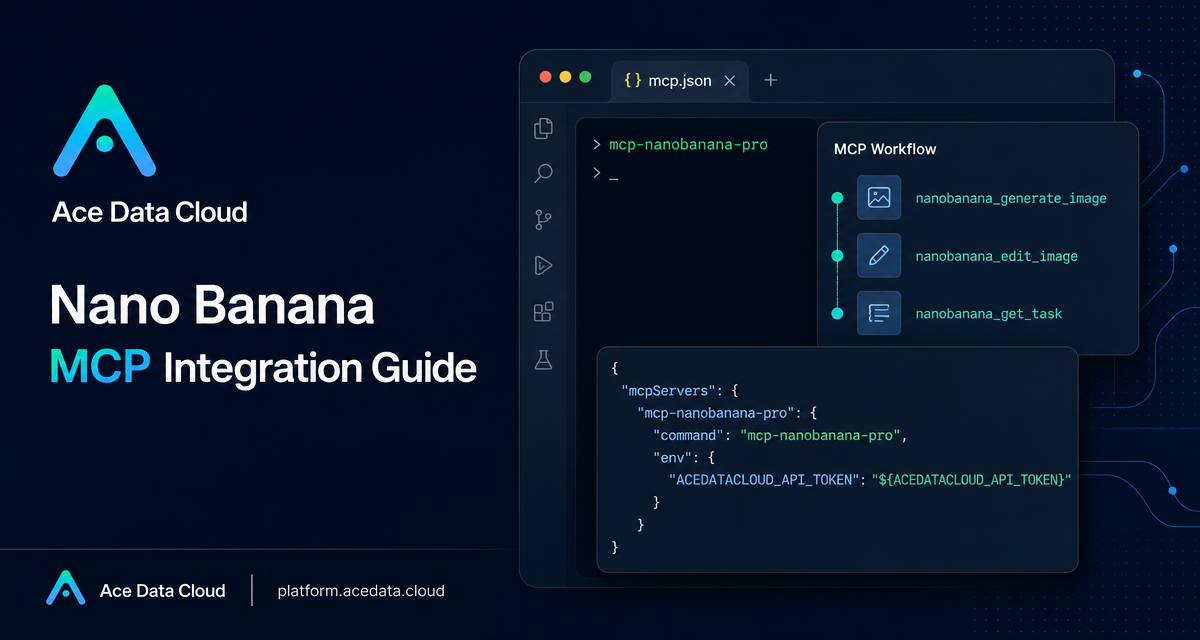
Image work usually starts as a messy handoff: a prompt in chat, a reference image in another tab, a product shot in a folder, and a separate tool for checking whether the job finished. The Nano Banana MCP Server gives builders a cleaner path: expose image generation and editing as tools inside an MCP-capable client such as Claude Desktop, VS Code, or Cursor.
What you can do
The Ace Data Cloud Nano Banana MCP Server is documented as a way to generate and edit AI images directly from AI clients that support MCP. The practical workflows are intentionally concrete:
- Image generation: create images from text prompts.
- Image editing: modify existing images or combine multiple images.
- Virtual try-on: dress clothing on photos of people.
- Product placement: place products into real scenes.
- Multi-model selection: work with
nano-banana,nano-banana-2, andnano-banana-pro. - Task querying: monitor generation progress and retrieve results.
That makes the integration useful when the image task is part of a larger builder workflow: preparing product mockups, iterating on UI illustrations, generating campaign visuals, or asking an assistant to combine prompt writing with asset operations.
How it works
MCP, or Model Context Protocol, lets an AI client call external tools through a standardized interface. In this setup, the client does not need to know every implementation detail of the image service. It only needs a local MCP server command and an environment variable containing your Ace Data Cloud API token.
The documented package command is mcp-nanobanana-pro. After installation, you configure your MCP client to run that command and pass ACEDATACLOUD_API_TOKEN through the server environment. Once the client restarts, Nano Banana tools become available in conversation.
Install the MCP server
The simplest documented installation path is through pip:
pip install mcp-nanobanana-proIf you prefer to work from source, the guide also documents the GitHub repository flow:
git clone https://github.com/AceDataCloud/NanoBananaMCP.git
cd NanoBananaMCP
pip install -e .
After either path, the server can be started with the mcp-nanobanana-pro command. In normal use, your MCP client starts it for you from its configuration file.
Configure Claude Desktop
For Claude Desktop, edit the client configuration file. The documented locations are ~/Library/Application Support/Claude/claude_desktop_config.json on macOS and %APPDATA%\Claude\claude_desktop_config.json on Windows.
Add a nanobanana server entry like this:
{
  "mcpServers": {
    "nanobanana": {
      "command": "mcp-nanobanana-pro",
      "env": {
        "ACEDATACLOUD_API_TOKEN": "Your API Token"
      }
    }
  }
}
If you want the client to run the package through uvx without installing it in advance, the documented alternative is:
{
  "mcpServers": {
    "nanobanana": {
      "command": "uvx",
      "args": ["mcp-nanobanana-pro"],
      "env": {
        "ACEDATACLOUD_API_TOKEN": "Your API Token"
      }
    }
  }
}
Save the file, restart Claude Desktop, and then ask for an image task in natural language. For example, you might ask it to generate a watercolor landscape, place a product in a café scene, or create a high-quality portrait with the nano-banana-pro model.
Configure VS Code or Cursor
For VS Code or Cursor, create .vscode/mcp.json in the project root. The documented direct-command configuration is:
{
  "servers": {
    "nanobanana": {
      "command": "mcp-nanobanana-pro",
      "env": {
        "ACEDATACLOUD_API_TOKEN": "Your API Token"
      }
    }
  }
}
The documented uvx version follows the same shape, with command set to uvx and args set to ["mcp-nanobanana-pro"]:
{
  "servers": {
    "nanobanana": {
      "command": "uvx",
      "args": ["mcp-nanobanana-pro"],
      "env": {
        "ACEDATACLOUD_API_TOKEN": "Your API Token"
      }
    }
  }
}
This is especially handy inside a project repository. You can keep the MCP configuration alongside the work where you actually need images: documentation assets, landing page mockups, demo screenshots, or visual test material.
Know the tools your client will call
The guide lists four Nano Banana MCP tools. Their names are worth knowing because they describe the workflow boundaries:
nanobanana_generate_image: generate images from text prompts.nanobanana_edit_image: edit or combine existing images.nanobanana_get_task: query the status of a single task.nanobanana_get_tasks_batch: query multiple task statuses in batch.
In practice, you do not have to manually call these names every time. The point of using an MCP-capable assistant is that you can describe the outcome: “Place this product in a café scene,” “Photoshop this clothing onto this person,” or “Generate a high-quality portrait using the nano-banana-pro model.” The client can map the request to the available tool.
A practical builder workflow
A useful pattern is to keep the AI assistant responsible for orchestration while you stay responsible for intent and review:
- Provide the visual goal and any reference images.
- Ask the assistant to choose between generation, editing, product placement, or virtual try-on.
- Let the MCP server create or edit the image.
- Use task querying to wait for the result instead of starting duplicate jobs.
- Review the output and ask for a focused follow-up edit if needed.
This keeps the image workflow close to your code or writing environment. You can iterate on a README illustration, a product mockup, or a design exploration without repeatedly switching tools.
Closing notes
The main thing to remember is that Nano Banana MCP is not just another image UI. It is a way to bring image generation, image editing, virtual try-on, product placement, model selection, and task polling into the same assistant workflow you already use for building. Start with the minimal config, confirm the tools appear in your client, then try one narrow task before folding it into a larger workflow.
Read the full Nano Banana MCP Integration Guide for the source configuration snippets and tool list.


Comments
Post a Comment