Getting Started with Nano Banana MCP in Claude Desktop, VS Code, and Cursor
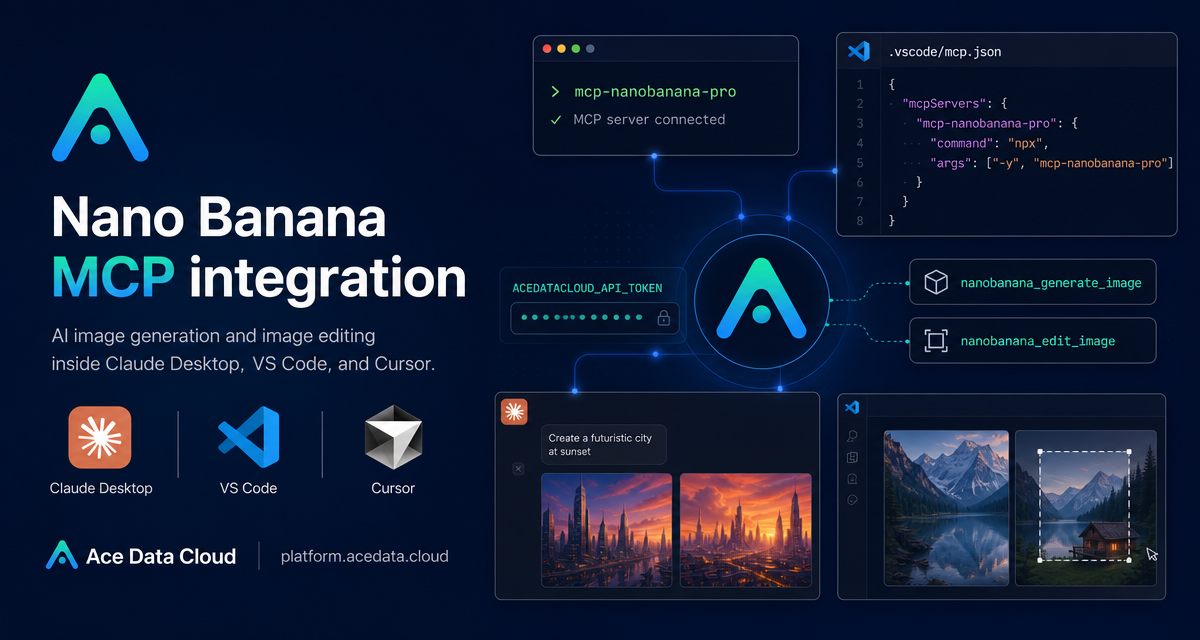
If your image workflow already lives inside an AI coding assistant, switching tabs to generate, edit, download, and re-upload images quickly becomes the slow part. Nano Banana MCP gives builders a cleaner path: expose image generation and editing as MCP tools inside clients such as Claude Desktop, VS Code, and Cursor, then ask for visual work from the same place where you are planning, writing, or coding.
What you can do
The Nano Banana MCP Server described in the Ace Data Cloud documentation focuses on practical image workflows rather than a separate creative dashboard. Once connected, your AI client can call tools for:
- Image generation from text prompts.
- Image editing, including modifying existing images or combining multiple images.
- Virtual try-on, such as dressing clothing on photos of people.
- Product placement, for placing a product into a real scene.
- Multi-model usage with
nano-banana,nano-banana-2, andnano-banana-pro. - Task querying, so you can monitor generation progress and retrieve results.
The important shift is that the interface becomes conversational and tool-based. Instead of teaching every teammate a new UI, you configure an MCP server and let supported clients surface the available image actions.
How it works
MCP, or Model Context Protocol, lets an AI client call external tools through a standardized interface. In this setup, the Nano Banana MCP server runs locally as a command. Your client starts it, passes an Ace Data Cloud API token through an environment variable, and then exposes the server's tools inside the conversation.
The package name used by the documentation is mcp-nanobanana-pro. After installation, the server can be started with the mcp-nanobanana-pro command. The required environment variable is ACEDATACLOUD_API_TOKEN. That token is the only secret you should place in the client configuration, and you should treat the configuration file as sensitive if your machine or repository is shared.
Install the server
The quickest path is to install the package with pip:
pip install mcp-nanobanana-proIf you prefer working from source, the documentation also shows a GitHub-based installation flow:
git clone https://github.com/AceDataCloud/NanoBananaMCP.git
cd NanoBananaMCP
pip install -e .
For most builders, the pip path is enough. Use the source path when you want to inspect the server implementation, modify it locally, or pin your workflow to a checked-out repository.
Configure Claude Desktop
Claude Desktop reads MCP server definitions from a local JSON configuration file. On macOS, the documented path is ~/Library/Application Support/Claude/claude_desktop_config.json. On Windows, it is %APPDATA%\Claude\claude_desktop_config.json.
Add a server entry named nanobanana and point it at the installed command:
{
  "mcpServers": {
    "nanobanana": {
      "command": "mcp-nanobanana-pro",
      "env": {
        "ACEDATACLOUD_API_TOKEN": "Your API Token"
      }
    }
  }
}
If you do not want to install the package in advance, the documentation also supports an uvx configuration:
{
  "mcpServers": {
    "nanobanana": {
      "command": "uvx",
      "args": ["mcp-nanobanana-pro"],
      "env": {
        "ACEDATACLOUD_API_TOKEN": "Your API Token"
      }
    }
  }
}
After saving the file, restart Claude Desktop. The restart matters because the client needs to reload the MCP server list before the Nano Banana tools become available in chat.
Configure VS Code or Cursor
For editor-based workflows, create a project-level .vscode/mcp.json file. This keeps the setup close to the project where you need visual assets, product mockups, or image-editing experiments.
{
  "servers": {
    "nanobanana": {
      "command": "mcp-nanobanana-pro",
      "env": {
        "ACEDATACLOUD_API_TOKEN": "Your API Token"
      }
    }
  }
}
The equivalent uvx version uses the same server name and token, but launches the package through uvx:
{
  "servers": {
    "nanobanana": {
      "command": "uvx",
      "args": ["mcp-nanobanana-pro"],
      "env": {
        "ACEDATACLOUD_API_TOKEN": "Your API Token"
      }
    }
  }
}
This is useful when you want a reproducible editor setup without asking every contributor to manually install the same Python package first.
Use the tools from natural language
Once the server is configured, the available tool names are explicit: nanobanana_generate_image, nanobanana_edit_image, nanobanana_get_task, and nanobanana_get_tasks_batch. In day-to-day use, you usually do not need to type the function names directly. You can ask for the outcome in natural language and let the client choose the right tool.
For example, a designer-developer handoff might look like this:
- “Generate a high-quality portrait using the
nano-banana-promodel.” - “Place this product in a café scene.”
- “Photoshop this clothing onto this person.”
- “Help me generate a watercolor landscape painting.”
The practical advice is to be specific about the asset you want, the source images involved, and the intended use. For editing or product placement, describe what should stay unchanged as carefully as what should change. If a task takes time, use the task-querying tools to check progress instead of starting another generation immediately.
A builder-friendly workflow
A simple workflow is to keep prompts, source-image notes, and generated results in the same project context. In VS Code or Cursor, that might mean drafting product-shot prompts next to a landing page implementation. In Claude Desktop, it might mean working through a campaign concept, generating a few image directions, and then using image editing to refine the best candidate.
The value of MCP is not that it hides the underlying capability; it makes the capability callable from where the work is already happening. Start with one narrow use case, such as product placement or mockup generation, wire the server into your preferred client, and then expand once the feedback loop feels natural.
For the source configuration and the complete tool list, read the Nano Banana MCP Integration Guide.


Comments
Post a Comment