Getting Started with Nano Banana MCP in Claude Desktop, VS Code, and Cursor
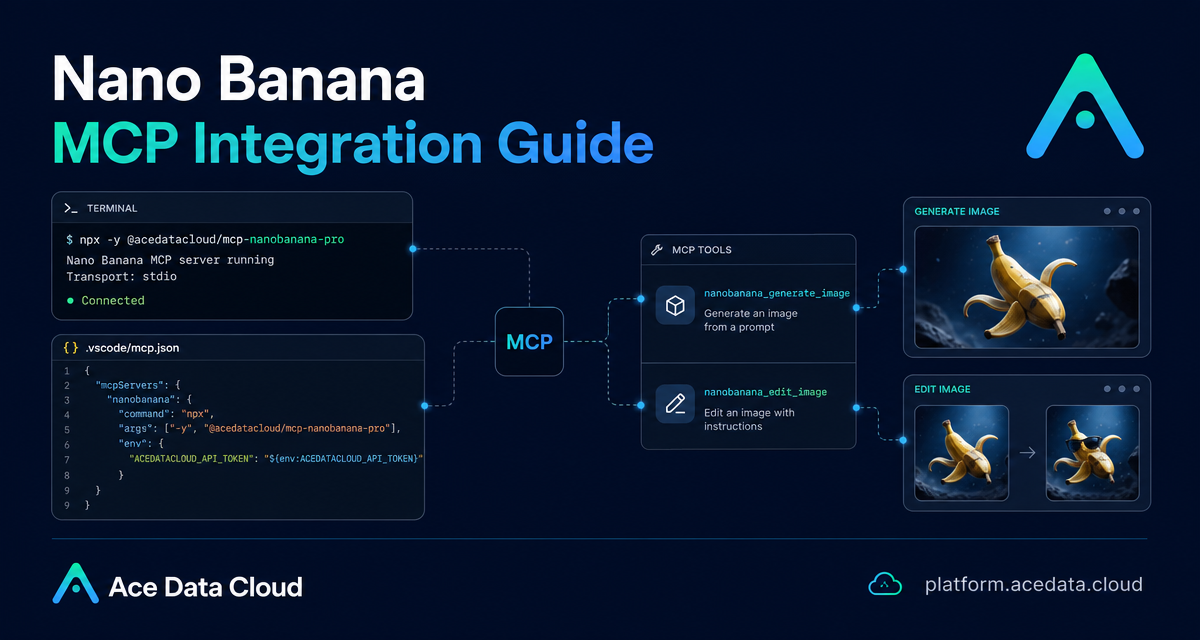
If you already use an AI coding assistant every day, the slow part of image work is often context switching: leaving the IDE, opening a separate image tool, copying prompts around, waiting for results, and then coming back to the project. The Nano Banana MCP Server gives you a cleaner path: expose image generation and editing as MCP tools inside clients such as Claude Desktop, VS Code, and Cursor.
This guide walks through what the integration supports, how the configuration fits together, and a few practical ways to use it in a builder workflow without pretending it is a full design system.
What you can do
The Nano Banana MCP Server is documented as an MCP server provided by Ace Data Cloud for AI image generation and editing. Once configured, an AI client can call standardized tools instead of asking you to manually jump between apps.
- Generate images from text prompts with
nanobanana_generate_image. - Edit or combine existing images with
nanobanana_edit_image. - Use image workflows such as virtual try-on, product placement, and multi-image composition.
- Query task progress with
nanobanana_get_task. - Batch query task statuses with
nanobanana_get_tasks_batch. - Choose among the documented models:
nano-banana,nano-banana-2, andnano-banana-pro.
The important idea is not that MCP invents a new image model interface. It standardizes how your AI client discovers and calls external tools. That means the same project conversation that discusses copy, layouts, assets, and constraints can also ask for an image draft or an edit.
How it works
MCP, or Model Context Protocol, lets AI clients call external tools through a standard interface. In this case, the external tool server is installed locally as mcp-nanobanana-pro. Your client launches that command and passes an Ace Data Cloud API token through the ACEDATACLOUD_API_TOKEN environment variable.
The configuration shape is simple:
- Install the MCP server package, or run it with
uvx. - Add a server entry to the AI client configuration.
- Provide
ACEDATACLOUD_API_TOKENin the server environment. - Restart the client so it can discover the Nano Banana tools.
After that, you can ask the client to generate or edit images in natural language, and the client can route the request to tools such as nanobanana_generate_image or nanobanana_edit_image.
Install the MCP server
The documented recommended installation uses pip:
pip install mcp-nanobanana-proIf you prefer working from source, the document also shows this path:
git clone https://github.com/AceDataCloud/NanoBananaMCP.git
cd NanoBananaMCP
pip install -e .
Once installed, the server can be started with the mcp-nanobanana-pro command. In practice, you normally do not run it manually for day-to-day use; your AI client starts it based on its MCP configuration.
Configure Claude Desktop
For Claude Desktop, edit the configuration file for your operating system:
- macOS:
~/Library/Application Support/Claude/claude_desktop_config.json - Windows:
%APPDATA%\Claude\claude_desktop_config.json
Add the Nano Banana server under mcpServers:
{
  "mcpServers": {
    "nanobanana": {
      "command": "mcp-nanobanana-pro",
      "env": {
        "ACEDATACLOUD_API_TOKEN": "Your API Token"
      }
    }
  }
}
If you use uvx, you can avoid installing the package ahead of time:
{
  "mcpServers": {
    "nanobanana": {
      "command": "uvx",
      "args": ["mcp-nanobanana-pro"],
      "env": {
        "ACEDATACLOUD_API_TOKEN": "Your API Token"
      }
    }
  }
}
Save the file and restart Claude Desktop. If the server starts correctly, Nano Banana tools become available in the conversation.
Configure VS Code or Cursor
For VS Code or Cursor, create .vscode/mcp.json in your project root. The documented configuration uses a servers object instead of Claude Desktop’s mcpServers object:
{
  "servers": {
    "nanobanana": {
      "command": "mcp-nanobanana-pro",
      "env": {
        "ACEDATACLOUD_API_TOKEN": "Your API Token"
      }
    }
  }
}
The uvx version is similar:
{
  "servers": {
    "nanobanana": {
      "command": "uvx",
      "args": ["mcp-nanobanana-pro"],
      "env": {
        "ACEDATACLOUD_API_TOKEN": "Your API Token"
      }
    }
  }
}
This is useful when image tasks are tied to a codebase: a landing page, a product mockup, a docs illustration, or a test asset that should live near the project rather than in a separate creative tool.
Practical workflows
Generate a first visual direction
Once the MCP server is connected, you can ask your client for something like: “Help me generate a watercolor landscape painting.” For product work, replace that with a more constrained prompt: describe the subject, style, composition, and where the image will be used.
Edit or combine existing images
The documented nanobanana_edit_image tool supports editing or combining existing images. That makes it a good fit for iterative tasks: adjust a product shot, combine references, or ask the model to place an object into a scene.
Check task status instead of guessing
Image work is often asynchronous. The server exposes nanobanana_get_task for a single task and nanobanana_get_tasks_batch for multiple tasks. In a real workflow, that means your assistant can monitor progress and return results when they are ready instead of losing track of generated assets.
A small builder checklist
- Keep your
ACEDATACLOUD_API_TOKENout of source control. - Use project-level
.vscode/mcp.jsononly when the whole project should know about the server. - Start with
nano-bananaornano-banana-2for exploration, and reservenano-banana-profor prompts where quality matters. - Use task querying tools when building repeatable image workflows rather than one-off experiments.
Nano Banana MCP is most useful when you treat image generation as part of the development loop: ask, inspect, edit, and keep moving inside the same AI client. For the full setup reference, see the Nano Banana MCP Integration Guide.


Comments
Post a Comment