Getting Started with Nano Banana MCP in Claude Desktop, VS Code, and Cursor
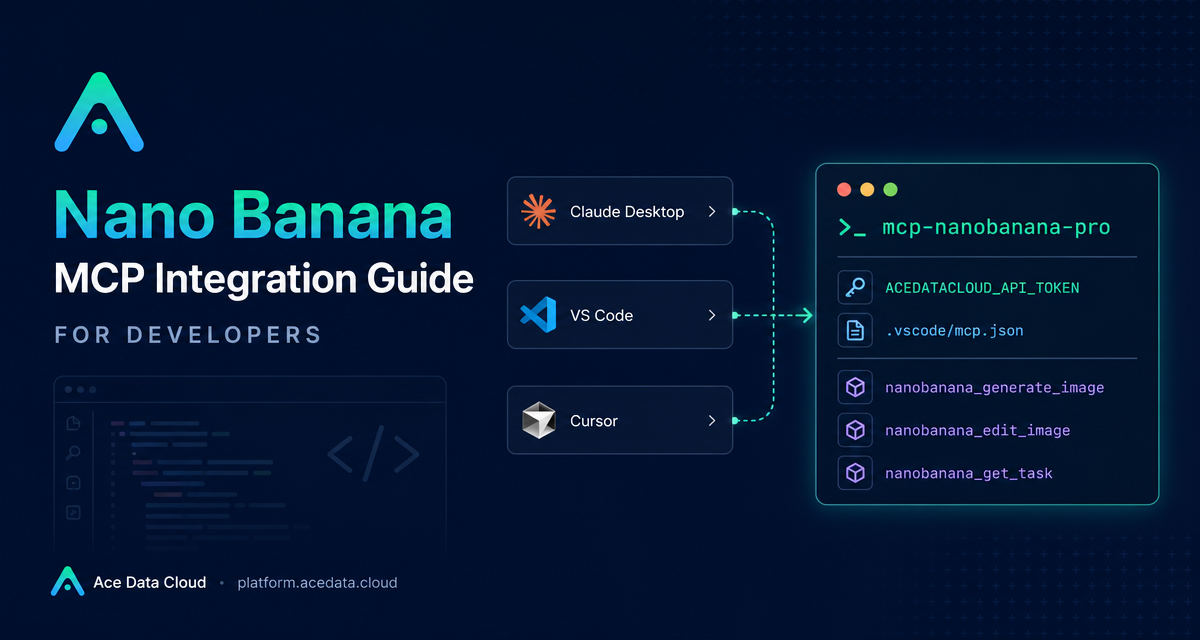
If your image workflow starts in an AI chat but ends in a separate image tool, MCP gives you a cleaner path: keep the conversation, the prompt, the source images, and the result-checking loop inside your development client.
This guide walks through the Nano Banana MCP Server from Ace Data Cloud as a practical setup for generating and editing images in Claude Desktop, VS Code, or Cursor. The goal is not to replace your design process; it is to make image generation and image-editing tasks callable from the same place where you are already planning, coding, and documenting.
What you can do
The Nano Banana MCP Server exposes image tools to MCP-compatible clients. According to the public guide, the server supports several common builder workflows:
- Image generation: create images from text prompts.
- Image editing: modify an existing image or combine multiple images.
- Virtual try-on: place clothing onto photos of people.
- Product placement: place products into real scenes.
- Multi-model use: work with
nano-banana,nano-banana-2, andnano-banana-pro. - Task querying: monitor progress and retrieve generation results.
That set of capabilities is useful when the image request is part of a larger workflow: drafting product-page assets, iterating on a UI illustration, preparing documentation graphics, or testing prompt variants with a teammate in the same project context.
How it works
MCP, short for Model Context Protocol, is a standard way for AI clients to call external tools. Instead of asking a model to describe an image workflow and then manually copying that instruction into another application, you configure an MCP server. The client can then call tools provided by that server.
For Nano Banana, the server command is mcp-nanobanana-pro. You provide an Ace Data Cloud API token through the environment variable ACEDATACLOUD_API_TOKEN. Once the server is configured and the client is restarted, the client can access Nano Banana tools directly in conversation.
Install the server
The guide gives two installation paths. The recommended path is a standard Python package install:
pip install mcp-nanobanana-proIf you prefer source installation, you can clone the repository and install it in editable mode:
git clone https://github.com/AceDataCloud/NanoBananaMCP.git
cd NanoBananaMCP
pip install -e .
After installation, the executable command you configure in your MCP client is mcp-nanobanana-pro.
Configure Claude Desktop
For Claude Desktop, edit the Claude configuration file. On macOS the path is ~/Library/Application Support/Claude/claude_desktop_config.json. On Windows it is %APPDATA%\Claude\claude_desktop_config.json.
Add an MCP server entry like this:
{
  "mcpServers": {
    "nanobanana": {
      "command": "mcp-nanobanana-pro",
      "env": {
        "ACEDATACLOUD_API_TOKEN": "Your API Token"
      }
    }
  }
}
If you use uvx, the guide also supports a no-preinstall style configuration:
{
  "mcpServers": {
    "nanobanana": {
      "command": "uvx",
      "args": ["mcp-nanobanana-pro"],
      "env": {
        "ACEDATACLOUD_API_TOKEN": "Your API Token"
      }
    }
  }
}
Save the file, restart Claude Desktop, and the Nano Banana tools should become available to the conversation.
Configure VS Code or Cursor
For VS Code or Cursor, create .vscode/mcp.json in the project root. This keeps the MCP configuration close to the project that needs the image workflow.
{
  "servers": {
    "nanobanana": {
      "command": "mcp-nanobanana-pro",
      "env": {
        "ACEDATACLOUD_API_TOKEN": "Your API Token"
      }
    }
  }
}
The same uvx pattern is supported here as well:
{
  "servers": {
    "nanobanana": {
      "command": "uvx",
      "args": ["mcp-nanobanana-pro"],
      "env": {
        "ACEDATACLOUD_API_TOKEN": "Your API Token"
      }
    }
  }
}
Use the tools in a real workflow
Once the server is connected, the public guide lists four available tools:
nanobanana_generate_imagefor text-to-image generation.nanobanana_edit_imagefor editing or combining existing images.nanobanana_get_taskfor checking one task.nanobanana_get_tasks_batchfor checking multiple tasks.
A practical builder workflow might look like this: ask the client to generate a product-scene concept, review the result, then ask it to place the product in a different scene or combine it with another reference image. For longer-running generations, use the task-query tools to monitor completion instead of restarting the request.
Here are example natural-language prompts that match the documented capabilities:
- “Generate a watercolor landscape painting.”
- “Photoshop this clothing onto this person.”
- “Place this product in a café scene.”
- “Generate a high-quality portrait using the
nano-banana-promodel.”
A few implementation notes
Treat ACEDATACLOUD_API_TOKEN like any other secret: keep it in the MCP environment block and avoid committing it to a repository. If you use a project-local .vscode/mcp.json, make sure your team has a shared convention for supplying tokens safely.
Also, design your workflow around tasks. Image generation and editing often involve waiting for results, so a clean loop is: submit the generation or edit, query with nanobanana_get_task, and only iterate once the result is available. That keeps the conversation deterministic and avoids duplicate generations.
For the full setup reference, read the Nano Banana MCP Integration Guide.


Comments
Post a Comment