Getting Started with Nano Banana MCP in Claude Desktop, VS Code, and Cursor
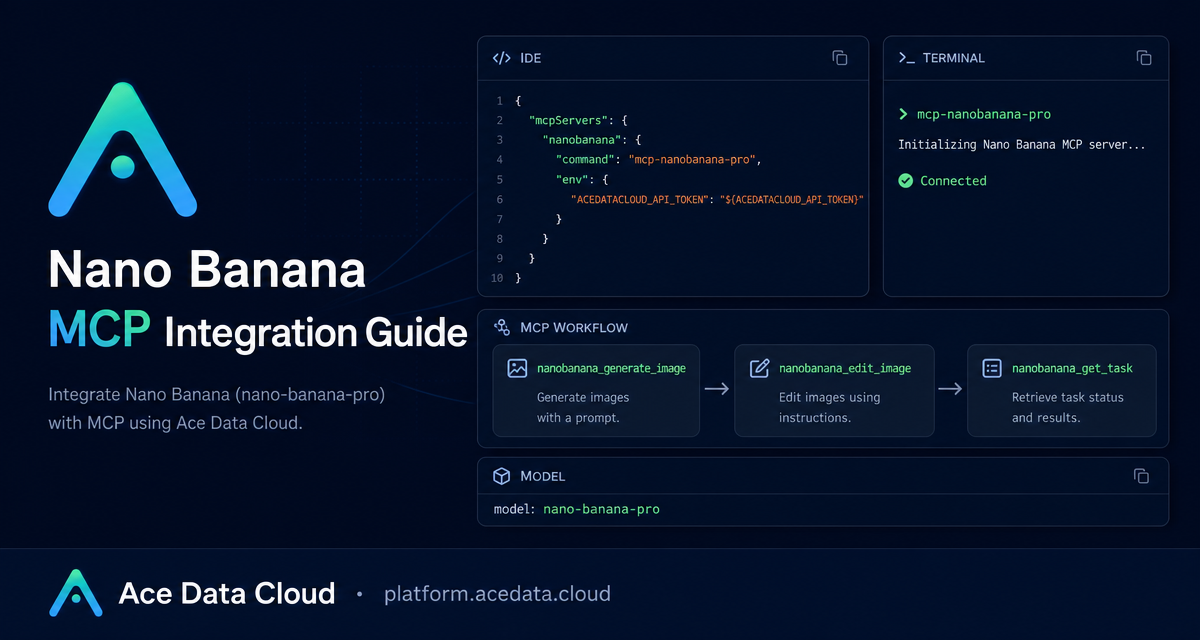
When image work moves from a browser tab into your editor or AI client, the biggest win is not speed; it is staying in the same workflow while you ask for a generation, edit, product placement, or try-on and then inspect the result.
What you can do
The Nano Banana MCP Server from Ace Data Cloud connects image generation and image editing tools to MCP-capable clients such as Claude Desktop, VS Code, and Cursor. Once configured, you can ask your assistant to create or modify images directly from the conversation instead of switching to a separate web UI.
The documented tool surface is intentionally small:
nanobanana_generate_imagegenerates images from text prompts.nanobanana_edit_imageedits or combines existing images.nanobanana_get_taskchecks the status of one task.nanobanana_get_tasks_batchchecks multiple task statuses in a batch.
The guide also describes several practical image workflows: text-to-image generation, image editing, virtual try-on, product placement, and multi-model usage with nano-banana, nano-banana-2, and nano-banana-pro.
How it works
MCP, or Model Context Protocol, gives an AI client a standard way to call external tools. In this setup, the local MCP server is started by your client, receives tool calls from the assistant, and uses your Ace Data Cloud API token through the ACEDATACLOUD_API_TOKEN environment variable.
That detail matters operationally. Your token belongs in the MCP server environment, not inside a prompt. You configure it once in the client config file, restart the client, and then use natural language to request image tasks.
Install the MCP server
The recommended installation path in the documentation is a Python package:
pip install mcp-nanobanana-proAfter installation, the server can be launched with the mcp-nanobanana-pro command. If you prefer installing from source, the documented repository flow is:
git clone https://github.com/AceDataCloud/NanoBananaMCP.git
cd NanoBananaMCP
pip install -e .
Use the package install for most projects. Use the source install when you want to inspect the implementation, pin your own fork, or test local changes.
Configure Claude Desktop
For Claude Desktop, edit the client configuration file. On macOS, the documented path is ~/Library/Application Support/Claude/claude_desktop_config.json. On Windows, it is %APPDATA%\Claude\claude_desktop_config.json.
Add a server entry under mcpServers:
{
  "mcpServers": {
    "nanobanana": {
      "command": "mcp-nanobanana-pro",
      "env": {
        "ACEDATACLOUD_API_TOKEN": "Your API Token"
      }
    }
  }
}
If you use uvx, you can avoid a prior package install and let the client run the package command directly:
{
  "mcpServers": {
    "nanobanana": {
      "command": "uvx",
      "args": ["mcp-nanobanana-pro"],
      "env": {
        "ACEDATACLOUD_API_TOKEN": "Your API Token"
      }
    }
  }
}
After saving the file, restart Claude Desktop. The restart step is easy to skip, but it is what causes the client to reload the MCP server list.
Configure VS Code or Cursor
For VS Code or Cursor, create .vscode/mcp.json in the project root. The documented shape uses servers instead of mcpServers:
{
  "servers": {
    "nanobanana": {
      "command": "mcp-nanobanana-pro",
      "env": {
        "ACEDATACLOUD_API_TOKEN": "Your API Token"
      }
    }
  }
}
The uvx variant follows the same pattern:
{
  "servers": {
    "nanobanana": {
      "command": "uvx",
      "args": ["mcp-nanobanana-pro"],
      "env": {
        "ACEDATACLOUD_API_TOKEN": "Your API Token"
      }
    }
  }
}
This project-level config is useful when image generation is part of a repo workflow: design fixtures, product mockups, content assets, or documentation images can live beside the code that describes them.
Use it like a builder
Once the server is available, the documented usage model is natural language inside the AI client. A few examples from the guide map neatly to everyday builder tasks:
- Ask for a watercolor landscape when you need a placeholder concept image.
- Ask to place a product in a café scene when testing ecommerce visuals.
- Ask to photoshop clothing onto a person for a virtual try-on workflow.
- Ask for a high-quality portrait using the
nano-banana-promodel when quality matters more than iteration speed.
Behind the scenes, long-running image work should be treated as tasks. Use the query tools, nanobanana_get_task or nanobanana_get_tasks_batch, to monitor progress and retrieve results rather than submitting the same request repeatedly.
A simple workflow to try
- Install
mcp-nanobanana-pro. - Add the MCP server configuration to Claude Desktop, VS Code, or Cursor.
- Put your Ace Data Cloud token in
ACEDATACLOUD_API_TOKEN. - Restart the client.
- Ask the assistant for a concrete image task, such as product placement or an edit that combines existing images.
- Use the task query tools when the client needs to check progress.
The practical value is that your image workflow becomes part of the same conversation where you already refine prompts, inspect assets, and document decisions. Start small: wire the MCP server into one client, run one generation, then add editing or product placement once the task loop feels reliable.
Read the full setup notes in the Nano Banana MCP Integration Guide.


Comments
Post a Comment