Getting Started with Claude Code in the Terminal via Ace Data Cloud
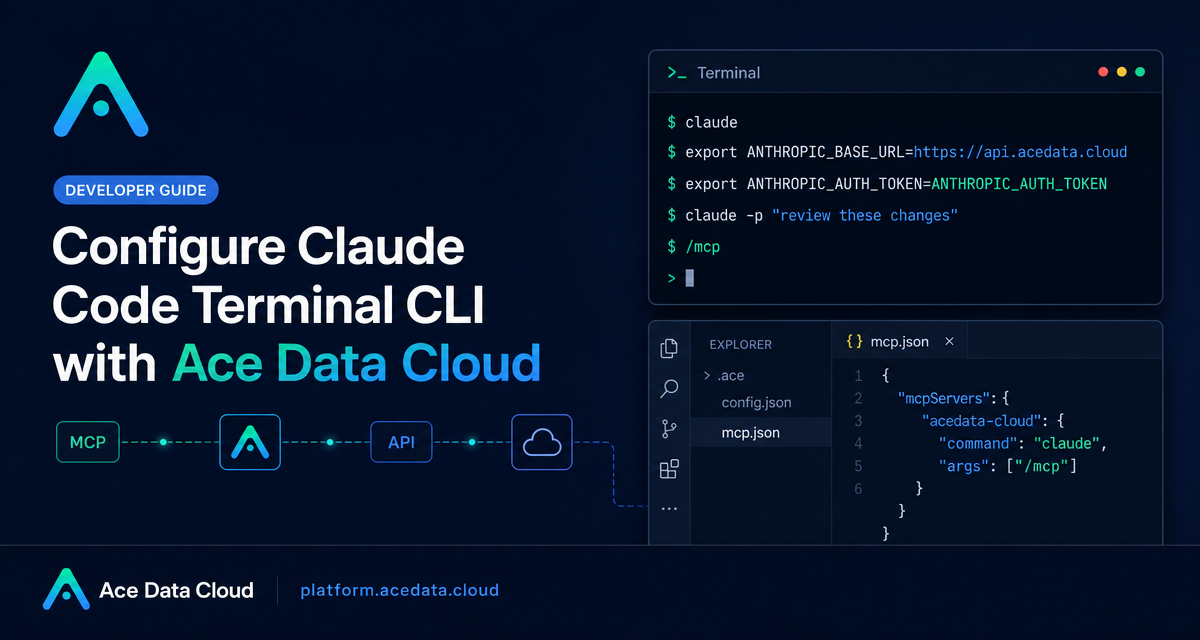
When you want an AI coding assistant to work with the exact files, logs, and diffs already sitting in your terminal, a CLI-first workflow is often the least distracting way to do it.
What you can do
The Claude Code terminal CLI lets you open an interactive coding session from a project directory, run one-off prompts, continue a previous conversation, ask for code review from a diff, and keep project-specific instructions in a CLAUDE.md file. With Ace Data Cloud configured as the API base URL, the same claude command can route requests through https://api.acedata.cloud using your Ace Data Cloud API token.
In practice, that means you can stay inside the shell while asking the agent to:
- Explain what a repository does before you start editing it.
- Fix a specific bug, such as empty form submissions.
- Write unit tests for existing functions.
- Review a
git diffbefore you open a pull request. - Create a commit message with
claude commit.
How it works
Claude Code reads its runtime configuration from environment variables or from ~/.claude/settings.json. The two key fields for this setup are ANTHROPIC_AUTH_TOKEN and ANTHROPIC_BASE_URL. The token is your Ace Data Cloud API token, and the base URL is https://api.acedata.cloud.
The CLI itself still behaves like Claude Code: you can run claude for an interactive session, claude "task" for a one-time task, or claude -p "query" when you want the command to answer and exit. In interactive mode, built-in commands such as /help, /clear, /config, /model, /mcp, /compact, /memory, and /login are available.
1. Install the CLI
Claude Code supports macOS, Linux, Windows, and WSL. The native installer handles dependencies automatically, so Node.js is not required for the native installation path.
On macOS, Linux, or WSL, install it with:
curl -fsSL https://claude.ai/install.sh | bashOn Windows PowerShell, the documented install command is:
irm https://claude.ai/install.ps1 | iexOn Windows CMD, use:
curl -fsSL https://claude.ai/install.cmd -o install.cmd && install.cmd && del install.cmdIf you prefer package managers, the guide also lists brew install claude-code for macOS/Linux and winget install Claude.ClaudeCode for Windows.
2. Point Claude Code at Ace Data Cloud
After installation, Claude Code may prompt you to sign in to an Anthropic account by default. For the Ace Data Cloud path, configure the CLI with environment variables instead. Add the following to your shell configuration file, such as ~/.zshrc, ~/.bashrc, or ~/.bash_profile:
# Ace Data Cloud - Claude Code Proxy Configuration
export ANTHROPIC_AUTH_TOKEN="{token}"
export ANTHROPIC_BASE_URL="https://api.acedata.cloud"
Then reload your shell configuration:
source ~/.zshrc # or source ~/.bashrcReplace {token} with the API token from the Ace Data Cloud console. According to the documentation, ANTHROPIC_AUTH_TOKEN is used as the value for the custom authorization header, and the Bearer prefix is added automatically when the request is sent.
If you would rather keep these variables scoped only to Claude Code, create or edit ~/.claude/settings.json:
{
  "env": {
    "ANTHROPIC_AUTH_TOKEN": "{token}",
    "ANTHROPIC_BASE_URL": "https://api.acedata.cloud"
  }
}
3. Start with a small project task
Navigate into a repository and open an interactive session:
cd /path/to/your/project
claude
From there, ask questions in normal language. A good first prompt is intentionally simple:
what does this project do?Once the assistant has enough context, move to concrete work:
there's a bug where users can submit empty forms - fix it
write unit tests for the calculator functions
refactor the authentication module to use async/await
For one-off commands, skip the interactive UI:
claude "fix build error"
claude -p "explain this function"
Two useful continuity commands are claude -c, which continues the most recent conversation in the current directory, and claude -r, which restores the previous conversation.
4. Use Unix pipes for reviews and automation
The CLI becomes especially practical when you combine it with normal shell tools. For example, the documented workflow for reviewing local changes is:
git diff main | claude -p "review these changes"You can also pipe logs into Claude Code:
tail -f app.log | claude -p "notify me if an anomaly is detected"For repetitive repository tasks, the guide also shows a direct prompt such as:
claude -p "translate any new text strings to French and create a PR"These examples are worth treating as patterns rather than magic incantations: provide narrow input through stdin, ask for a specific result, and keep the command easy to inspect.
5. Add project memory with CLAUDE.md
For teams, the most important quality-of-life improvement is a CLAUDE.md file at the project root. Claude Code automatically loads it at startup, so it is a good place to keep architecture notes and coding standards.
# Project Description
This is a full-stack project using Django + Vue.js.

## Coding Standards
- Use Python 3.12
- Follow PEP 8 coding style
- All APIs need to have unit tests
Keep this file short and operational. The goal is not to document everything; it is to give the agent the context it needs before it starts editing.
Troubleshooting checklist
If the CLI cannot connect, the source guide recommends checking that ~/.claude/config.json contains {"primaryApiKey": "self"}, confirming your environment variables, validating that your API token is still correct in the console, and restarting the terminal. If claude is not found after installation, reopen the terminal, inspect $PATH, or reinstall with the native installer.
The useful part of this setup is that it does not ask you to leave your existing development loop. You install the CLI, point it at the Ace Data Cloud base URL, and then decide whether each job belongs in an interactive session, a one-off command, or a pipe from a real development artifact like a diff or a log stream.
Read the full source guide in the Claude Code Terminal CLI documentation.


Comments
Post a Comment