Getting Started with AceData Cloud MCP: A Practical Guide for AI-Assisted Platform Work
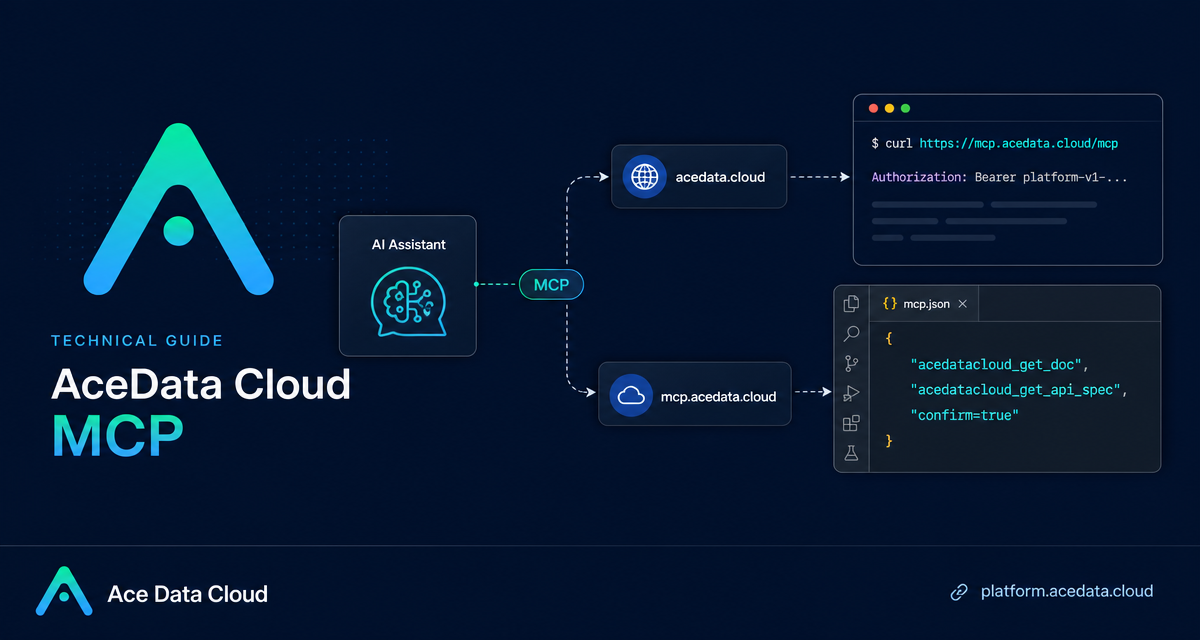
When you are building with AI tools, the slow part is often not writing code—it is checking the right account state, finding the correct API document, confirming a parameter, or remembering which key belongs to which service.
AceData Cloud MCP gives your AI assistant a safe, structured way to answer those operational questions from the platform itself. Instead of copying links between a browser and your editor, you can connect an MCP server once and let the assistant call documented tools for balances, usage, services, API specs, credentials, model catalogs, and platform documents.
What you can do
The AceData Cloud MCP is a unified MCP server exposed as the PyPI package mcp-acedatacloud. It is not a media generation endpoint. The documentation is explicit about its role: this MCP uses the management and console interface at platform.acedata.cloud, while service-specific MCPs such as Suno, Midjourney, or Serp call api.acedata.cloud for generation workflows.
That distinction matters. In practice, this MCP is useful when your assistant needs to:
- Check remaining credits with
acedatacloud_get_balance. - List subscriptions with
acedatacloud_list_applications. - Inspect recent API calls through
acedatacloud_list_usage. - Summarize API consumption using
acedatacloud_usage_summary. - Search public documentation with
acedatacloud_search_docs. - Fetch a full document by UUID with
acedatacloud_get_doc. - Read an OpenAPI specification and pricing for an endpoint with
acedatacloud_get_api_spec.
For a builder, this turns the assistant into a small platform operator: it can inspect facts, point to the right interface, and explain the next step without guessing.
How it works
The server is available in two connection modes: a hosted HTTP endpoint and a local stdio command. Both require a platform token. The token starts with platform- and is different from the service API token used for api.acedata.cloud. The document warns that using the service-billed token against management interfaces will return 401.
The hosted MCP endpoint is:
https://mcp.acedata.cloud/mcpA general JSON client that supports custom headers can connect like this:
{
  "mcpServers": {
    "acedatacloud": {
      "url": "https://mcp.acedata.cloud/mcp",
      "headers": { "Authorization": "Bearer platform-v1-xxxxxxxx" }
    }
  }
}
If you prefer local stdio, install the package or run it with uvx:
pip install mcp-acedatacloud
# Or run without installation:
uvx mcp-acedatacloud
Connecting from Claude Desktop or VS Code
For stdio-based clients such as Claude Desktop or VS Code, the documented configuration uses the mcp-acedatacloud command and passes the token through the ACEDATACLOUD_PLATFORM_TOKEN environment variable:
{
  "mcpServers": {
    "acedatacloud": {
      "command": "mcp-acedatacloud",
      "env": {
        "ACEDATACLOUD_PLATFORM_TOKEN": "platform-v1-xxxxxxxx"
      }
    }
  }
}
Once connected, you do not need to memorize every tool name. Ask a concrete question, and the assistant can route it to the relevant tool. For example: “How many credits do I have left?”, “Which API keys have spending limits?”, or “Find the OpenAPI spec for a service endpoint and show me a Python request.”
A practical workflow: from question to verified API usage
Here is a workflow I would actually use while building:
- Ask the assistant to search the documentation with
acedatacloud_search_docs. - Ask it to open the full page using
acedatacloud_get_doc. - If the page refers to an API endpoint, ask for the exact OpenAPI definition with
acedatacloud_get_api_spec. - Before running anything expensive, ask for current balance or recent spend with
acedatacloud_get_balanceoracedatacloud_usage_summary.
This pattern keeps the assistant grounded. It is reading the current platform directory and documents instead of relying on stale memory or a copied snippet from an old project.
Handling write operations safely
The MCP also exposes write operations, but the document describes an explicit confirmation model. Tools such as acedatacloud_create_credential, acedatacloud_delete_credential, acedatacloud_create_order, acedatacloud_pay_order, acedatacloud_create_platform_token, and acedatacloud_delete_platform_token require confirm=true.
If a write operation is called without confirm=true, it returns a dry-run preview and makes no changes. That is the right default for AI-assisted operations: read freely, preview risky changes, and only mutate state when the user or automation policy is explicit.
When this MCP is the right tool
Use AceData Cloud MCP when the task is about platform knowledge or account state: checking usage, listing credentials, comparing model catalog entries, reading service pricing, discovering APIs, or retrieving documents. Use a service-specific MCP when the task is to generate music, images, video, search results, or other service outputs.
One small note from the documentation is worth remembering: amounts such as remaining_amount, used_amount, and totals are expressed in Credits, not dollars. Newly created credentials and platform tokens are fully returned only once at creation, so save them immediately.
If your AI assistant already lives in your editor or desktop, connecting this MCP is a practical way to make it less of a generic chatbot and more of a reliable platform companion. Read the full AceData Cloud MCP documentation here: AceData Cloud MCP guide.


Comments
Post a Comment