How to Build Speech-to-Text Workflows with Ace Data Cloud’s OpenAI-Compatible Transcriptions API
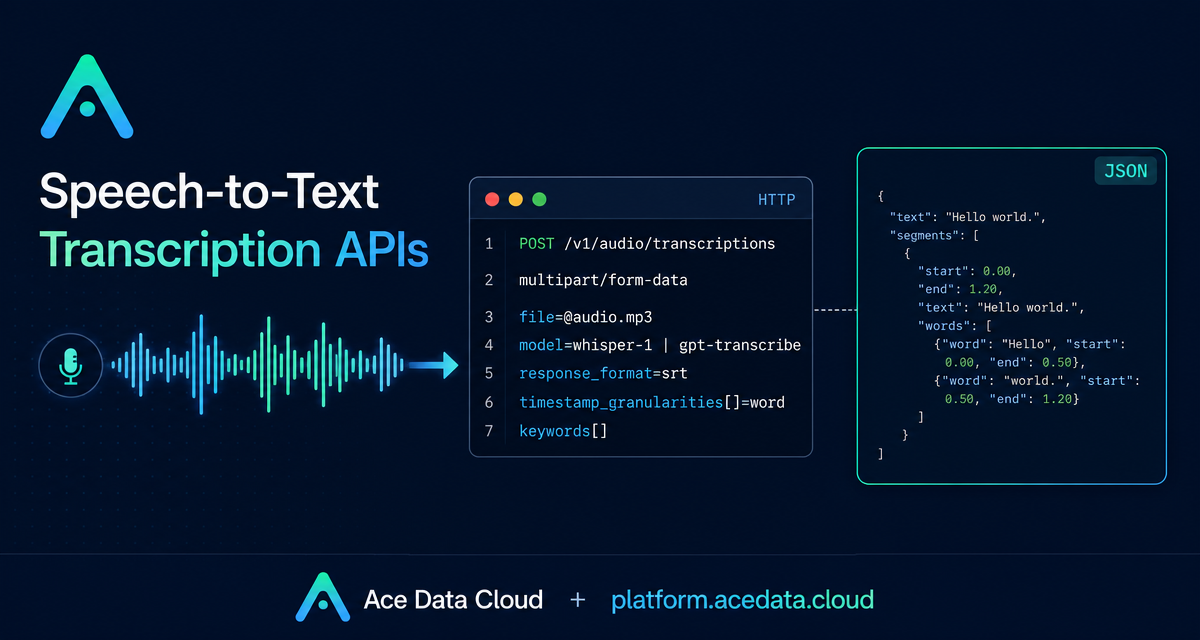
If you are building a meeting bot, a support QA pipeline, or a media indexing tool, the hard part is rarely getting one transcript. The hard part is making transcription dependable inside a product flow: upload the audio, choose the right output, preserve important terms, and handle failures without guesswork.
Ace Data Cloud provides an OpenAI-compatible speech recognition API at POST https://api.acedata.cloud/v1/audio/transcriptions. Existing OpenAI SDK code can point base_url to https://api.acedata.cloud/v1 and use an AceData Token as the API key.
What you can do
The endpoint accepts multipart/form-data and returns the transcription result synchronously. That makes it useful as a single step in builder workflows such as meeting notes, video subtitles, podcast search, or support-call review.
- Transcribe
flac,mp3,mp4,mpeg,mpga,m4a,ogg,wav, andwebmfiles. - Create subtitle output with
response_format=srtorresponse_format=vttonwhisper-1. - Request word timing with
response_format=verbose_jsonandtimestamp_granularities[]=word. - Use
gpt-transcribewithlanguages[]orkeywords[]when candidate languages or proper-noun hints matter.
How it works
The request URL is POST https://api.acedata.cloud/v1/audio/transcriptions, with POST /openai/audio/transcriptions also documented as an alias. Authentication uses Authorization: Bearer {token}. The only required field is file; each file can be up to 25 MB.
The optional model field accepts whisper-1, which is the default, or gpt-transcribe. Choose whisper-1 when you need subtitle output or word-level timestamps. Choose gpt-transcribe for normal transcript generation when keywords[] can help with product names, speaker names, or domain terms.
You can provide language as an ISO-639-1 code such as en or zh. For gpt-transcribe, languages[] can list candidate languages, but it is mutually exclusive with language.
Start with a minimal transcription request
A basic call needs only the audio file and, optionally, the model. This is the smallest useful integration test because it verifies authentication, upload handling, and the response shape.
curl -X POST 'https://api.acedata.cloud/v1/audio/transcriptions' \
  -H 'authorization: Bearer {token}' \
  -F file=@audio.mp3 \
  -F model=whisper-1
The documented JSON response contains a text field:
{
  "text": "Ace Data Cloud Platform is testing the speech recognition endpoint. The quick brown fox jumps over the lazy dog."
}
Because the request can take time, especially for longer files, the documentation recommends a client timeout of at least 300 seconds.
Generate subtitles directly
If your next step is a video editor or learning product, ask for subtitles instead of plain JSON. With whisper-1, use response_format=srt or response_format=vtt.
curl -X POST 'https://api.acedata.cloud/v1/audio/transcriptions' \
  -H 'authorization: Bearer {token}' \
  -F file=@audio.mp3 \
  -F model=whisper-1 \
  -F response_format=srt \
  -o subtitle.srt
1
00:00:00,000 --> 00:00:03,800
Ace Data Cloud Platform is testing the speech recognition endpoint.
2
00:00:03,800 --> 00:00:06,280
The quick brown fox jumps over the lazy dog.Model choice matters here: gpt-transcribe supports only json and text for response_format, so subtitle files are a whisper-1 use case.
Use word-level timestamps for alignment
For waveform highlighting, clip search, or quote extraction, ask for verbose_json and word timing.
curl -X POST 'https://api.acedata.cloud/v1/audio/transcriptions' \
  -H 'authorization: Bearer {token}' \
  -F file=@audio.mp3 \
  -F model=whisper-1 \
  -F response_format=verbose_json \
  -F 'timestamp_granularities[]=word'
{
"task": "transcribe",
"language": "english",
"duration": 6.29,
"text": "Ace Data Cloud Platform is testing the speech recognition endpoint.",
"words": [
{ "word": "Ace", "start": 0.0, "end": 0.32 },
{ "word": "Data", "start": 0.32, "end": 0.54 },
{ "word": "Cloud", "start": 0.54, "end": 0.86 }
]
}Use the official SDK by changing the base URL
The Python version can stay small because the API follows the OpenAI transcription shape.
from openai import OpenAI

client = OpenAI(base_url="https://api.acedata.cloud/v1", api_key="{token}")

with open("audio.mp3", "rb") as f:
    result = client.audio.transcriptions.create(model="whisper-1", file=f)

print(result.text)
For production use, validate file size before upload and keep model-specific fields separate. The documented errors include 400 bad_request, 401 authentication_failed, 403 used_up, 413 request_too_large, 429 too_many_requests, and 500 api_error.
Closing notes
A good wrapper function should accept a file path, choose whisper-1 or gpt-transcribe based on the needed output, submit multipart/form-data, and normalize the result for the rest of your app. That keeps the transcription layer boring, which is exactly what a builder workflow needs.
For the full parameter matrix and model-specific notes, read the Ace Data Cloud OpenAI Transcriptions API integration guide.


Comments
Post a Comment