A Practical Guide to Using Flux MCP in Claude Code
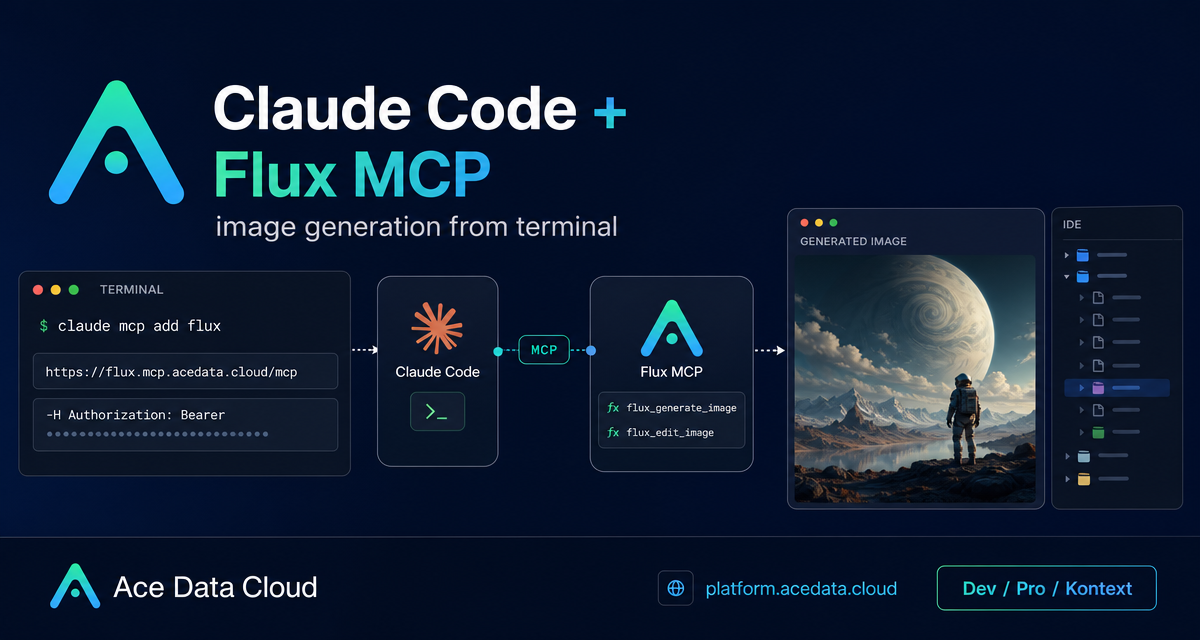
When you are building a feature, a landing page, or a developer article, the slow part is often not writing the prompt — it is leaving your terminal, opening another UI, copying assets around, and then coming back to your codebase. The Flux MCP workflow for Claude Code is useful because it lets you ask for image generation or image edits from the same command-line environment where you are already working.
What you can do
The documented Flux MCP integration gives Claude Code access to two image tools:
flux_generate_imagefor text-to-image generation.flux_edit_imagefor editing an existing image.
The source document describes three Flux usage modes. Dev is for quick experimentation and draft-level results. Pro is for more refined output when you already like a direction. Kontext is for editing existing images rather than regenerating the whole asset from scratch.
That combination is enough for a practical builder workflow: sketch several directions quickly, pick one, refine it, and later make small corrections such as changing text or updating an element in an existing poster.
How it works
Claude Code supports MCP servers, and the Flux MCP server is added over HTTP. Once configured, you can talk to Claude Code in natural language and ask it to call the Flux tools. The endpoint documented for the server is https://flux.mcp.acedata.cloud/mcp.
The key setup command is:
claude mcp add flux --transport http https://flux.mcp.acedata.cloud/mcp \
  -H "Authorization: Bearer YOUR_TOKEN"
One small but important detail from the documentation: the header flag must be uppercase -H. Lowercase -h is interpreted as help, not as an HTTP header option.
Choosing the right scope
Claude Code MCP configuration can be local, user-level, or project-level. If you do not pass -s, the default scope is local, which applies only to the project directory where you ran the command.
local: no-s, or-s local. Stored in~/.claude.jsonand applies to the current project directory.user:-s user. Stored in~/.claude.jsonand available globally across projects.project:-s project. Stored in the project root.mcp.jsonand can be shared with a team through git.
For a personal machine, -s user is convenient. For a repository where the team should have the same MCP server definition, -s project is more explicit. If you use project scope, do not commit a real token into a public repository. Use an environment-variable placeholder and set the actual value outside git.
Verifying the connection
After adding the server, check the MCP list:
claude mcp listThe expected result is that flux appears as connected. If it does not, the first things to check are the endpoint, the uppercase -H header flag, and whether the bearer token was pasted into the command you ran locally.
A practical image workflow from the terminal
A useful pattern is to separate exploration from final output. First, ask for fast variants with Dev:
Use flux-dev to generate three different developer blog cover directions: flat, realistic, and abstract.Then choose the strongest direction and ask for a more polished version with Pro:
Use flux-pro to regenerate the second direction with more detail and higher resolution.Finally, when the image is almost right, use Kontext through the edit workflow instead of starting over:
Edit this poster and change the bottom-right date from 2024 to 2025.This is the main reason the MCP approach feels natural inside Claude Code: you can iterate on assets while staying close to the repository, the copy, and the implementation details that the image is supposed to support.
Example: project-level setup for a team
If you want a repository to carry the same Flux MCP server definition for everyone, use project scope:
claude mcp add flux --transport http https://flux.mcp.acedata.cloud/mcp \
  -H "Authorization: Bearer YOUR_TOKEN" \
  -s project
This writes the configuration to the project root .mcp.json. Commit the server configuration if it is safe for your workflow, but keep the real token outside the repository. A teammate can then clone the repository, provide their own token locally, and use the same Flux MCP entry from Claude Code.
Where this fits
This setup is best for builders who already spend time in Claude Code and want image generation to become part of their development loop. It is not a replacement for design review, brand systems, or final production QA. It is a fast way to produce drafts, compare visual directions, and make small image edits without leaving the terminal.
Read the source documentation here: Claude Code integration with Flux MCP.


Comments
Post a Comment