A Practical Guide to Image Generation and Editing with the Nano Banana Images API
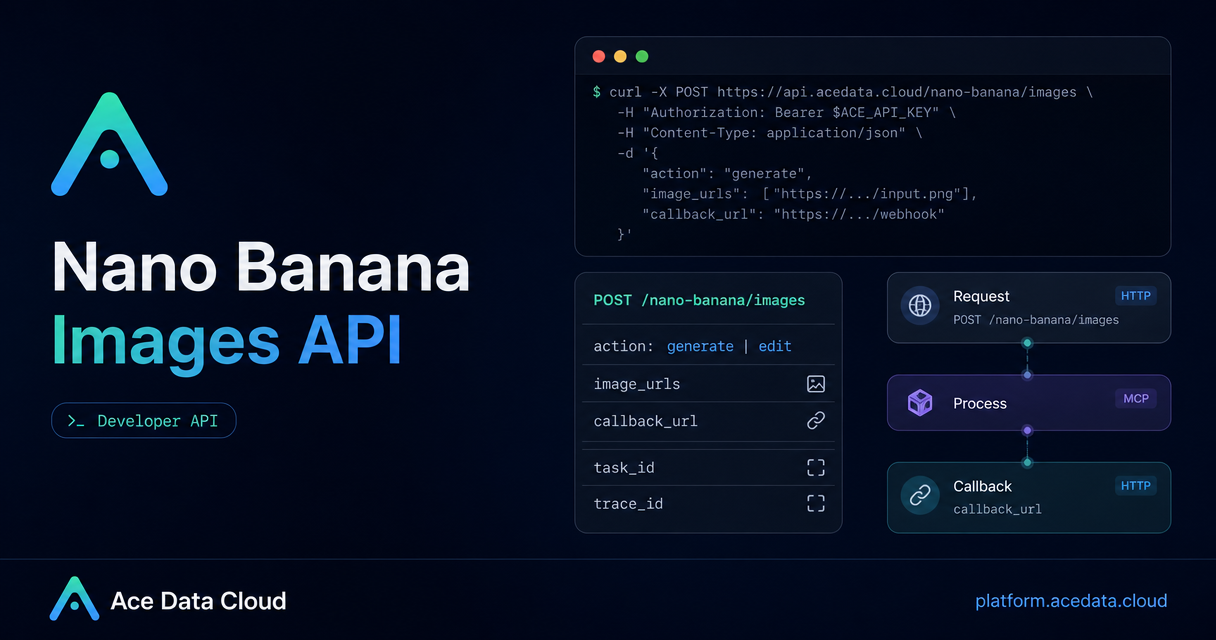
When you are building an app that needs image generation or image editing, the hard part is often not the prompt itself. It is turning a creative model into a predictable product workflow: one endpoint, clear inputs, trackable results, and enough error context to debug production issues.
The Nano Banana Images API is useful for exactly that kind of workflow. It exposes a single HTTP endpoint for both text-to-image generation and image editing, with a small group of fields that are easy to wire into a backend, queue, or internal tool.
What you can do
The API supports two actions through POST /nano-banana/images on the base URL https://api.acedata.cloud:
generate: create images from a textprompt.edit: edit one or more existing images usingimage_urlsplus a textprompt.
That makes it a good fit for product mockups, visual content tooling, image variation systems, ecommerce try-on flows, internal design assistants, or any app where users describe an image and expect a returned URL.
The request uses JSON and requires standard API headers: authorization: Bearer {token}, accept: application/json, and content-type: application/json. The response includes fields such as success, task_id, trace_id, and a data array containing the returned image_url.
How it works
The core design is intentionally simple: choose an action, send a prompt, optionally choose a model, and request between one and four images with count. If some images fail, the documentation says only successful images are returned in data and billed.
The optional model field defaults to nano-banana. The documented choices are nano-banana, nano-banana-2-lite, nano-banana-2, nano-banana-pro, and corresponding official-channel variants such as nano-banana-pro:official. For layout control, the API also documents aspect_ratio values such as 1:1 and 16:9, plus resolution values such as 1K, 2K, and 4K. One practical note: nano-banana-2-lite only supports 1K.
Generating an image from a prompt
For generation, the minimum required parameters are action and prompt. In a real app, I would usually keep the prompt construction server-side, because it gives you a place to normalize style, aspect ratio, safety copy, and product-specific constraints before making the API call.
curl -X POST 'https://api.acedata.cloud/nano-banana/images' \
  -H 'authorization: Bearer {token}' \
  -H 'accept: application/json' \
  -H 'content-type: application/json' \
  -d '{
    "action": "generate",
    "model": "nano-banana-pro",
    "prompt": "A clean product hero image of a compact mechanical keyboard on a dark desk, soft rim light, realistic materials, shallow depth of field, 16:9 composition.",
    "count": 1
  }'
A successful response returns a task identifier, trace identifier, and one or more image URLs:
{
  "success": true,
  "task_id": "70e6931b-6e34-43db-9e36-8765e2809d04",
  "trace_id": "60df8d38-f265-4986-aec7-75c9220bced2",
  "data": [{
    "prompt": "A clean product hero image of a compact mechanical keyboard...",
    "image_url": "https://platform2.cdn.acedata.cloud/nanobanana/example.png"
  }]
}
In production, store both task_id and trace_id. The first helps associate the result with a user request or background job; the second is useful when you need to troubleshoot a failed or unexpected call.
Editing existing images
For editing, use action as edit and provide image_urls. The images can be public HTTP or HTTPS URLs, and the documentation also describes Base64 data URLs as supported input. The prompt should describe the edit goal, not just the subject.
import requests

url = "https://api.acedata.cloud/nano-banana/images"
headers = {
    "authorization": "Bearer {token}",
    "accept": "application/json",
    "content-type": "application/json",
}
payload = {
    "action": "edit",
    "prompt": "Place the product from the second image onto the desk in the first image, matching lighting and perspective.",
    "image_urls": [
        "https://cdn.example.com/desk-scene.png",
        "https://cdn.example.com/product.png"
    ],
    "count": 1
}

resp = requests.post(url, json=payload, headers=headers)
print(resp.json())
This pattern is especially useful when you want deterministic inputs: a base scene, a reference product, and a prompt that defines how they should be combined. The API returns the edited result in the same response shape as generation, so your downstream handling can stay mostly identical.
Using callbacks for app workflows
Image generation and editing can take time. If your product should not keep an HTTP connection open, add callback_url to the request body. The callback URL must be publicly accessible and accept POST JSON. The API can return immediately with task information, then send the completed JSON payload to your webhook when the task finishes.
A simple backend pattern is:
- Create an internal job record before calling the API.
- Write
task_idand user context into your database when the initial response arrives. - Accept the webhook at
callback_url, verify the job bytask_id, then persist the returnedimage_url. - Show the result in the UI or notify the user.
Error handling checklist
The API returns a standard error object with success: false, an error object, and a trace_id. The documented error codes include token_mismatched, api_not_implemented, invalid_token, too_many_requests, and api_error.
For builders, that suggests a few practical rules: treat 401 invalid_token as an auth configuration issue, back off on 429 too_many_requests, and always log trace_id with the request payload metadata. Avoid logging the bearer token itself.
Where this fits
The main advantage of this interface is that generation and editing share a compact mental model. You can start with synchronous calls while prototyping, then add callback_url once you move the workflow into background jobs. If your app already stores prompts, source images, and output URLs, the API maps cleanly onto that structure.
For the full parameter reference and examples, read the Nano Banana Images API integration guide.


Comments
Post a Comment