A Practical Guide to Building Image Generation and Editing with the Nano Banana Images API
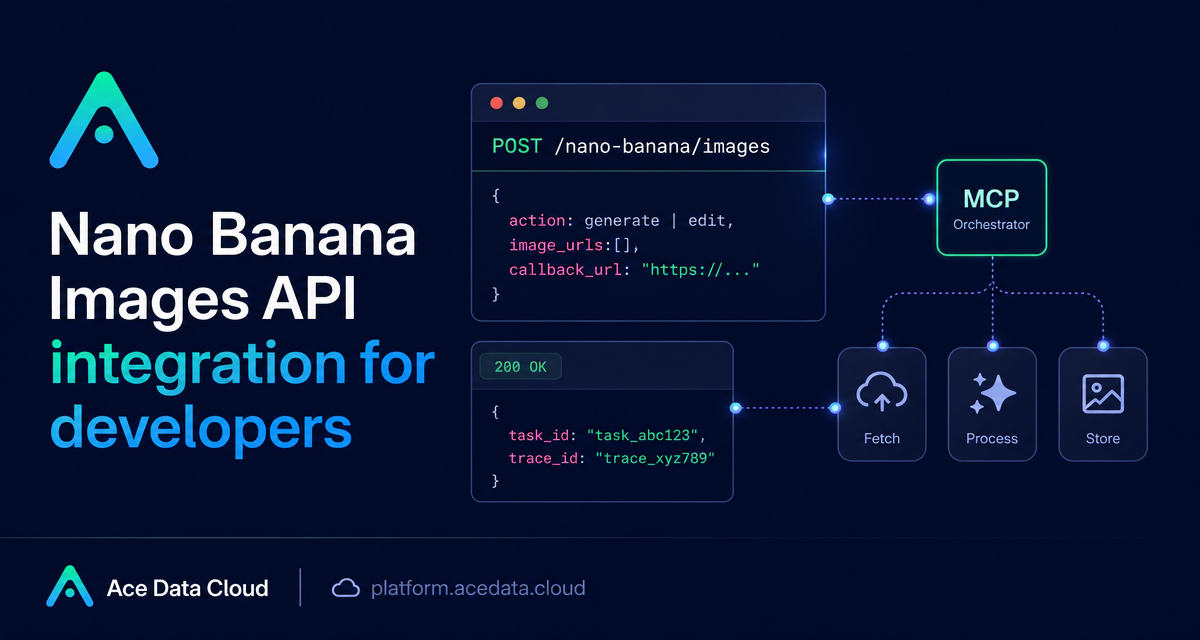
If your product needs both image generation and practical image editing, the awkward part is usually not the prompt itself. It is building one predictable workflow that can create a new image, edit an existing asset, track the task, and hand the result back to your app without inventing separate pipelines.
What you can do
The Nano Banana Images API gives you one endpoint for two common builder workflows:
- Generate an image from a text prompt with
actionset togenerate. - Edit one or more existing images by sending
image_urlswithactionset toedit. - Request between
1and4outputs usingcount, with1as the default. - Track production calls with
task_idandtrace_id, and optionally receive results throughcallback_url.
The API is useful when you want a small, explicit image workflow in a web app, internal tool, design automation script, or content pipeline. For example, a marketplace admin tool could generate product hero images, then edit a selected product shot by combining the original photo with a reference asset.
How it works
All calls go to the same base URL and endpoint:
Base URL: https://api.acedata.cloud
Endpoint: POST /nano-banana/images
Authentication is handled with an HTTP header:
authorization: Bearer {token}
accept: application/json
content-type: application/json
The minimum request for generation is intentionally small: action and prompt. Editing adds image_urls, an array containing at least one source image. The image URLs can be publicly accessible HTTP or HTTPS links, and the documentation also shows Base64 data URLs as an accepted input form.
The optional model field lets you choose among documented model names such as nano-banana, nano-banana-2-lite, nano-banana-2, nano-banana-pro, and the corresponding :official variants. If you do not provide a model, nano-banana is the default.
Generate an image from a prompt
Start with the generation path when the output should be created from text alone. A good request describes the subject, setting, lighting, composition, and orientation. The API echoes the prompt in the response, which is helpful when you store generated assets alongside their source instructions.
curl -X POST 'https://api.acedata.cloud/nano-banana/images'   -H 'authorization: Bearer {token}'   -H 'accept: application/json'   -H 'content-type: application/json'   -d '{
    "action": "generate",
    "model": "nano-banana-pro",
    "prompt": "A clean developer desk with a terminal window showing an image generation job, deep navy lighting, modern SaaS UI cards, horizontal composition.",
    "count": 1
  }'
A successful response includes success, task_id, trace_id, and a data array. Each item in data contains the echoed prompt and an image_url for the generated image.
{
  "success": true,
  "task_id": "70e6931b-6e34-43db-9e36-8765e2809d04",
  "trace_id": "60df8d38-f265-4986-aec7-75c9220bced2",
  "data": [
    {
      "prompt": "A clean developer desk with a terminal window showing an image generation job...",
      "image_url": "https://platform2.cdn.acedata.cloud/nanobanana/example.png"
    }
  ]
}
Edit existing images with image_urls
Use the editing path when your app already has source material. The documented request shape is almost the same, but action becomes edit and you pass an image_urls array. Multiple images can be sent, allowing the service to combine the materials according to the prompt.
import requests

url = "https://api.acedata.cloud/nano-banana/images"
headers = {
    "authorization": "Bearer {token}",
    "accept": "application/json",
    "content-type": "application/json",
}
payload = {
    "action": "edit",
    "prompt": "place the product on a clean studio background while preserving the original shape",
    "image_urls": [
        "https://cdn.example.com/product.png"
    ],
    "count": 1
}

resp = requests.post(url, json=payload, headers=headers)
print(resp.json())
In a real app, validate that the URLs you send are directly reachable before calling the API. Broken private links will make debugging harder, especially if the source image lives behind a signed URL or an internal asset server.
Use callbacks for longer jobs
Image generation and editing can take time. If you do not want a client or worker process waiting on a long connection, include callback_url in the request body. The callback URL must be publicly accessible and support POST JSON. The platform can immediately return a task identifier, then send the completed JSON payload to your webhook when the task finishes.
{
  "action": "generate",
  "prompt": "a white siamese cat",
  "callback_url": "https://your-app.example.com/webhooks/nano-banana"
}
In your database, store task_id as the primary link between the original request and the final result. Keep trace_id too; the documentation calls it out as useful for troubleshooting and result association.
Handle errors like a production API
Failures use a standard JSON shape with success: false, an error object, and trace_id. The documented error codes include token_mismatched for invalid requests or parameters, api_not_implemented, invalid_token, too_many_requests, and api_error.
{
  "success": false,
  "error": {
    "code": "api_error",
    "message": "Internal server error."
  },
  "trace_id": "2cf86e86-22a4-46e1-ac2f-032c0f2a4e89"
}
A simple production rule is to log the complete error payload, show a user-safe message in the UI, and keep trace_id attached to the failed job record. For too_many_requests, stop retrying aggressively and let your queue back off.
Putting it together
The cleanest integration is usually a small job table: save the prompt, action, optional model, optional image_urls, count, task_id, trace_id, and final image_url. That gives you enough information to retry safely, show progress, and debug failures without burying image logic across your frontend.
If you want to build against the exact request and response shapes, read the Nano Banana Images API Integration Guide.


Comments
Post a Comment