How to Use NanoBanana MCP in Cursor for Practical Image Editing Workflows
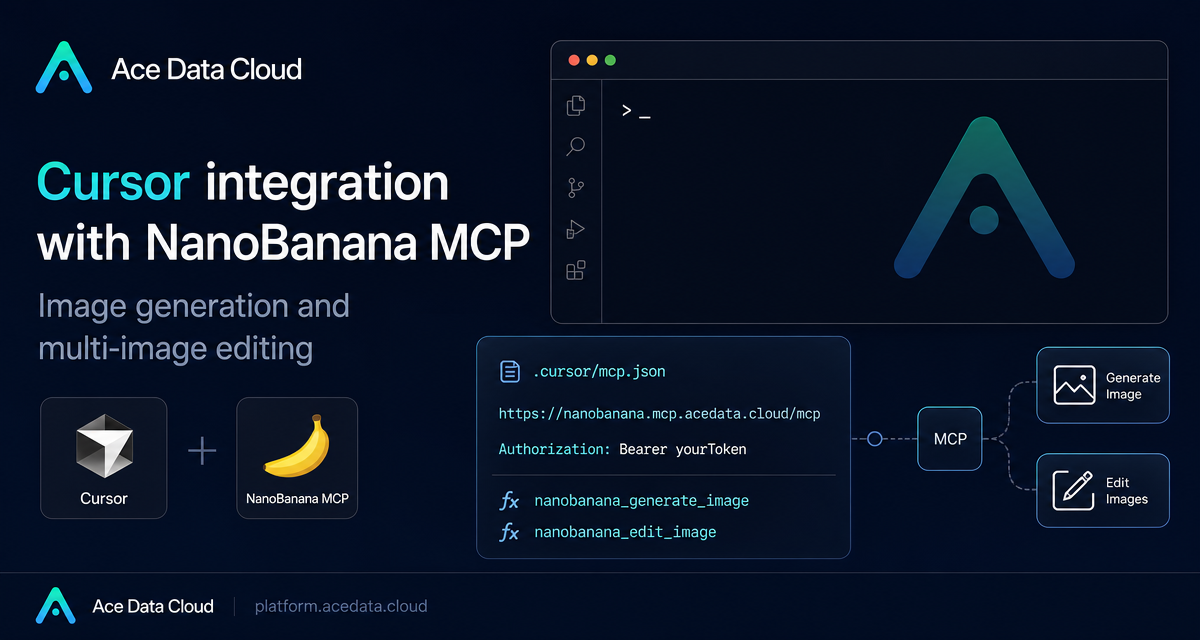
Most image tools are easy to demo but harder to use inside a real development workflow: you copy a prompt into a separate UI, upload screenshots manually, download the result, then move it back into your project. The Cursor docking NanoBanana MCP document shows a simpler pattern: expose NanoBanana as an MCP server inside Cursor, so image generation and editing can happen from the same Agent workflow where you write code and documentation.
What you can do
NanoBanana is described in the document as an AI image tool focused not only on creating new images, but also on modifying existing images. That makes it useful for the kind of visual work builders repeatedly run into while shipping products:
- Polishing a plain terminal screenshot before putting it into a blog post or documentation page.
- Combining multiple images, such as placing a product from one image into the environment of another.
- Generating lightweight illustrations for product states, such as a 404 page.
- Running the workflow from Cursor Agent mode instead of switching to a separate image-editing interface.
The documented MCP server exposes two tools: nanobanana_generate_image for text-to-image generation and nanobanana_edit_image for image editing. The editing tool supports multiple image inputs, which is the key capability behind product-on-background and style-transfer style tasks.
How it works
The integration uses Cursor's MCP configuration file. In a project root, you create .cursor/mcp.json and register a server named nanobanana. The server type is http, the MCP URL is https://nanobanana.mcp.acedata.cloud/mcp, and requests include an Authorization header containing your Ace Data Cloud token.
Once the file is saved and Cursor is restarted, the document says you can use NanoBanana image generation and editing features in Agent mode. In practice, this means you can describe the target visual result in natural language while keeping the assets and surrounding work inside your editor context.
Set up Cursor
Create the configuration file at .cursor/mcp.json in the root of the project you want Cursor to use:
mkdir -p .cursor
cat > .cursor/mcp.json <<'JSON'
{
  "mcpServers": {
    "nanobanana": {
      "type": "http",
      "url": "https://nanobanana.mcp.acedata.cloud/mcp",
      "headers": {
        "Authorization": "Bearer yourToken"
      }
    }
  }
}
JSON
Replace yourToken with the API Token copied from the Ace Data Cloud platform. Keep this file out of public repositories if it contains a real token. If you need to share the project, commit a template such as .cursor/mcp.example.json and keep your actual .cursor/mcp.json local.
After saving the file, restart Cursor. Then open Agent mode and ask Cursor to use the NanoBanana MCP tool for the image task you want to run.
Use case 1: polish a screenshot for documentation
A common builder problem is that raw screenshots rarely look ready for a tutorial. The document gives a practical example: editing a terminal screenshot by adding rounded-corner window decoration, a shadow, and a light gray gradient background.
Edit this image, add a rounded corner shadow window decoration, and change the background to a light gray gradient.This is a good fit for nanobanana_edit_image because the input image already contains the content you need. You are not asking the model to invent a new interface; you are asking it to preserve the screenshot while improving the presentation around it. That distinction matters when you want documentation visuals to stay faithful to the actual product or terminal output.
Use case 2: compose multiple images
The document also highlights multi-image composition. For example, you may have a product image and a scene image, and you want a realistic combined visual showing the product being used in that scene.
Place the phone from the first image onto the desktop in the second image, adjusting the size and perspective to make it look natural.Because nanobanana_edit_image supports multiple image URLs, the prompt can refer to relationships between the inputs: “the phone from the first image” and “the desktop in the second image.” This is more precise than sending a single flattened image or trying to recreate everything from text.
Use case 3: generate small product illustrations
Not every visual starts from an existing asset. The document includes a 404-page example where NanoBanana generates an illustration of a small dinosaur lying next to a crack in broken ground. That kind of asset is useful when you need a lightweight empty-state or error-state illustration without spending time in a separate design tool.
Generate an illustration of a small dinosaur lying next to a crack in the broken ground looking down, to be used for a 404 page.For this path, use nanobanana_generate_image. Keep the prompt focused on the page context, subject, and mood. If you need the illustration to match an existing design style, move to an edit workflow with reference images instead of relying only on text.
Other editor configurations
The same document notes that the configuration idea is not limited to Cursor. VS Code uses .vscode/mcp.json with the same configuration under servers. Claude Desktop uses a platform-specific configuration path: ~/Library/Application Support/Claude/claude_desktop_config.json on macOS and %APPDATA%\Claude\claude_desktop_config.json on Windows, using the mcpServers format.
That means the important pieces are portable: the MCP server URL, the HTTP server type, and the authorization header. Cursor is simply the workflow this guide focuses on because it places the image task next to the code, docs, and assets you are already editing.
Wrapping up
The practical value of NanoBanana MCP in Cursor is not that it replaces design work. It is that it removes friction from small but frequent visual tasks: cleaning up screenshots, composing references, and creating simple illustrations while you are already in an agent-assisted development loop. If your team writes docs, ships landing pages, or creates product examples from inside a code editor, this is a workflow worth testing.
Read the source document here: Cursor Integration with NanoBanana MCP.


Comments
Post a Comment