How to Use NanoBanana MCP in Claude Code for Terminal-Based Image Workflows
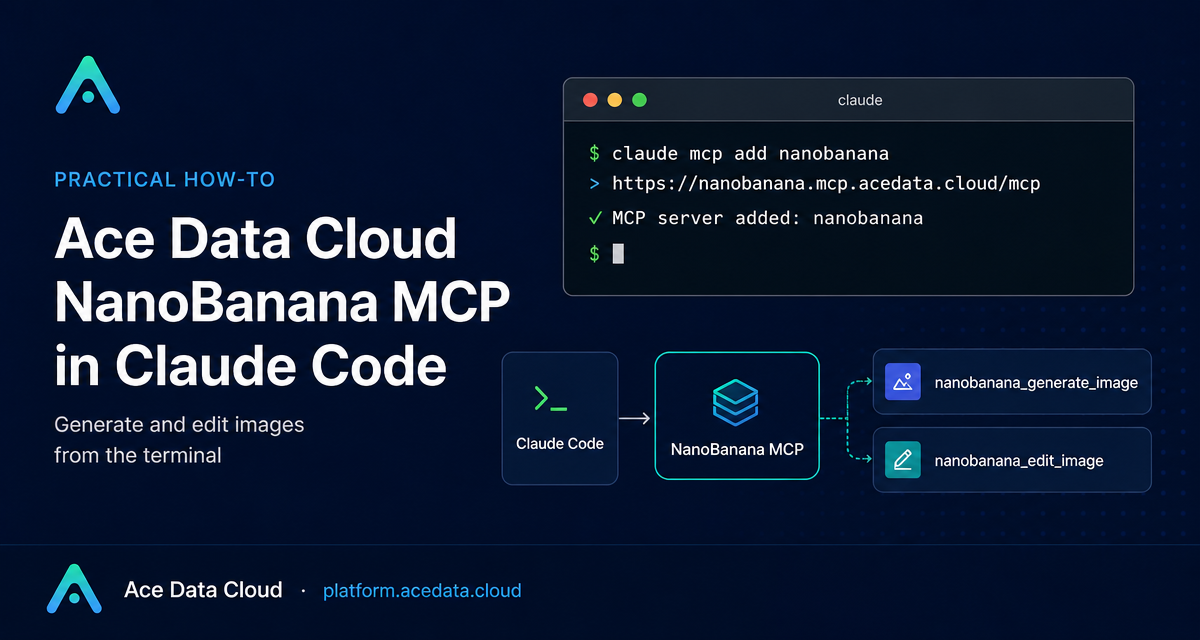
Switching between a coding session, a browser-based image tool, and a design review thread breaks flow. If you already work inside Claude Code, the NanoBanana MCP setup lets you generate, edit, and compose images directly from the terminal using natural language.
What you can do
The NanoBanana MCP integration described in the Ace Data Cloud documentation gives Claude Code two image-focused tools:
nanobanana_generate_imagefor text-to-image generation.nanobanana_edit_imagefor image editing, including multi-image input.
That sounds simple, but it is useful in day-to-day builder workflows. You can ask Claude Code to create an illustration for an empty state, adjust an image while keeping the scene consistent, remove unwanted text from a screenshot, or combine objects from one image with the context of another. The key point is not that the terminal replaces a design tool; it is that early visual iteration can happen in the same place where you are already writing, reviewing, and committing code.
How it works
NanoBanana is exposed as a remote MCP server. Claude Code connects to that server over HTTP, and you pass an Ace Data Cloud API token through an authorization header. Once the MCP server is added, Claude Code can call the available tools from a normal conversation.
The server URL from the documentation is:
https://nanobanana.mcp.acedata.cloud/mcpThe documented Claude Code command is:
claude mcp add nanobanana --transport http https://nanobanana.mcp.acedata.cloud/mcp \
  -H "Authorization: Bearer YOUR_TOKEN"
One small but important detail: the header flag must be uppercase -H. In Claude Code, lowercase -h is the help flag, not the HTTP header parameter.
Choose the right scope
By default, if you omit -s, Claude Code uses the local scope. The documentation describes three scope options, and the right choice depends on how you want the integration to behave.
local: the default behavior. It applies only in the current project directory and is stored in~/.claude.json.user: a global setup available across your projects, also stored in~/.claude.json.project: a project-level setup written to.mcp.jsonin the project root, which can be shared with a team.
For a personal experiment, local scope is enough. For a workstation where you regularly use image generation across repositories, user scope is convenient. For a team project, project scope is useful because the MCP configuration can live next to the codebase. If you use project scope, do not commit real tokens into public repositories. Use environment-variable placeholders instead.
Verify the connection
After adding the server, verify that Claude Code can see it:
claude mcp listThe expected result is that nanobanana appears as connected. Once that is true, you can stop thinking in terms of raw tool calls and start using plain-language instructions inside Claude Code.
Use case: edit a product image into a real scene
The most interesting capability in the documentation is multi-image composition. The nanobanana_edit_image tool supports multiple image URLs as input, and the underlying model can understand the relationship between images. A practical prompt might be:
Put the phone from the first image onto the desk in the second image, adjusting angle and lighting to make it look natural.For a builder, this is useful when you have a product asset and need a quick contextual mockup for a README, landing page draft, or internal pitch. Instead of exporting files, uploading them somewhere else, and manually stitching a rough scene together, you can keep the image iteration close to the repository where the asset will be used.
Use case: clean up screenshots for documentation
Technical docs often need screenshots, but screenshots frequently include temporary labels, watermarks, internal notes, or UI text that should not appear in public documentation. The documentation gives this kind of natural-language edit as an example:
Edit this image to remove the text watermark in the bottom right corner, filling the background.That is especially handy for documentation work. You can capture a screenshot, ask Claude Code to clean the unwanted text, and then keep writing the docs without opening a separate image editor.
Use case: generate small illustrations for product states
The other tool, nanobanana_generate_image, covers text-to-image generation. The documentation includes an example of generating an illustration for a 404 page:
Generate an illustration of a small dinosaur crouching next to a crack in the ground looking down, for use on a 404 page.This is a good fit for early product work. You may not want final production artwork from a terminal prompt, but you often need a fast visual direction for empty states, onboarding screens, blog covers, or placeholder illustrations. MCP makes that iteration feel like part of the development loop rather than a separate content-production task.
A practical setup checklist
- Get your Ace Data Cloud API token from the platform homepage.
- Add the NanoBanana MCP server with
claude mcp add nanobanana --transport http. - Use the documented server URL:
https://nanobanana.mcp.acedata.cloud/mcp. - Pass the token with uppercase
-H "Authorization: Bearer YOUR_TOKEN". - Pick
local,user, orprojectscope based on how widely you want the setup to apply. - Run
claude mcp listand confirm thatnanobananais connected. - Start with either
nanobanana_generate_imageornanobanana_edit_imagefrom a Claude Code session.
The practical value here is not a complicated API surface. It is the opposite: a small MCP bridge that lets an image workflow happen inside the same terminal-based loop where many developers already work. If you want the exact setup command, scope notes, and examples from the source documentation, read the Claude Code integration with NanoBanana MCP guide.


Comments
Post a Comment