How to Use NanoBanana MCP in Claude Code for Terminal-Based Image Workflows
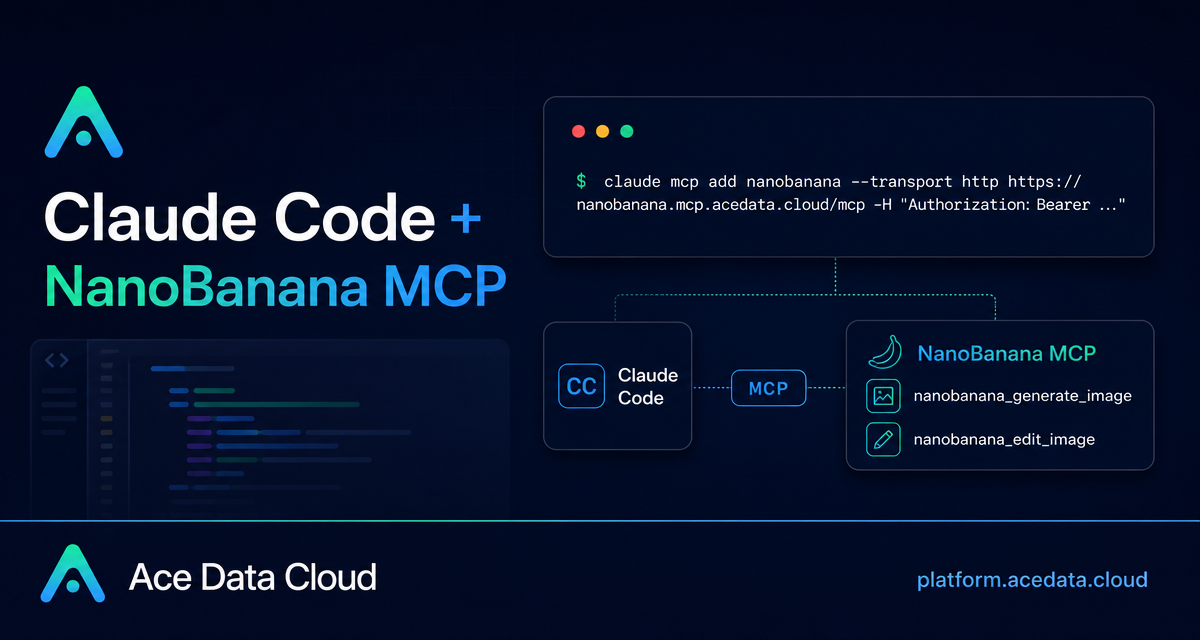
Image workflows often break a developer’s flow: you leave the terminal, open a separate design tool, upload references, wait for an edit, and then copy the result back into your project. NanoBanana MCP gives Claude Code a more direct path: keep the conversation in your terminal and ask for generation, editing, or multi-image composition from the same coding session.
What you can do
The Ace Data Cloud document describes NanoBanana as an MCP server for image generation and image editing inside Claude Code. The underlying model is Google Gemini, and the workflow is designed for cases where the model needs to understand image content rather than only render a new picture from text.
In practical terms, you can use it for:
- Generating a page illustration from a text prompt, such as a 404 page dinosaur concept.
- Editing an existing image to remove unwanted text or a watermark and fill the background.
- Composing multiple images, for example placing an object from one image into the scene of another image.
- Running those tasks from Claude Code without switching from your terminal or IDE context.
How it works
Claude Code talks to NanoBanana through an MCP server. You add the server once with claude mcp add, point it at the MCP URL, and pass your Ace Data Cloud token as an HTTP authorization header. After that, Claude Code can call the image tools during a normal session.
The MCP server URL from the document is:
https://nanobanana.mcp.acedata.cloud/mcpThe required header is an authorization header in this shape:
Authorization: Bearer YOUR_TOKENOne small but important detail: the document calls out that -H must be uppercase. In the Claude Code command, lowercase -h means help, not a header parameter.
Configure NanoBanana MCP in Claude Code
Once you have an Ace Data Cloud API token, run the command below. Replace YOUR_TOKEN with your token value, and avoid committing real tokens to any public repository.
claude mcp add nanobanana --transport http https://nanobanana.mcp.acedata.cloud/mcp -H "Authorization: Bearer YOUR_TOKEN"By default, if you do not pass -s, Claude Code uses the local scope. The document describes three scopes:
local: the default; effective only in the current project directory and stored in~/.claude.json.user: global for all projects, also stored in~/.claude.json.project: stored in.mcp.jsonat the project root, useful for team sharing.
For a single experiment, the default local scope is usually enough. For a team workflow, -s project can make sense, but use environment-variable placeholders instead of committing real credentials.
Verify the connection
After adding the server, verify that Claude Code can see it:
claude mcp listThe expected result is that nanobanana appears as connected. This check is worth doing before you start asking Claude Code for image edits, because it separates configuration problems from prompt or asset problems.
Use case: compose two images
The document highlights multi-image composition as a key workflow. nanobanana_edit_image supports multiple image URLs as input, and Gemini can reason about relationships between the images. A typical instruction might be:
Put the phone from the first image onto the desk in the second image, adjusting angle and lighting to make it look natural.This is useful for product mockups, internal concept reviews, landing-page drafts, or quick visual tests where you want the object, the scene, and the lighting to be treated as a single editing problem.
Use case: remove unwanted text from a screenshot
Another documented example is cleaning up unwanted text in an image. In a Claude Code session, you can describe the edit directly:
Edit this image to remove the text watermark in the bottom right corner, filling the background.This kind of task is most useful when the surrounding background matters. Instead of cropping the image or manually painting over the text, you can ask the model to fill the area so the image still looks coherent.
Use case: generate a page illustration
NanoBanana also exposes text-to-image generation through nanobanana_generate_image. The document gives an example prompt for a 404 page:
Generate an illustration of a small dinosaur crouching next to a crack in the ground looking down, for use on a 404 page.This is the simplest path when you do not have a starting image. For developer teams, the advantage is not only image generation itself; it is being able to create a visual while you are already editing the page or component that will use it.
The two tools to remember
The document lists two NanoBanana MCP tools:
nanobanana_generate_image: text-to-image generation.nanobanana_edit_image: image editing with support for multi-image input.
A good mental model is simple: use nanobanana_generate_image when you are starting from a prompt, and use nanobanana_edit_image when you have one or more existing images that should guide the result.
Closing thoughts
The practical value of this setup is not that it replaces a design pipeline. It is that it gives builders a fast terminal-native loop for visual experiments: configure the MCP server, verify the connection, describe the image task, and keep working in the same project context. For the exact setup steps and related Claude Code notes, read the Claude Code + NanoBanana MCP guide.


Comments
Post a Comment