How to Use AceData Cloud MCP to Give Your AI Assistant Real Platform Context
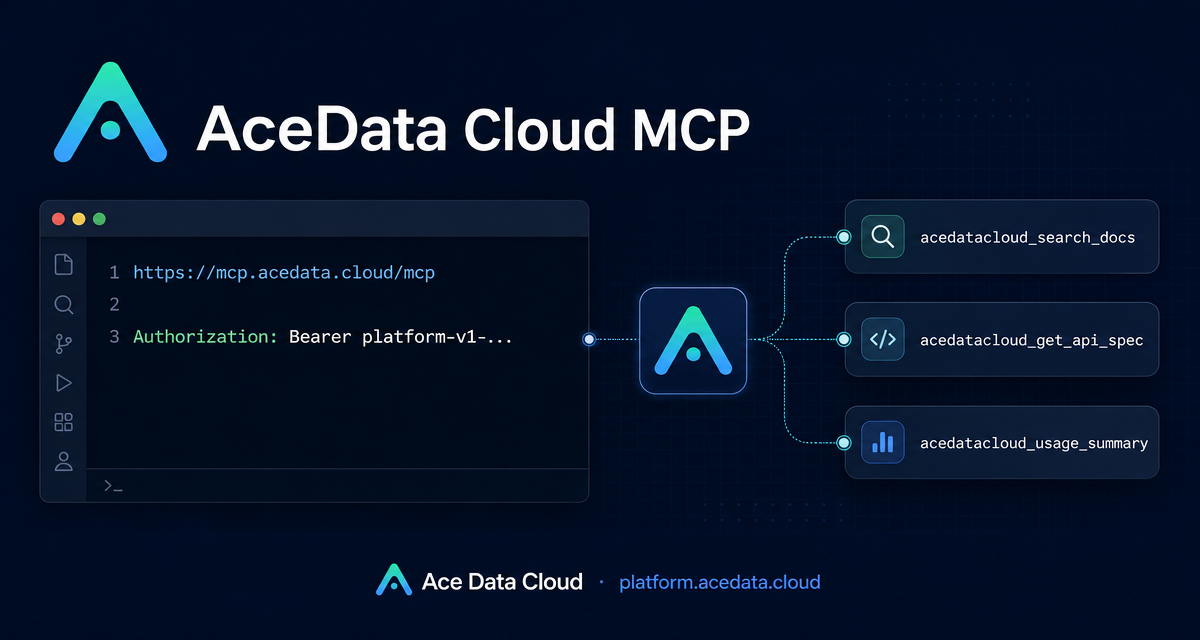
When an AI assistant helps with API work, the hard part is often not writing code. It is keeping the assistant grounded in the current account state, the exact API surface, the available services, and the right documentation page. The AceData Cloud MCP gives your assistant a controlled way to inspect that platform context instead of guessing from memory.
What you can do
AceData Cloud MCP, published as the PyPI package mcp-acedatacloud, is a unified MCP server for platform management and documentation lookup. It is not a generation endpoint. Unlike service-specific MCPs for tools such as image, music, video, or search generation, this server connects to the management and console side at platform.acedata.cloud.
That distinction matters. In practice, it means your assistant can help with questions such as:
- How many Credits are left across subscriptions?
- Which applications and API keys exist, and which keys have spending limits?
- What services, APIs, OpenAPI specs, model catalog entries, and pricing pages are available?
- What did recent usage look like, grouped by API over a time window?
The tool is also useful for documentation workflows. Instead of pasting static docs into a chat, the assistant can search public pages with acedatacloud_search_docs, browse pages with acedatacloud_list_docs, and fetch the complete document content with acedatacloud_get_doc.
How it works
The MCP server exposes read-only tools for account visibility and public directory lookup, plus write operations that require an explicit confirm=true. This makes it practical for day-to-day engineering work: you can ask for inspection freely, while key creation, order creation, payment sessions, and token changes are gated.
The server requires a platform Token. The document is clear that this is different from an api.acedata.cloud service token. Use a platform Token that starts with platform-; service-billed API tokens will return 401 for management interfaces.
Connect with a hosted MCP URL
If your MCP client supports a remote URL and custom headers, the simplest setup is to point it at:
https://mcp.acedata.cloud/mcpA general JSON configuration looks like this:
{
  "mcpServers": {
    "acedatacloud": {
      "url": "https://mcp.acedata.cloud/mcp",
      "headers": { "Authorization": "Bearer platform-v1-xxxxxxxx" }
    }
  }
}
This is usually the cleanest path when you want zero local installation. The assistant sends MCP requests to the hosted endpoint and includes the platform Token in the Authorization header.
Connect locally with stdio
For local-first environments such as Claude Desktop or VS Code-style MCP clients, the package can run through stdio:
pip install mcp-acedatacloud
# Or run without installation:
uvx mcp-acedatacloud
Then configure the MCP server command and pass the platform Token through the environment:
{
  "mcpServers": {
    "acedatacloud": {
      "command": "mcp-acedatacloud",
      "env": {
        "ACEDATACLOUD_PLATFORM_TOKEN": "platform-v1-xxxxxxxx"
      }
    }
  }
}
This keeps the connection local while still giving the assistant access to the same platform management and documentation tools.
Useful read-only workflows
One practical workflow is usage debugging. If a teammate says an integration is failing or spending more than expected, ask the assistant to inspect recent records with acedatacloud_list_usage and summarize spend with acedatacloud_usage_summary. The documented fields include status code, duration, Credits deducted, and per-API aggregation over the last N days.
Another workflow is API discovery. Use acedatacloud_list_services to find a service, acedatacloud_list_apis to inspect available interfaces, and acedatacloud_get_api_spec to retrieve the OpenAPI specification and cost for a path. That is a better foundation for code generation than asking a model to remember an endpoint from training data.
For documentation-heavy work, the pair acedatacloud_search_docs and acedatacloud_get_doc is especially useful. Search gives aliases, titles, snippets, and links; fetching by UUID gives the complete page. This is the difference between “write something about this product” and “write from the current source document.”
Write operations are intentionally gated
The MCP also documents write-capable tools: acedatacloud_create_credential, acedatacloud_delete_credential, acedatacloud_create_order, acedatacloud_pay_order, acedatacloud_create_platform_token, and acedatacloud_delete_platform_token. These require confirm=true.
That design is important for builders. You can let the assistant prepare or preview an action, but the actual change is not made unless the request includes confirmation. Newly created Credentials and platform Tokens are only fully returned once at creation, so they need to be saved immediately.
A small example session
After connecting the MCP server, you do not need to memorize tool names in normal use. You can ask in plain language:
How many Credits do I have left?
How much did I spend on Suno in the last 7 days?
List my API Keys and show which ones have spending limits.
How do I call AceData's Suno music generation interface? Give me a Python example.
Behind the scenes, the assistant can choose the relevant MCP tools, such as balance lookup, usage summary, credential listing, document search, or OpenAPI retrieval. The result is a workflow where the assistant is less likely to invent details and more likely to answer from live platform data.
When to use this MCP
Use AceData Cloud MCP when you want your assistant to reason about the platform itself: accounts, subscriptions, API keys, usage, services, documents, APIs, models, and pricing. Use service-specific MCPs when you actually want to generate an image, video, song, search result, or other artifact.
For teams building with AI tools, this separation is healthy. One MCP gives operational context; other MCPs perform generation. Start with the platform context, verify the API surface, then let the assistant write code against the current docs.
Read the full source document here: AceData Cloud MCP: Bring the Whole Platform into Your AI Assistant.


Comments
Post a Comment