How to Turn VS Code into a Video Generation Workspace with Seedance MCP
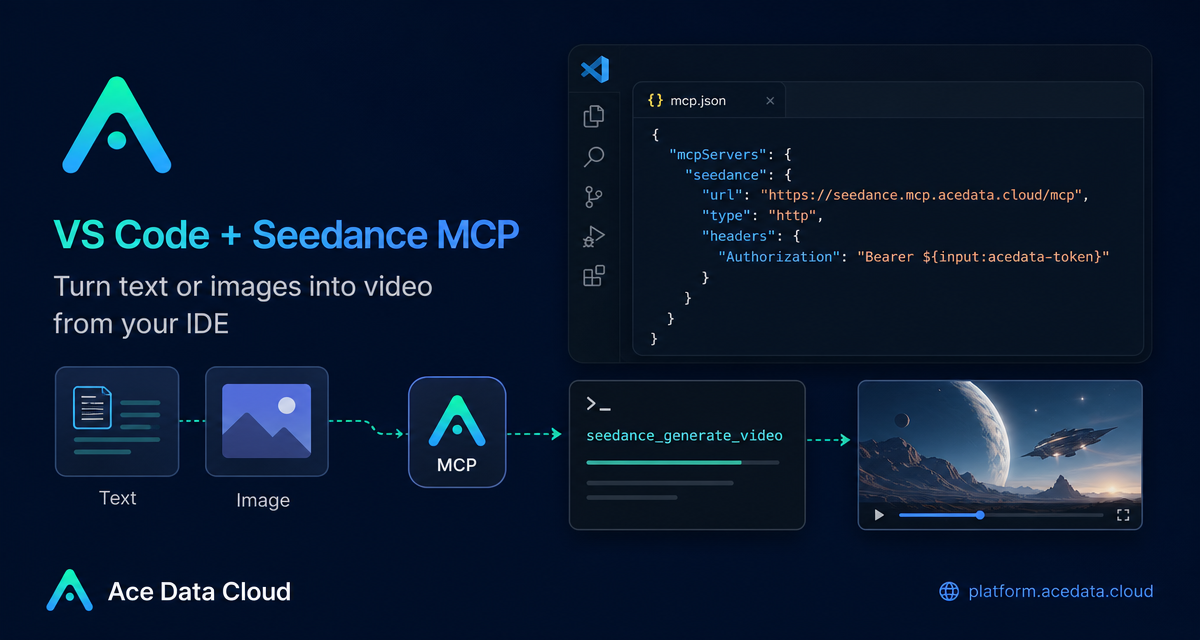
Static mockups are useful for discussing layout, but they often fail when the question is about motion: how a chart should enter, how a dashboard should feel alive, or how a short intro should transition on screen. Seedance MCP gives you a practical way to ask for those video previews directly from VS Code, without building the animation first.
What you can do
The VS Code + Seedance MCP workflow described in the Ace Data Cloud documentation is focused on one clear capability: text or image to video generation from your editor. The MCP server exposes a tool named seedance_generate_video, and the documented scenarios are concrete enough for day-to-day prototyping:
- Turn a Figma-exported PNG screenshot into an animated product preview.
- Generate a short demo video for an internal dashboard or operations panel.
- Create a brief technical intro animation for a short-form video.
This is not a replacement for production UI implementation. It is more useful as a fast design and communication layer: generate a small motion sample, show it to a PM or designer, and decide whether the direction is worth implementing.
How it works
Seedance is connected to VS Code through MCP, so your editor agent can call the video generation server as a tool. The documented VS Code extension is acedatacloud.mcp-seedance. After installing it, you store your Ace Data Cloud API key through a command palette action, and the extension keeps it in VS Code SecretStorage or the system keychain.
The basic path is:
- Open the VS Code Extensions Marketplace with
Cmd+Shift+X. - Search for
Seedance MCPor the extension IDacedatacloud.mcp-seedance. - Install the extension and reload the window if VS Code asks you to.
- Run
Seedance MCP: Set Ace Data Cloud API KeyfromCmd+Shift+P. - Open GitHub Copilot Chat, switch to Agent mode, and mention
seedancein your request.
If you need to rotate the key later, the documented command is Seedance MCP: Clear Ace Data Cloud API Key, followed by setting the key again.
Manual MCP configuration
If you prefer project-level configuration, the documentation also shows a manual .vscode/mcp.json setup. This is useful when you want the MCP server definition to travel with a repository while still prompting each developer for their own API key.
{
  "servers": {
    "seedance": {
      "type": "http",
      "url": "https://seedance.mcp.acedata.cloud/mcp",
      "headers": {
        "Authorization": "Bearer ${input:acedata-token}"
      }
    }
  },
  "inputs": [
    {
      "id": "acedata-token",
      "type": "promptString",
      "description": "Ace Data Cloud API key",
      "password": true
    }
  ]
}
The important fields are intentionally simple. The server name is seedance. The server type is http. The MCP endpoint is https://seedance.mcp.acedata.cloud/mcp. The Authorization header uses a prompted input instead of hardcoding a key, and password: true tells VS Code to treat the value as a secret.
Scenario 1: animate a product screenshot
Suppose you exported a dashboard design from Figma and the team wants to understand how the first-load experience should feel. Instead of implementing transitions in the frontend immediately, attach or reference the screenshot in your agent workflow and ask for a motion preview:
Generate a video from this Dashboard screenshot, where data charts appear from left to right with fade-in and value growth animationsThis prompt comes directly from the documented usage pattern. The value is not that the generated video becomes the final product asset. The value is that it gives the team something visual to react to before a developer spends time wiring up chart transitions.
Scenario 2: produce an internal dashboard demo
For internal tools, teams often need a quick demo before the real data flow is polished. The documented example describes a dark operations monitoring screen with live-looking motion:
Generate a video: a dashboard on an operations monitoring big screen refreshing in real-time, curves fluctuating, numbers jumping, dark themeThis is a good fit for weekly updates, product reviews, or stakeholder walkthroughs where the point is to communicate the intended experience. You can keep the prompt specific about the screen type, visual theme, and movement, while avoiding details that the documentation does not claim to support.
Scenario 3: make a short technical intro
The same MCP server can also help with small video assets. The documentation gives a short intro example:
Generate a 3-second video intro: a glowing code symbol </> transitions from blurry to clear, with particle effects in the background, tech blue toneFor developer content, this is useful when you want a consistent opening motion without opening a separate video editing workflow. Keep the prompt short, specify duration when needed, and describe the transition in plain language.
Notes for other editors
The VS Code setup is the most direct path in this document, but the same server URL and headers can be configured elsewhere. The documentation mentions Cursor using .cursor/mcp.json with the same url and headers, plus separate tutorials for Claude Code and Claude Desktop. If your day-to-day agent already lives in one of those environments, the practical idea is the same: expose Seedance as an MCP tool, keep the API key out of source control, and call seedance_generate_video from the agent.
A practical way to use it
The best use case is not “generate a final video for everything.” A more reliable workflow is to use Seedance MCP as an early motion sketching tool. Start with one screenshot or one plain-language scene, generate a short preview, collect feedback, and only then decide whether to implement the animation, refine the prompt, or move the asset into a proper production pipeline.
If you want the exact setup steps and the original examples, read the VS Code + Seedance MCP documentation.


Comments
Post a Comment