How to Search Google from Claude Code with Ace Data Cloud SERP MCP
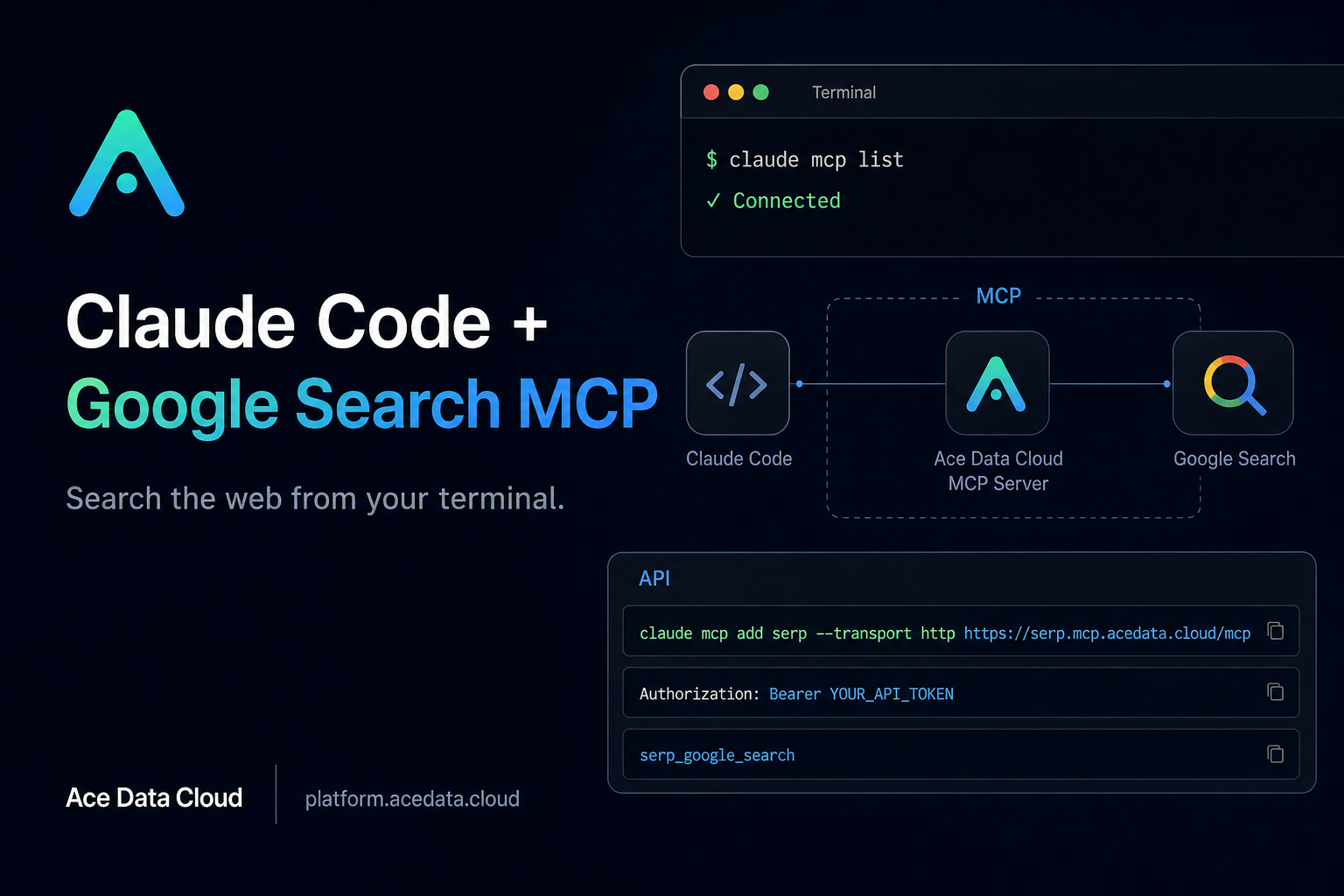
When you are debugging from a terminal, the slowest step is often not writing code — it is leaving the terminal to search for the one error message, option name, or official-doc paragraph you need. This guide shows how to connect Ace Data Cloud's Google Search MCP server to Claude Code so your coding assistant can search from the command line while staying inside the same working context.
What you can do
The document describes a single focused capability: add the serp MCP server to Claude Code, then use natural language inside a Claude Code session to search Google without switching to a browser. The available tool is serp_google_search, described as Google search across web, images, news, videos, and related result types, with support for country, language, and time-range options.
That makes it useful for builder workflows where the search query is part of the development loop:
- Looking up unfamiliar production errors from an SSH session.
- Comparing current technical choices, such as async ORM behavior in 2025.
- Checking official documentation when you do not want an answer based only on memory.
How it works
Claude Code can connect to external MCP servers over HTTP. In this case, the server URL is https://serp.mcp.acedata.cloud/mcp. You add it once with claude mcp add, pass your Ace Data Cloud API token through an Authorization header, and then Claude Code can call the search tool during a session.
The minimal command from the documentation is:
claude mcp add serp --transport http https://serp.mcp.acedata.cloud/mcp \
  -H "Authorization: Bearer YOUR_API_TOKEN"
Two small details are worth getting right. First, the header flag must be uppercase -H; lowercase -h is the help flag, not a header parameter. Second, replace YOUR_API_TOKEN with the API token copied from the Ace Data Cloud platform. The same token can be used across Ace Data Cloud MCP servers, so you do not need a separate credential just for search.
Choose the right Claude Code scope
By default, if you omit -s, Claude Code uses the local scope. The document lists three scopes, and choosing the right one prevents confusion later:
local: no-sor-s local. The configuration is written to~/.claude.jsonand only applies to the project directory where you run the command.user: use-s user. The configuration is also in~/.claude.json, but it is available across all projects.project: use-s project. The configuration is written to the project root.mcp.json, which can be shared with a team.
For a personal one-off debugging session, local is fine. For a daily development machine, user is convenient. For a team repository, project is the most explicit option, but do not commit real tokens to a public repository.
A team-safe project configuration
If you want teammates to inherit the MCP setup after cloning a repo, use project scope and keep the token in an environment variable instead of writing the real token into .mcp.json. The document recommends using placeholders such as ${ENV_VAR} plus environment variables for this case.
claude mcp add serp --transport http https://serp.mcp.acedata.cloud/mcp \
  -H "Authorization: Bearer ${ACEDATA_API_TOKEN}" \
  -s project
Then each developer can provide their own token in their shell environment. The repository records which MCP server should be available, while the secret remains outside git.
Verify the connection
After adding the server, check that Claude Code sees it:
claude mcp list
# expected: serp ✓ Connected
The expected result is that serp appears with ✓ Connected. If it does not, re-check the server URL, the uppercase -H flag, and whether your token was passed as a bearer token in the Authorization header.
Use search as part of the debugging loop
Once connected, you can ask Claude Code to search in the same way you would normally phrase a browser query. The document gives examples like:
search nginx error 502 bad gateway upstream sent too big header how to fix
search performance comparison of Python async ORM in 2025, SQLAlchemy 2.0 async vs Tortoise ORM
search Kubernetes CronJob concurrencyPolicy official docs, difference between Forbid and Replace
The practical difference is context. Claude Code already knows your current project, logs, stack trace, or command output. Instead of copying text into a browser and then translating results back into your terminal session, you can ask for a search and continue reasoning in place.
Where this fits
I would use this setup for questions that benefit from freshness: framework behavior that changed recently, cloud error messages, official documentation checks, and comparative research before choosing a library. I would not use it as a replacement for reading source code or running tests. It is a small terminal workflow improvement: search becomes another tool Claude Code can reach for while you keep building.
For the original setup notes and exact command reference, read the Ace Data Cloud documentation: Claude Code integration with Google Search MCP.


Comments
Post a Comment