How to Search Google from Claude Code with the Serp MCP Server
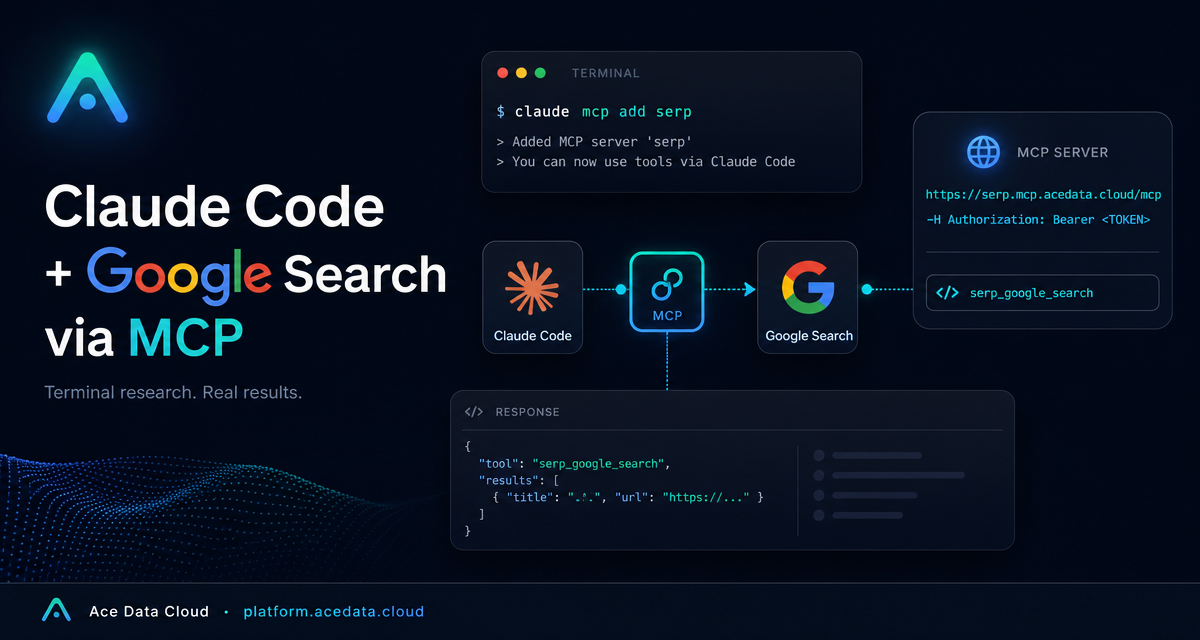
When you are debugging from a terminal, the most expensive context switch is often the smallest one: copying an error, opening a browser, searching, then coming back to the shell. If you already work inside Claude Code, connecting a search MCP server lets you keep that research loop inside the same command-line session.
What you can do
The Ace Data Cloud Serp MCP Server gives Claude Code a search tool named serp_google_search. According to the source document, it supports Google search across web, images, news, videos, and related result types, with options for country, language, and time range.
In practical terms, this is useful when you want Claude Code to help you:
- look up unfamiliar production errors without leaving an SSH or terminal workflow,
- compare current technical options, such as frameworks or libraries,
- check official documentation when model memory may be stale,
- turn search findings into concrete next steps in the same coding session.
The setup is intentionally small: you add one MCP server named serp, point it to the HTTP endpoint, and pass an authorization header.
How it works
Claude Code can connect to MCP servers and expose their tools inside a coding conversation. For this integration, the server endpoint is:
https://serp.mcp.acedata.cloud/mcpYou register it with claude mcp add, using HTTP transport and an Authorization header. Once connected, Claude Code can call the search capability from your natural-language prompts.
The important detail is that the header flag must be uppercase -H. The document explicitly notes that lowercase -h means help, not header configuration.
Step 1: Get an Ace Data Cloud API token
Before adding the MCP server, you need an Ace Data Cloud API token. The document describes the flow as: open the Ace Data Cloud platform, sign in with a supported method such as GitHub, Google, WeChat, email, or phone number, then copy the API token from the homepage.
One token works across the Ace Data Cloud MCP servers described by the platform documentation, so you do not need a separate token just for the Serp MCP server. Treat the token like any other secret: do not paste it into public issues, screenshots, or committed config files.
Step 2: Add the Serp MCP server to Claude Code
Run the following command in your terminal, replacing YOUR_TOKEN with the token you copied:
claude mcp add serp --transport http https://serp.mcp.acedata.cloud/mcp \
  -H "Authorization: Bearer YOUR_TOKEN"
This creates a server entry named serp. Without an explicit scope, Claude Code uses the default local scope, which applies only to the directory where you run the command.
If you want to be more deliberate, choose one of the documented scopes:
local: no-sor-s local; stored in~/.claude.json; applies only to the current project directory.user:-s user; stored in~/.claude.json; available across all projects.project:-s project; stored in the project root.mcp.json; useful when a team wants to share the MCP configuration.
For a team setup, the project scope is convenient, but do not commit real tokens to a public repository. Use an environment-variable placeholder such as ${ENV_VAR} in shared configuration and keep the actual secret in each developer's local environment.
Step 3: Confirm the connection
After adding the server, verify that Claude Code can reach it:
claude mcp listThe document says you should see serp with a ✓ Connected status. If it is not connected, check the endpoint, make sure you used uppercase -H, and confirm that the bearer token was copied correctly.
Practical workflows
Debug a production error without leaving the shell
Imagine you are inside a remote server session and you hit an unfamiliar Nginx problem. Instead of switching to a browser, ask Claude Code to search directly:
search nginx error 502 bad gateway upstream sent too big header how to fixThe value here is not just search. It is search plus immediate interpretation in the same debugging context: logs, config files, and the codebase are already in front of the assistant.
Compare technical options with a recent time window
The source document also suggests using search for technical selection research, especially when recency matters:
search performance comparison of Python async ORM in 2025, SQLAlchemy 2.0 async vs Tortoise ORMThis is a good pattern when choosing dependencies. Ask for recent comparisons, then have Claude Code turn the findings into a small decision note or migration checklist.
Check official documentation instead of relying on memory
For platform behavior, official documentation should beat guesses. A prompt like this keeps the assistant grounded:
search Kubernetes CronJob concurrencyPolicy official docs, difference between Forbid and ReplaceFrom there, you can ask Claude Code to apply the result to your actual manifest or explain what should change in a pull request.
A small operating pattern
My preferred workflow is to make search prompts concrete: include the error message, the relevant system, and the goal. For example:
search <exact error> <framework or service> official docs root cause fixThen ask Claude Code to separate confirmed facts from likely causes. The MCP connection does not replace engineering judgment, but it removes the browser detour and makes fresh information available at the point where you are already editing code.
Wrap-up
If your day already happens in Claude Code, adding Google Search through the Serp MCP server is a small setup step with a clear payoff: fewer context switches during debugging, research, and documentation checks. The full source guide is available in the Ace Data Cloud documentation: Claude Code integration with Google Search MCP.


Comments
Post a Comment