How to Run Claude Code Reviews from GitHub Actions with Ace Data Cloud
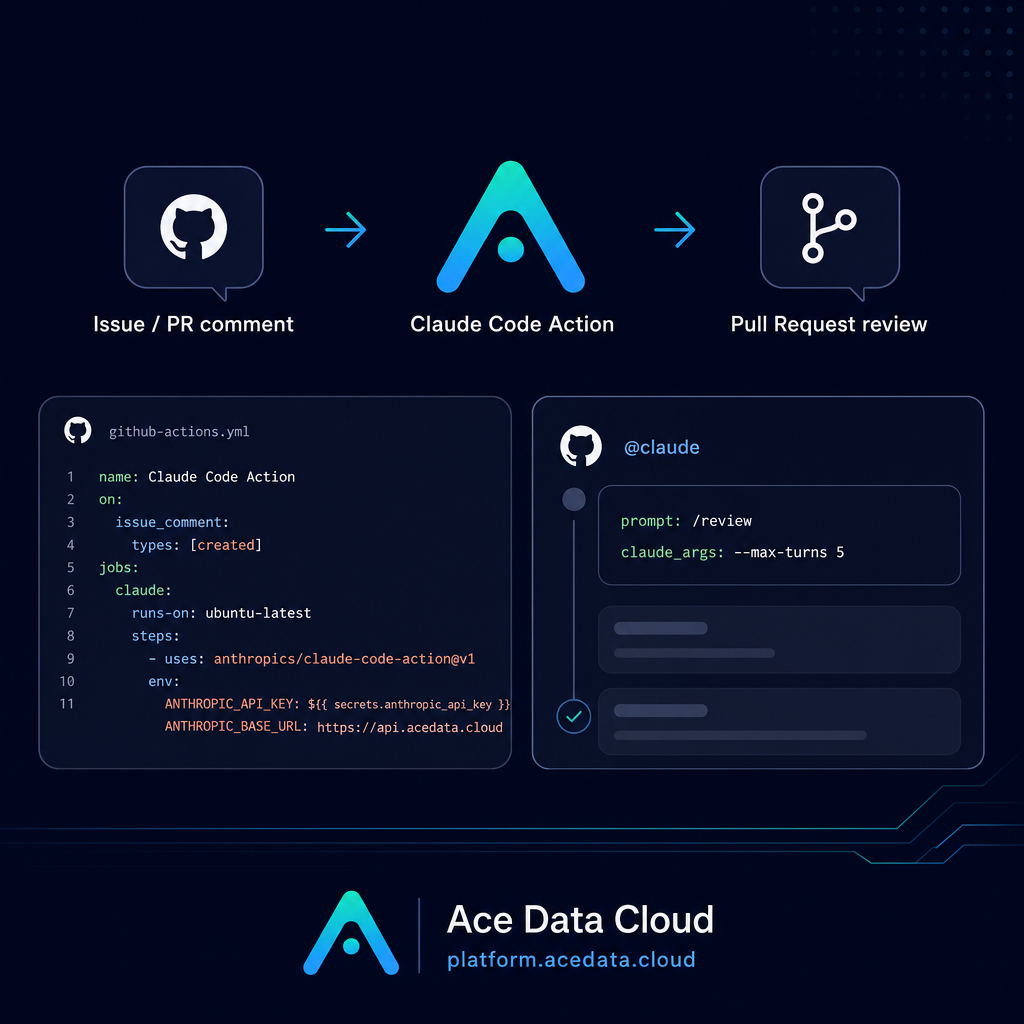
Code review queues get noisy fast: a small PR needs a safety pass, an issue needs a first implementation, and a teammate asks the same “can someone take a look?” question again. If your project already lives on GitHub, one practical way to reduce that friction is to put Claude Code directly into the GitHub Actions workflow and trigger it from issues or pull requests.
This guide walks through a minimal, review-friendly setup using the Claude Code GitHub Action with Ace Data Cloud as the API endpoint. The goal is not to replace human review. It is to make routine analysis, first-pass fixes, and structured PR feedback easier to start.
What you can do
With the workflow configured, you can ask Claude from an issue or PR comment by mentioning @claude. The source documentation describes several concrete uses:
- Create a pull request from a described issue.
- Implement code based on an issue description.
- Review PR safety and code quality.
- Use repository conventions from a root-level
CLAUDE.mdfile. - Run scheduled automation such as a daily commit and unresolved issue report.
The integration runs inside GitHub Actions on a GitHub runner, so the behavior is visible in your repository workflow history and can be reviewed like any other automation.
How it works
The setup has three moving pieces. First, the Claude GitHub App must be installed on the target repository. The documented permissions are Contents read/write, Issues read/write, and Pull requests read/write. Those permissions allow the action to inspect repository context, respond to issues, create changes, and participate in PR workflows.
Second, your Ace Data Cloud API token is stored as a GitHub Actions repository secret named ANTHROPIC_API_KEY. The workflow passes that secret to the action through the anthropic_api_key input. The key should never be written directly into a workflow file.
Third, when using the Ace Data Cloud proxy endpoint, the workflow sets ANTHROPIC_BASE_URL to https://api.acedata.cloud. That keeps the action configuration compatible with the documented Claude Code action inputs while routing API traffic through Ace Data Cloud.
Step 1: Add the API key as a repository secret
In your GitHub repository, open Settings, then Secrets and variables, then Actions. Create a new repository secret named ANTHROPIC_API_KEY, and use your Ace Data Cloud API token as its value.
The exact secret name matters because the workflow references ${ secrets.ANTHROPIC_API_KEY }. If Claude does not respond later, checking this name is one of the first debugging steps.
Step 2: Create a comment-triggered workflow
Create .github/workflows/claude.yml in your repository. A compact starting point is:
name: Claude Code
on:
  issue_comment:
    types: [created]
  pull_request_review_comment:
    types: [created]

jobs:
  claude:
    runs-on: ubuntu-latest
    steps:
      - uses: anthropics/claude-code-action@v1
        with:
          anthropic_api_key: ${ secrets.ANTHROPIC_API_KEY }
        env:
          ANTHROPIC_BASE_URL: "https://api.acedata.cloud"
After this is enabled, you can comment on an issue or pull request with instructions such as:
@claude Implement the functionality based on the description of this Issue
@claude Review the code safety of this PR
@claude Fix the TypeError in the user dashboard component
@claude How should user authentication for this endpoint be implemented?
These prompts work best when the issue or PR already contains enough context: expected behavior, reproduction steps, failing files, or review concerns.
Step 3: Add automatic PR review
If you want a first-pass review whenever a pull request opens or changes, use the documented prompt and claude_args inputs:
name: Code Review
on:
  pull_request:
    types: [opened, synchronize]

jobs:
  review:
    runs-on: ubuntu-latest
    steps:
      - uses: anthropics/claude-code-action@v1
        with:
          anthropic_api_key: ${ secrets.ANTHROPIC_API_KEY }
          prompt: "/review"
          claude_args: "--max-turns 5"
        env:
          ANTHROPIC_BASE_URL: "https://api.acedata.cloud"
prompt can be plain instructions or a skill-like command such as /review. claude_args passes parameters to the Claude Code CLI. The documentation lists common options including --max-turns, --model, --mcp-config, --allowed-tools, and --debug.
Step 4: Keep the workflow safe and predictable
A useful Claude Code workflow is usually explicit. Prefer intentional @claude comments for tasks that require judgment, and keep automatic review prompts narrow. If a workflow is allowed to run too freely, it can create noise instead of reducing it.
The source guide recommends a few practical controls: never hard-code API keys, use GitHub Secrets, keep permissions as limited as possible, manually review suggestions before merging, set reasonable --max-turns values, add workflow timeouts, and use GitHub concurrency controls when you need to limit parallel runs.
For repository-specific behavior, add a CLAUDE.md file at the project root. Use it for coding style, review standards, and project conventions. That gives the action a stable set of local rules instead of forcing every comment to repeat your expectations.
Debugging checklist
- Confirm the Claude GitHub App is installed on the repository.
- Check that the workflow is enabled.
- Verify the secret is named
ANTHROPIC_API_KEY. - Use
@claude, not/claude, in comments. - If using the proxy endpoint, confirm
ANTHROPIC_BASE_URLis exactlyhttps://api.acedata.cloud.
This is the kind of automation I like in a builder workflow: small enough to understand, close to the code, and easy to review when it changes. Start with one comment-triggered workflow, watch the results on real PRs, then add automatic review or scheduled reports only where they save actual time.
Read the full Ace Data Cloud guide here: Claude Code GitHub Actions Integration Guide.


Comments
Post a Comment