How to Generate and Edit Images in Claude Code with NanoBanana MCP
When you are building product pages, docs, UI mockups, or support materials, image work often becomes the slow context switch: leave the terminal, open a separate image tool, upload references, write a prompt, download the result, then bring it back into the project. NanoBanana MCP gives Claude Code a cleaner path: keep the conversation in your terminal and ask for image generation or editing as part of the same development workflow.
What you can do
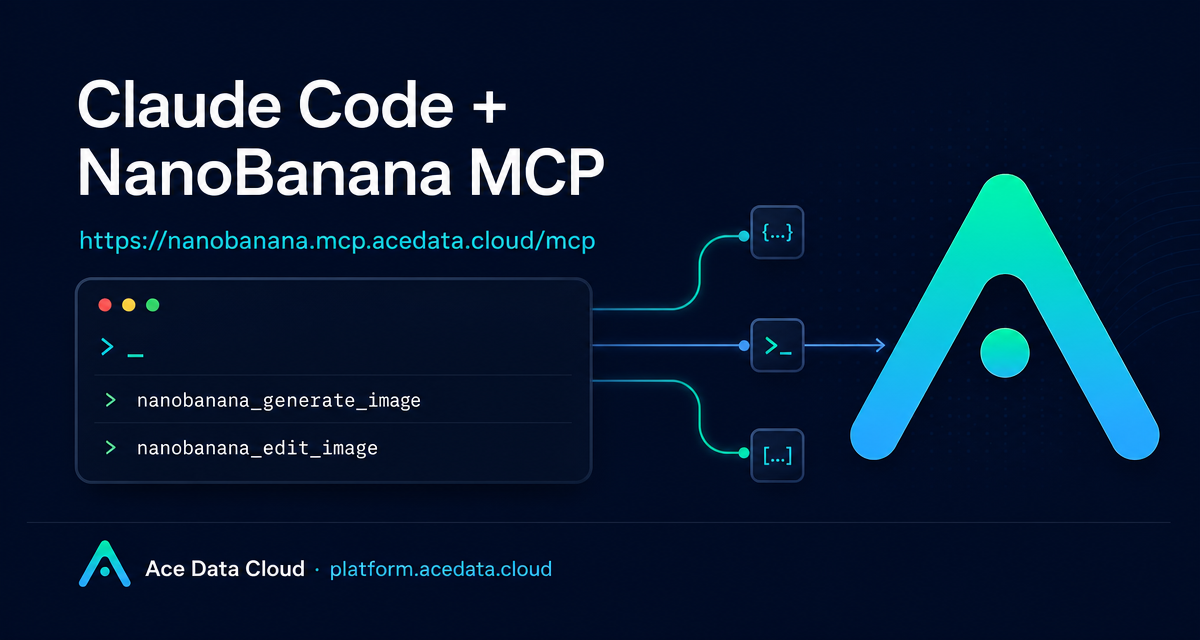
The NanoBanana MCP integration for Claude Code exposes two practical tools:
nanobanana_generate_imagefor text-to-image generation.nanobanana_edit_imagefor image editing, including multi-image input.
The useful part is not only that images can be generated. The more interesting workflow is composition: you can give Claude Code multiple image URLs and ask it to move an object from one image into another scene, adjust angle and lighting, or clean up unwanted text in a screenshot. The underlying model is described in the source document as Gemini-based, with strong image understanding, which is why this workflow fits tasks where the relationship between reference images matters.
How it works
Claude Code can connect to remote MCP servers. For NanoBanana, the MCP server URL is https://nanobanana.mcp.acedata.cloud/mcp. You add it with the Claude Code CLI, pass an Ace Data Cloud API token as an HTTP authorization header, and then verify that the server is connected.
The setup command from the documentation is:
claude mcp add nanobanana --transport http https://nanobanana.mcp.acedata.cloud/mcp -H "Authorization: Bearer YOUR_TOKEN"
One small detail is worth calling out: -H must be uppercase. In the Claude Code command, lowercase -h means help, not a header parameter. If the command looks correct but the server does not authenticate, this is one of the first things to check.
Choose the right scope
Claude Code supports different MCP configuration scopes. If you run the command without -s, the default scope is local, which applies only in the current project directory. That can be fine for quick experiments, but it may not be what you want if you work across several repositories.
local: no-sor-s local; stored in~/.claude.json; effective for the current project directory.user:-s user; stored in~/.claude.json; available globally across projects.project:-s project; stored in.mcp.jsonin the project root; useful when the configuration should be shared with a team.
For team projects, -s project is convenient, but do not commit real tokens to public repositories. Use environment variable placeholders and keep the actual token outside version control.
Verify the connection before using it
After adding the server, check that Claude Code can see it:
claude mcp list
You should see nanobanana marked as ✓ Connected. I like doing this before writing prompts because it separates setup problems from prompt problems. If the server is not connected, fix the configuration first instead of debugging an image request that never reached the tool.
Useful workflows
1. Compose objects from multiple images
A common builder task is combining real assets: product photo, mockup background, desk scene, avatar, or screenshot. The documented example is to place the phone from a first image onto the desk in a second image, while adjusting angle and lighting so the result looks natural.
Put the phone from the first image onto the desk in the second image,
adjusting angle and lighting to make it look natural.
Because nanobanana_edit_image supports multiple image URLs, this is more controlled than asking for a brand-new image from text alone.
2. Clean screenshots for documentation
Another practical use case is removing unwanted text from a screenshot. For example, you can ask Claude Code:
Edit this image to remove the text watermark in the bottom right corner,
filling the background.
This is useful when preparing docs or tutorials and you need a cleaner visual without rebuilding the entire screenshot manually.
3. Generate small illustrations for product UI
For empty states, 404 pages, onboarding screens, or blog posts, nanobanana_generate_image can be called from the same Claude Code session. The source document gives the example of generating an illustration of a small dinosaur crouching next to a crack in the ground for a 404 page.
A practical terminal-first pattern
A simple workflow looks like this:
- Add the MCP server with
claude mcp add. - Confirm
nanobananais connected withclaude mcp list. - Keep source image URLs in your issue, README draft, or Claude Code prompt.
- Ask Claude Code to generate or edit the image with a concrete visual goal.
- Review the returned artifact and place it into your docs, UI, or content pipeline.
The main advantage is not magic image generation. It is reducing the number of places where project context gets lost. When the image task is tied to the same terminal session where you are editing the repo, the prompt can reference the page, component, screenshot, or documentation section you are already working on.
If you want the exact setup command, supported tools, and scope table, read the original Ace Data Cloud documentation for Claude Code integration with NanoBanana MCP.


Comments
Post a Comment