How to Generate and Edit Images from Claude Code with NanoBanana MCP
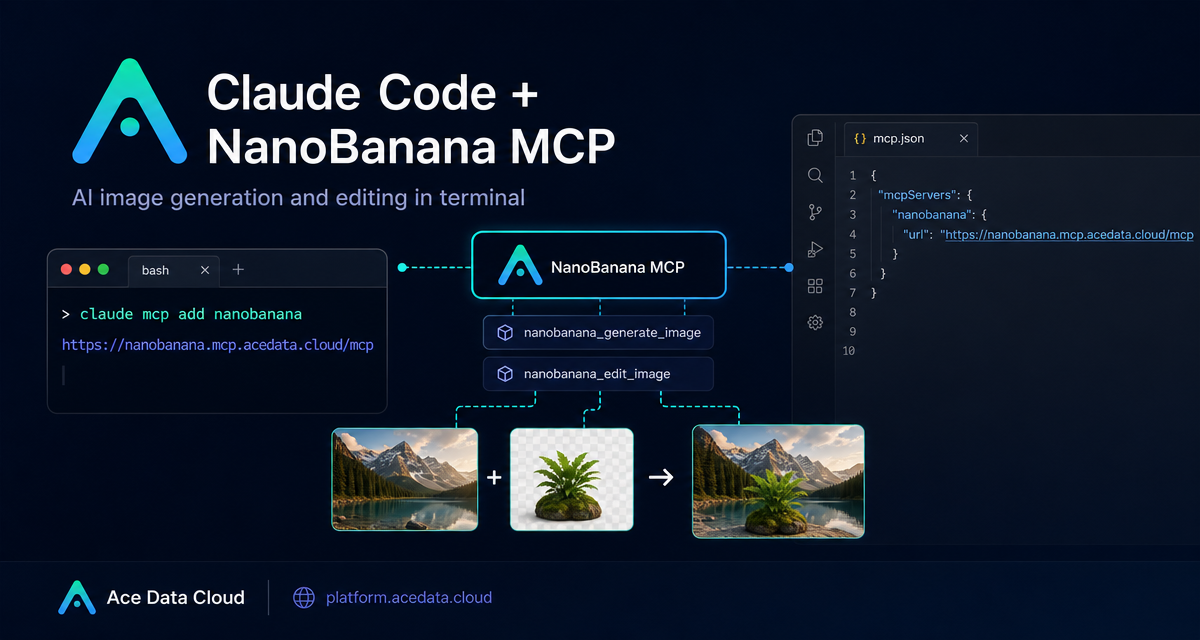
When you are already working in a terminal with Claude Code, jumping out to a browser just to create, edit, or combine images can break the flow. The NanoBanana MCP integration gives Claude Code a small, practical bridge to image generation and image editing, so you can describe the visual operation in plain language and keep the work inside the same developer session.
What you can do
The documented NanoBanana MCP setup exposes two tools inside Claude Code:
nanobanana_generate_imagefor text-to-image generation.nanobanana_edit_imagefor image editing, including multi-image input.
The useful part is not just that it can make images. The guide describes NanoBanana as an image model that understands image content well enough to work with relationships between inputs. For example, you can provide two images and ask it to place an object from one image into the scene of another, adjusting the angle and lighting so the result looks natural.
That makes it a good fit for builder workflows such as composing product mockups, removing unwanted text from screenshots, generating small illustrations for empty states, or quickly exploring visual ideas while writing code or documentation.
How it works
The integration uses the Model Context Protocol server at https://nanobanana.mcp.acedata.cloud/mcp. Claude Code connects to that MCP endpoint over HTTP, and your Ace Data Cloud API token is passed through an HTTP authorization header.
Once configured, Claude Code can call the NanoBanana tools during a normal session. You do not have to write a separate image script for every small visual task; you can ask Claude Code to generate or edit an image, and the MCP server handles the actual tool call.
Configure NanoBanana MCP in Claude Code
The core command from the documentation is:
claude mcp add nanobanana --transport http https://nanobanana.mcp.acedata.cloud/mcp -H "Authorization: Bearer YOUR_TOKEN"There are two details worth paying attention to:
-Hmust be uppercase. In Claude Code, lowercase-his help, not a header parameter.- If you do not specify
-s, Claude Code uses the local scope by default, which applies only to the current project directory.
If you want the MCP server available across all your projects, use user scope:
claude mcp add nanobanana -s user --transport http https://nanobanana.mcp.acedata.cloud/mcp -H "Authorization: Bearer YOUR_TOKEN"If you want a team-shared project configuration, use project scope:
claude mcp add nanobanana -s project --transport http https://nanobanana.mcp.acedata.cloud/mcp -H "Authorization: Bearer ${ACEDATA_CLOUD_TOKEN}"The documentation notes that project scope writes configuration to .mcp.json in the project root, which can be committed and shared with teammates. Do not commit a real token to a public repository; use an environment variable placeholder instead.
Check the connection before using it
After adding the MCP server, verify that Claude Code can see it:
claude mcp listYou should see nanobanana marked as ✓ Connected. This check is small, but it saves time: if the server is not connected, image prompts inside Claude Code will fail later in the conversation, when you are already thinking about the design task.
Use case 1: compose multiple images
A practical multi-image request might look like this:
Put the phone from the first image onto the desk in the second image, adjusting angle and lighting to make it look natural.This maps to the documented nanobanana_edit_image capability, which supports multiple image URLs as input. The important habit is to be explicit about the relationship between the inputs: which object should be taken from which image, what scene it should be placed into, and what should be adjusted to make the result believable.
Use case 2: clean up screenshots
The same editing tool can be used for screenshot cleanup. For example:
Edit this image to remove the text watermark in the bottom right corner, filling the background.This is useful when you are preparing documentation and need a cleaner visual. Keep the instruction narrow. Ask for the exact removal or fill operation instead of turning it into a broad redesign request.
Use case 3: generate a small UI illustration
For a generated image, the documentation gives the example of a 404 illustration:
Generate an illustration of a small dinosaur crouching next to a crack in the ground looking down, for use on a 404 page.That kind of prompt works well because it includes subject, action, setting, and intended use. In a builder workflow, I would usually add size, style, and where the illustration will appear in the product, then iterate from the first result.
A simple workflow I would use
- Add the MCP server with the correct scope.
- Run
claude mcp listand confirmnanobananais connected. - Start with a narrow generation or edit request.
- If editing, describe the source image, target image, and final composition clearly.
- Keep tokens out of committed configuration files.
This keeps the workflow boring in a good way: configure once, verify once, then use natural language from the terminal whenever you need a quick visual asset.
Where to go next
If your daily work already happens in Claude Code, NanoBanana MCP is a practical way to bring image generation and editing into the same loop as coding, writing, and reviewing. It is especially useful for small visual tasks where opening another tool would cost more attention than the task itself.
You can read the source documentation here: Claude Code integration with NanoBanana MCP.


Comments
Post a Comment