How to Generate and Edit Images from Claude Code with NanoBanana MCP
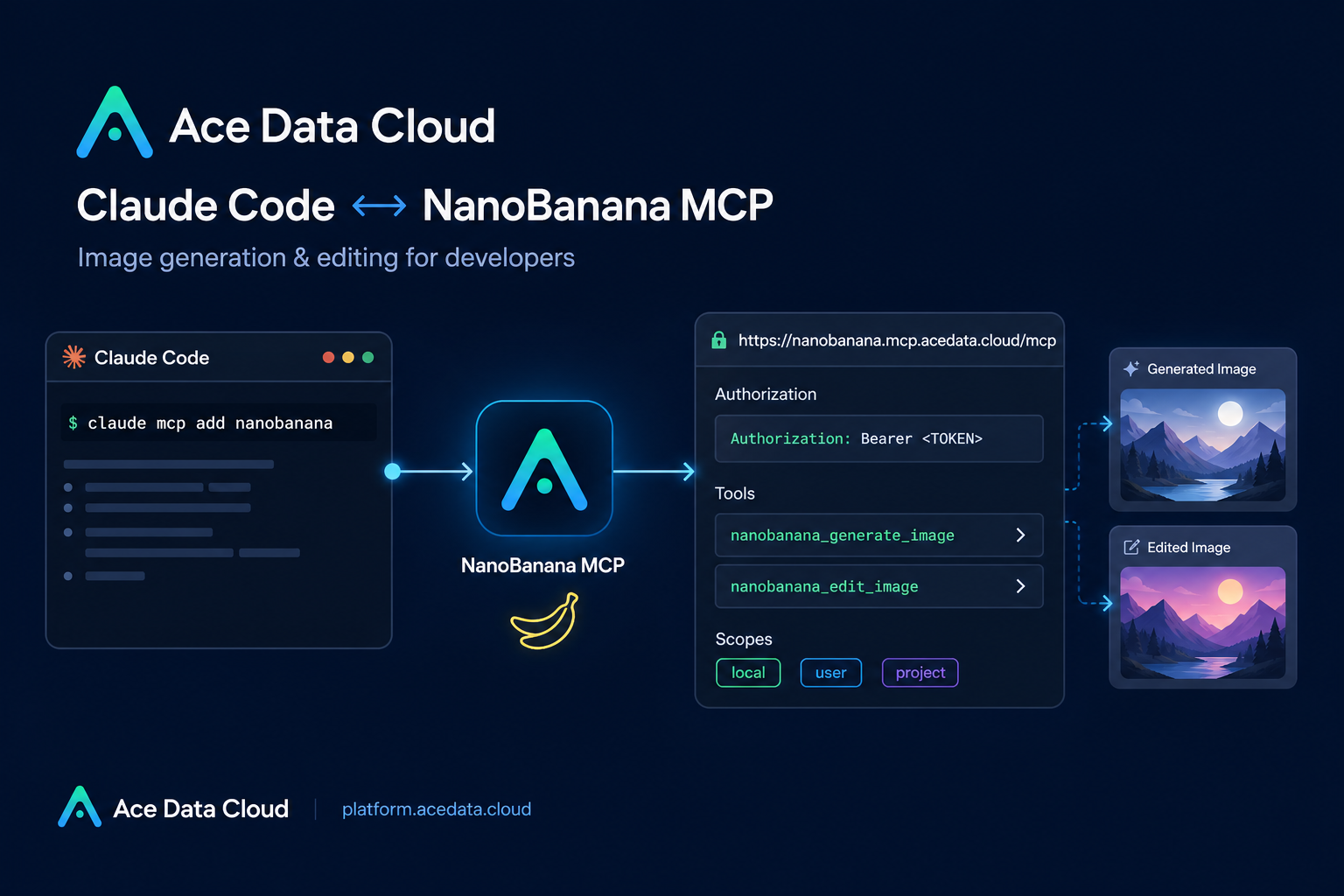
If you already use Claude Code as your working terminal companion, the next friction point is usually media: you can reason about a UI, a landing page, or a content workflow in chat, but you still have to switch tools when you need an image generated or edited.
The NanoBanana MCP integration documented by Ace Data Cloud gives Claude Code two image-oriented tools through an MCP server: nanobanana_generate_image for text-to-image work, and nanobanana_edit_image for editing images, including multi-image input. This guide walks through a practical setup and a few builder-style workflows you can run without leaving the terminal.
What you can do
Once configured, Claude Code can call NanoBanana from a normal session using natural language. The documented capabilities are deliberately simple:
- Generate an image from a text prompt with
nanobanana_generate_image. - Edit an existing image with
nanobanana_edit_image. - Provide multiple image URLs to
nanobanana_edit_imageso the model can understand relationships between images. - Use it for concrete tasks such as combining objects from two images, removing unwanted text from an image, or creating a page illustration.
The useful part is not just that an image model is available. It is that Claude Code can coordinate the instruction, the image URLs, and the surrounding project context from the same place where you are already editing files and running commands.
How it works
The integration uses an MCP server endpoint:
https://nanobanana.mcp.acedata.cloud/mcpYou register that server in Claude Code with an authorization header. The documented command is:
claude mcp add nanobanana --transport http https://nanobanana.mcp.acedata.cloud/mcp -H "Authorization: Bearer YOUR_TOKEN"Two details matter here. First, -H must be uppercase, because lowercase -h means help rather than a header. Second, the token should be treated like any other credential: do not paste a real token into a public repository or shared transcript.
After registration, verify the connection:
claude mcp listThe expected result is that nanobanana appears as connected. From there, Claude Code can route image-generation or image-editing requests to the MCP tool instead of only answering with text.
Choose the right Claude Code scope
Claude Code supports different MCP configuration scopes. The documented default is local, which applies only in the directory where you run the command. That is fine for experiments, but it can be confusing if you later move to another project and the tool is missing.
local: the default behavior; applies to the current project directory.user: global configuration, available across your projects.project: writes configuration to.mcp.jsonin the project root, which can be shared with a team.
For a personal workflow, I usually prefer a user-level configuration:
claude mcp add nanobanana -s user --transport http https://nanobanana.mcp.acedata.cloud/mcp -H "Authorization: Bearer YOUR_TOKEN"For a team repository, -s project can be useful because it documents the MCP dependency near the code. If you do that, keep real tokens out of git. Use an environment-variable placeholder such as ${ACEDATA_TOKEN} and let each developer provide their own value locally.
Workflow 1: compose two images naturally
The most interesting documented workflow is multi-image composition. Instead of writing a brittle prompt that tries to describe every object from memory, provide the model with image URLs and explain the relationship:
Put the phone from the first image onto the desk in the second image, adjusting angle and lighting to make it look natural.That kind of instruction is useful for product mockups, ecommerce previews, internal design explorations, or editorial imagery. Claude Code can help you keep the instruction specific: identify which image is the source object, which image is the target scene, and what visual constraints should be preserved.
Workflow 2: clean up screenshots
Another documented use case is removing unwanted text from an image. For example, you might have a screenshot with a small watermark or an annotation that should not appear in documentation:
Edit this image to remove the text watermark in the bottom right corner, filling the background.When writing prompts like this, describe what should change and what should stay stable. If the screenshot contains UI that must remain readable, say so. If the edit should only affect one corner, say that too. Small constraints reduce the chance that the model changes unrelated parts of the image.
Workflow 3: generate lightweight page illustrations
The guide also shows a simple page-illustration request:
Generate an illustration of a small dinosaur crouching next to a crack in the ground looking down, for use on a 404 page.This is a good pattern for builders because it ties the generated asset to a real product need. Instead of asking for generic art, include the surface where the image will be used, the subject, and the intended mood. Claude Code can then help you iterate the surrounding copy, component layout, and asset request together.
A practical setup checklist
- Get an Ace Data Cloud API token from the platform.
- Add the NanoBanana MCP server with
claude mcp add nanobanana. - Use
--transport httpand the server URLhttps://nanobanana.mcp.acedata.cloud/mcp. - Pass the header as
-H "Authorization: Bearer YOUR_TOKEN". - Pick
local,user, orprojectscope intentionally. - Run
claude mcp listand confirmnanobananais connected. - In Claude Code, ask for either
nanobanana_generate_imageornanobanana_edit_imagedepending on the task.
Closing thought
For image work inside a development loop, the win is not a bigger prompt. It is keeping the workflow close to the code, the files, and the decisions you are already making. NanoBanana MCP gives Claude Code a compact bridge to generation and editing, while still leaving you in a terminal-first builder workflow.
Read the original setup notes in the Ace Data Cloud NanoBanana MCP guide for Claude Code.


Comments
Post a Comment