How to Build a Reliable Image Editing Pipeline with gpt-image-2
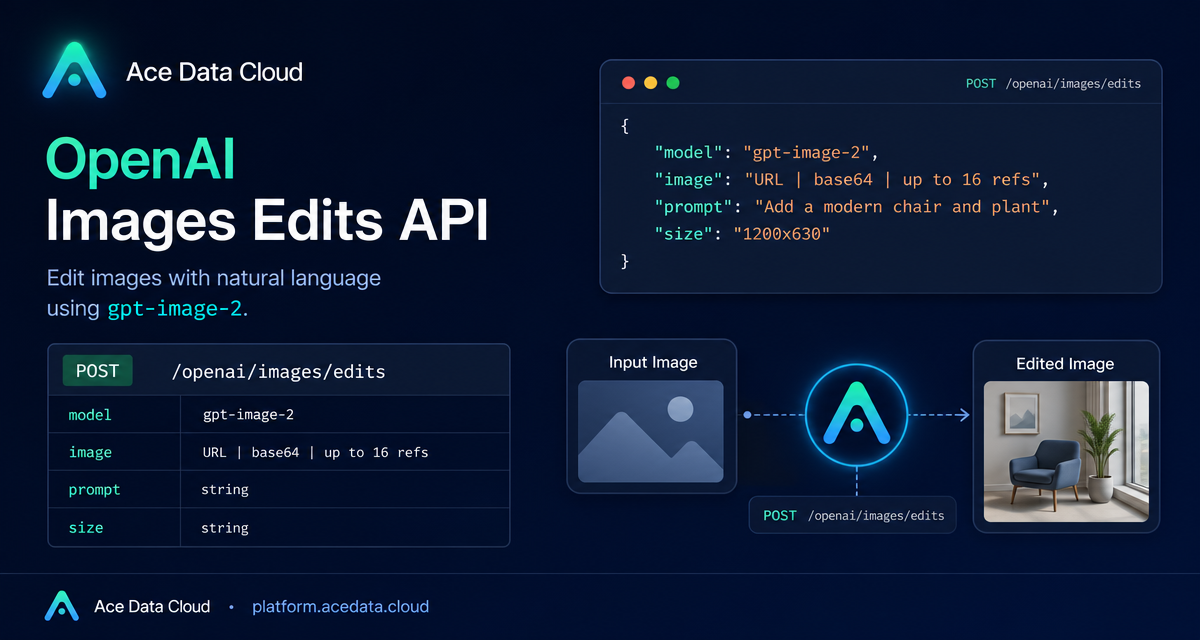
Image editing APIs are most useful when they fit into an existing product pipeline: take a user-uploaded image, apply a precise instruction, preserve the parts that matter, and return a usable asset without forcing your backend to juggle temporary files.
This guide walks through the OpenAI Images Edits API on Ace Data Cloud using gpt-image-2. The goal is not to make a toy demo, but to show how you can wire a practical server-side flow around documented fields such as model, image, prompt, size, and, when needed, callback_url.
What you can do
The edits endpoint accepts an existing image plus instructions, then returns a modified image. In the documented flow, the GPT Image series can accept up to 16 reference images at the same time, which makes it useful for workflows like product composition, poster cleanup, visual style changes, and controlled redesigns.
- Change a color system while keeping layout and composition intact.
- Replace a scene element while preserving object counts or arrangement.
- Use an image URL directly in JSON, so your service does not need to download and re-upload every source asset.
- Send base64 input when the image is local or private to your application.
- Request higher-resolution redraws through the
sizeparameter.
The same interface also supports gpt-image-1, gpt-image-2, and the nano-banana model family, but this tutorial focuses on gpt-image-2 because the documented behavior emphasizes stable structure, improved text retention, direct URL input, base64 input, and high-resolution redrawing.
How it works
The documented JSON request goes to:
POST https://api.acedata.cloud/openai/images/editsAt minimum, you provide an authorization header and a JSON body with the model, source image, edit instruction, and optionally the target size:
{
  "model": "gpt-image-2",
  "image": "https://example.com/source.png",
  "prompt": "Convert this infographic to dark mode while keeping layout and structure identical.",
  "size": "1024x1536"
}
The image field can be a single URL, an array of URLs, or base64 data. For multiple references, pass an array such as ["url1", "url2", "url3"]. The documented limit for GPT Image series reference images is 16 images; for multipart uploads, each image should be in png, webp, or jpg format and not exceed 50MB.
Use JSON + image URL for backend pipelines
If your application already stores images in object storage or a CDN, JSON URL input is the cleanest path. Your backend can keep the original asset where it is and pass the URL directly to the editing API.
curl -X POST "https://api.acedata.cloud/openai/images/edits"   -H "Authorization: Bearer {token}"   -H "Content-Type: application/json"   -d '{
    "model": "gpt-image-2",
    "image": "https://example.com/source-infographic.png",
    "prompt": "Convert this infographic to dark mode: dark navy background, light cream text, deep gray rounded module cards with soft shadows. Keep all layout, structure, and module arrangement identical — only invert the color scheme.",
    "size": "1024x1536"
  }'
The documented response contains success, task_id, trace_id, created, data, and elapsed. The generated image URL is returned under data[0].url:
{
  "success": true,
  "task_id": "cb104e35-af1f-45be-9fac-b62e2b256753",
  "trace_id": "3e5c77c6-6c2e-4bba-a42d-98ea049b58a8",
  "created": 1777048863,
  "data": [
    {
      "revised_prompt": "Convert this infographic to dark mode...",
      "url": "https://platform.cdn.acedata.cloud/gpt-image/cb104e35-af1f-45be-9fac-b62e2b256753_0.png"
    }
  ],
  "elapsed": 83.859
}
Choose size deliberately
For gpt-image-2, size can be auto, empty, or a WIDTHxHEIGHT string. Custom dimensions must use widths and heights that are multiples of 16, with the long side no more than 3840 and total pixels no more than 8,294,400. Values outside those constraints return a 4xx error.
The docs list common 1K, 2K, and 4K recommendations, including 1024x1024, 2048x2048, 2880x2880, 1792x1024, 2048x1152, and 3840x2160. In practice, choose the output shape your product actually needs: a portrait infographic, a square catalog image, or a landscape blog cover.
Handle local or private images with base64
When the image is not already available by URL, the same image field can accept base64. The documented format can be either data:image/png;base64,... or raw base64.
import base64
import requests

b64 = base64.b64encode(open("input.png", "rb").read()).decode()

payload = {
    "model": "gpt-image-2",
    "image": f"data:image/png;base64,{b64}",
    "prompt": "Convert this infographic to dark mode.",
    "size": "1024x1536"
}

response = requests.post(
    "https://api.acedata.cloud/openai/images/edits",
    json=payload,
    headers={"authorization": "Bearer {token}"}
)
print(response.text)
Use callbacks for longer edits
Image edits can take long enough that keeping an HTTP connection open is inconvenient. The documented asynchronous callback flow adds a callback_url field to the request. The API returns a task_id immediately; when the task completes, Ace Data Cloud sends the result as a POST JSON payload to your callback URL, including the same task_id so you can match it to the original job.
A simple production pattern is to create an internal database row before calling the API, store the returned task_id, and mark the job complete when your webhook receives the final result.
A practical checklist
- Use
gpt-image-2when you need stronger structure preservation or text retention. - Prefer JSON + URL input when images already live in object storage.
- Use base64 for private local files you do not want to upload elsewhere first.
- Keep
sizewithin the documented multiple-of-16, long-side, and total-pixel limits. - Use
callback_urlfor product workflows where edits should run asynchronously.
The nice part is that this is still just an HTTP interface. You can start with one curl request, then move the same fields into a job queue, webhook handler, or internal media service as your product matures.
Read the full Ace Data Cloud documentation for the OpenAI Images Edits API Integration Guide.


Comments
Post a Comment