How to Build an Image Editing Pipeline with GPT Image 2
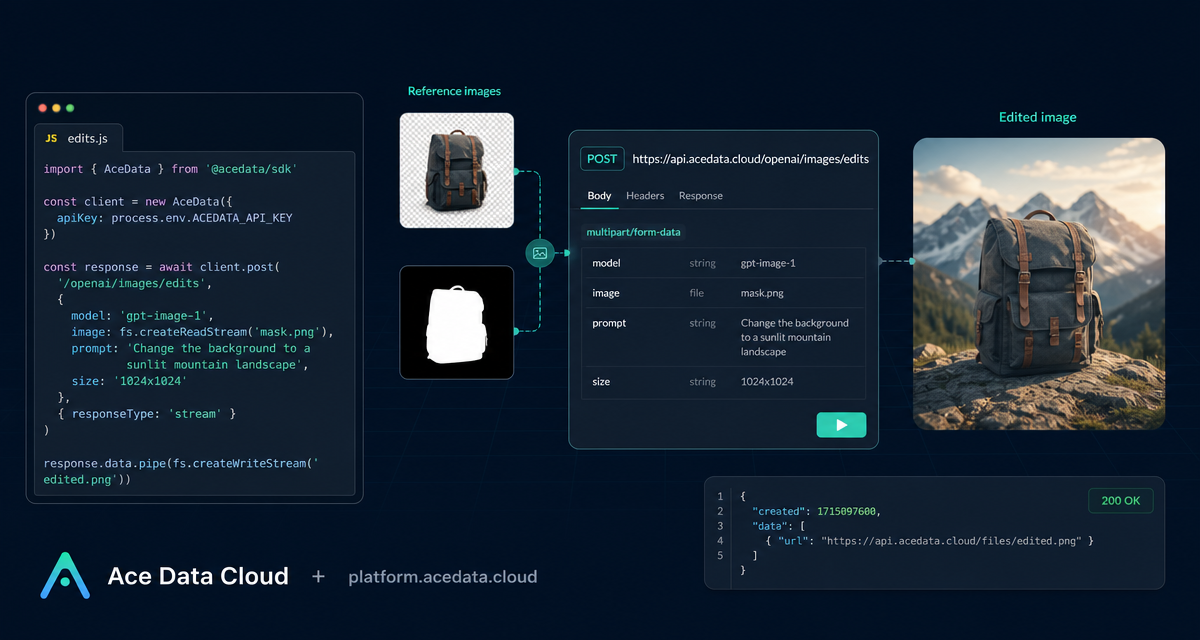
Image editing APIs become much more useful when they fit into an application pipeline instead of requiring every source image to be downloaded, re-uploaded, and handled manually.
What you can do
The OpenAI Images Edits API on Ace Data Cloud lets you send one or more reference images together with an instruction prompt, then receive modified image results. The same editing endpoint supports gpt-image-1, gpt-image-2, and the nano-banana family, including nano-banana-2-lite, nano-banana-2, and nano-banana-pro.
The most practical part for backend developers is that gpt-image-2 supports image URLs in JSON. That means a service can pass an existing CDN or object-storage URL directly through the image field, instead of first downloading the file locally and converting it into a multipart upload. The same image field can also accept base64 input, either as data:image/png;base64,... or raw base64.
- Edit a product, poster, infographic, or UI screenshot while preserving its structure.
- Use up to 16 reference images with GPT Image series models.
- Request 1K, 2K, 4K, or custom dimensions with
gpt-image-2, as long as the size format is valid. - Use asynchronous callbacks when long-running edits should not hold an HTTP connection open.
How it works
The main endpoint is:
POST https://api.acedata.cloud/openai/images/editsFor JSON-based editing with gpt-image-2, the core request fields are model, image, prompt, and optionally size. The image value can be a single image URL, a base64 image, or an array of image URLs/base64 values. The model reads those references and applies the editing instruction from prompt.
The documented response includes fields such as success, task_id, trace_id, created, data, and elapsed. Edited image URLs are returned inside data[].url, and data[].revised_prompt may contain the prompt used for the edit.
Start with JSON + image URL
If your images already live in a public or accessible URL, this is the cleanest integration path. Here is a minimal curl example based on the documented JSON style:
curl -X POST "https://api.acedata.cloud/openai/images/edits" \
  -H "Authorization: Bearer {token}" \
  -H "Content-Type: application/json" \
  -d '{
    "model": "gpt-image-2",
    "image": "https://platform.cdn.acedata.cloud/gpt-image/5c9fa635-8794-4c6d-88f8-584d7f4716c6_0.png",
    "prompt": "Convert this infographic to dark mode: dark navy background, light cream text, deep gray rounded module cards with soft shadows. Keep all layout, structure, and module arrangement identical — only invert the color scheme.",
    "size": "1024x1536"
  }'
This pattern is useful for content tooling: a CMS stores an original infographic, your backend passes its URL to the edit endpoint, and the result URL can be stored back into the CMS after the request completes. The prompt should be specific about what must change and what must remain fixed. For structure-sensitive work, phrases like “keep all layout, structure, and module arrangement identical” are not decoration; they are part of the instruction contract.
Choosing sizes without guessing
For gpt-image-2, the size value can be auto, empty, or a WIDTHxHEIGHT string. Invalid forms return a 400 error. Custom sizes must use width and height values that are multiples of 16, with the long side no greater than 3840 and the total pixel count no greater than 8,294,400.
The documentation lists recommended examples such as 1024x1024, 1536x1024, 1024x1536, 1792x1024, and 1024x1792 for 1K-style outputs, and larger examples such as 2048x2048, 2048x1536, 1536x2048, 3840x2160, and 2160x3840 for higher-resolution workflows.
Use multiple reference images
When one input image is not enough, gpt-image-2 can use multiple references. The image field becomes an array:
{
  "model": "gpt-image-2",
  "image": [
    "https://example.com/item1.png",
    "https://example.com/item2.png",
    "https://example.com/item3.png"
  ],
  "prompt": "Combine all the items above into a single 'Relax & Unwind' gift basket on a clean white background, photorealistic, soft natural lighting.",
  "size": "1024x1024"
}
This is the pattern I would reach for in a product-composition tool: the user selects several item images, the backend submits them as references, and the output becomes a single composed visual. GPT Image series models support up to 16 images, with each image not exceeding 50 MB and using png, webp, or jpg format.
When Nano Banana is a better fit
The same endpoint also supports Nano Banana models, but the supported parameter set is narrower. The adapter supports model, prompt, image, and n. Parameters such as mask, size, and response_format are not supported for Nano Banana and are ignored if provided.
curl -X POST "https://api.acedata.cloud/openai/images/edits" \
  -H "Authorization: Bearer {token}" \
  -F "model=nano-banana" \
  -F "prompt=add a green leaf on top of the apple" \
  -F "image=https://platform.cdn.acedata.cloud/nanobanana/6870b330-65c4-436c-bb80-819fdae7a7a4.png"
For applications that mainly need simple image transformations and can accept URL results, this keeps the request shape compact. For stricter control over output size and high-resolution redraws, gpt-image-2 is the more direct choice.
Production note: use callbacks for long edits
Image editing can take time. The API supports an asynchronous callback flow: include a callback_url field, receive a response with task_id, and then handle the final POST JSON sent to your callback URL when the edit is complete. That design keeps workers from waiting on a long open HTTP request and lets your application correlate results by task_id.
A practical implementation is straightforward: save the submitted task_id, mark the job as processing, and update the record when your webhook receives the completed result. That turns image editing into a normal background job instead of a blocking UI action.
Wrap-up
The key builder takeaway is simple: treat image editing as a pipeline primitive. Keep your source assets in storage, pass URLs or base64 into /openai/images/edits, be explicit about what should remain unchanged, and use callbacks when the user experience should not block. For the full parameter details and examples, read the OpenAI Images Edits API Integration Guide.


Comments
Post a Comment