Getting Started with NanoBanana MCP in Claude Code
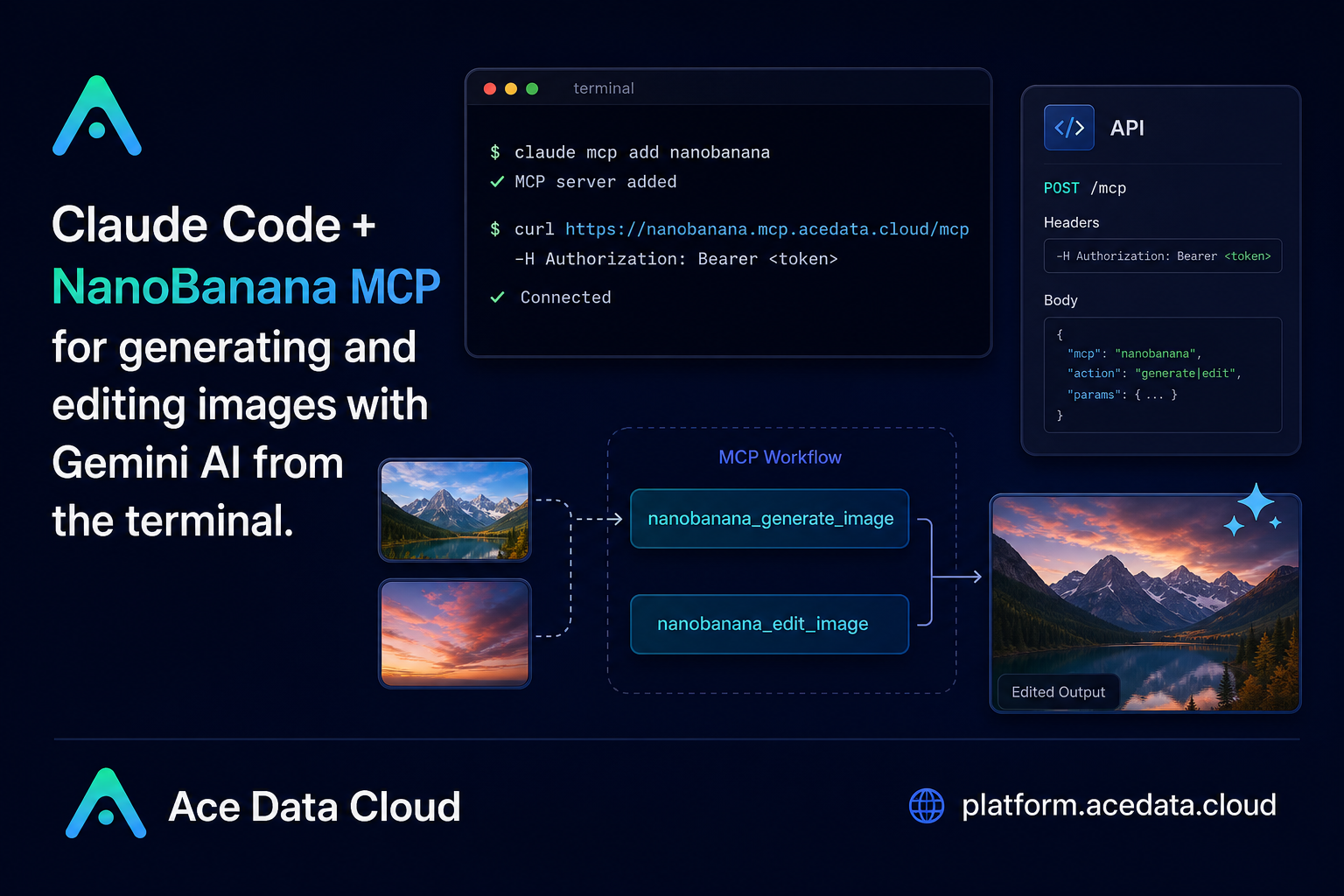
If your image workflow keeps pulling you out of the terminal, NanoBanana MCP gives Claude Code a practical way to generate, edit, and compose images without switching tools.
What you can do
The NanoBanana MCP integration described in the Ace Data Cloud documentation connects Claude Code to a NanoBanana MCP server backed by Google Gemini image understanding. The useful part is not only text-to-image generation. The workflow is designed for image-aware editing, including cases where you provide multiple images and ask the model to combine or modify them in a natural way.
- Generate an image from a plain-language prompt using
nanobanana_generate_image. - Edit an existing image using
nanobanana_edit_image. - Use multiple image URLs as input for composition, such as placing an object from one image into the scene of another.
- Run the whole workflow from a Claude Code session instead of opening a separate image editor.
A typical use case is a builder working on a product page, documentation site, or internal tool who needs one-off visual assets: a 404 illustration, a cleaned screenshot, or a quick mockup that combines a product object with a new background.
How it works
Claude Code talks to external capabilities through MCP servers. For this integration, the MCP server name used in the docs is nanobanana, and the server URL is https://nanobanana.mcp.acedata.cloud/mcp. You add it with the Claude Code CLI, pass an Ace Data Cloud API token as an authorization header, and then call the NanoBanana tools from a normal Claude Code conversation.
The important mental model is simple: Claude Code remains the interface where you describe the task, while the MCP server exposes concrete image tools that can execute generation or editing. That means you can keep the surrounding work in the same place: inspect files, draft copy, ask for an illustration, then continue editing the page or documentation.
Configure the MCP server
After you have an Ace Data Cloud API token, add the NanoBanana MCP server from your terminal. The command in the documentation is:
claude mcp add nanobanana --transport http https://nanobanana.mcp.acedata.cloud/mcp -H "Authorization: Bearer YOUR_TOKEN"One small detail matters: -H must be uppercase. In Claude Code, lowercase -h is treated as --help, not as a header parameter. If the command appears to show help instead of adding the server, check that flag first.
Once configured, verify the connection:
claude mcp listThe expected result is that nanobanana appears as connected. From there, the tools become available inside Claude Code sessions.
Choose the right scope
The docs call out three configuration scopes, and this is worth deciding before you copy the command into every project.
local: the default if you do not pass-s. It applies only to the directory where you run the command and is stored in~/.claude.json.user: pass-s userto make the server available globally across your projects, also stored in~/.claude.json.project: pass-s projectto write configuration to.mcp.jsonin the project root, which can be shared with a team.
For a personal setup, -s user is convenient. For a team repository, -s project is usually clearer because the dependency is visible in the repo. The docs also include the right warning: do not commit real tokens to public repositories. Use environment-variable placeholders such as ${ENV_VAR} plus local environment variables instead.
Try a multi-image edit
The most interesting workflow is multi-image composition. The documentation gives the example of taking the phone from a first image and placing it on the desk in a second image, with angle and lighting adjusted so the result looks natural.
Inside Claude Code, the request can stay human-readable:
Put the phone from the first image onto the desk in the second image, adjusting angle and lighting to make it look natural.Because nanobanana_edit_image supports multiple image URLs as input, this style of prompt is useful for product mockups, landing page visuals, and before/after examples. The key is to describe the role of each image clearly: which one contains the object, which one is the scene, and what should be preserved.
Clean screenshots and generate small illustrations
The same tool is useful for smaller documentation tasks. If a screenshot contains unwanted text or a watermark in a corner, the doc suggests asking NanoBanana to remove the text and fill the background. For UI and docs teams, that can be faster than opening a separate editor for simple cleanup.
Edit this image to remove the text watermark in the bottom right corner, filling the background.For new assets, use nanobanana_generate_image. The docs include a 404-page illustration prompt:
Generate an illustration of a small dinosaur crouching next to a crack in the ground looking down, for use on a 404 page.That is the kind of prompt that works well in a builder workflow: specific enough to guide the image, but not overloaded with art-direction details that are unrelated to the page.
A practical way to use it
I would start with one narrow task: add the MCP server, verify it with claude mcp list, and ask for a single documentation illustration or screenshot cleanup. Once that works, move to multi-image composition, where NanoBanana’s image understanding becomes more valuable.
The integration is small, but the workflow change is meaningful: Claude Code becomes not only a place to write code, but also a place to ask for visual assets that support the code and docs you are already building. Read the source documentation here: Claude Code integration with NanoBanana MCP.


Comments
Post a Comment