Getting Started with Nano Banana MCP for Image Generation in Your AI Client
If you already use an AI client as your day-to-day coding workspace, the next useful step is letting that client create and edit images without leaving the conversation.
The Nano Banana MCP Server from Ace Data Cloud is designed for exactly that workflow: connect an MCP-compatible client such as Claude Desktop, VS Code, or Cursor, provide an Ace Data Cloud API token, and then ask the client to generate or edit images through standard MCP tools.
What you can do
The public Nano Banana MCP guide describes a compact but practical image workflow surface. Once configured, the server exposes tools for:
- Image generation: create images from text prompts.
- Image editing: modify an existing image or combine multiple images.
- Virtual try-on: apply clothing to a photo of a person.
- Product placement: place a product into a real-world scene.
- Multi-model usage: use
nano-banana,nano-banana-2, ornano-banana-pro. - Task querying: monitor generation progress and retrieve results.
This is most useful when image work is part of a larger builder loop: drafting product pages, preparing social visuals, mocking an ecommerce scene, or iterating on creative assets from inside an IDE.
How it works
MCP, or Model Context Protocol, gives an AI client a standardized way to call external tools. Instead of copying prompts into a separate image tool and then moving files back into your project, your AI client can call the Nano Banana MCP Server as a local command.
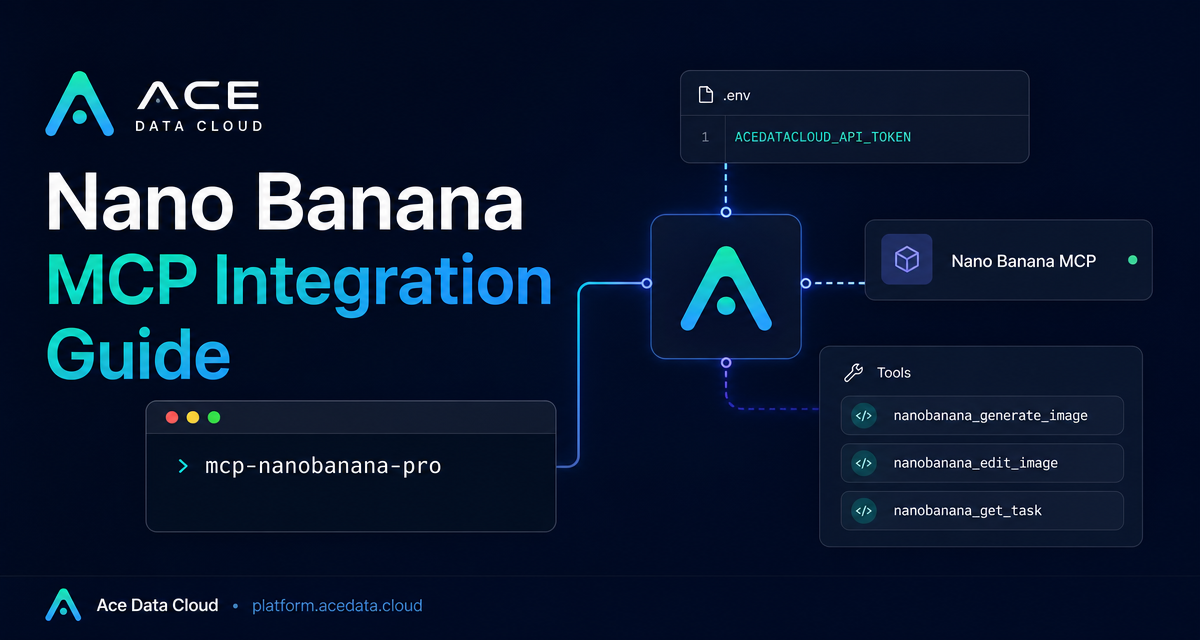
The package command used by the guide is mcp-nanobanana-pro. Authentication is passed through the environment variable ACEDATACLOUD_API_TOKEN. After the client starts the server, the available tools can be invoked from natural language in the AI client.
Install the MCP server
The recommended installation path is a Python package install:
pip install mcp-nanobanana-proIf you prefer to work from source, the guide also provides a GitHub-based installation flow:
git clone https://github.com/AceDataCloud/NanoBananaMCP.git
cd NanoBananaMCP
pip install -e .
After installation, the MCP server can be started with the mcp-nanobanana-pro command. In most client setups, you do not run it manually every time; the client starts it based on its MCP configuration.
Configure Claude Desktop
For Claude Desktop, edit the configuration file for your operating system:
- macOS:
~/Library/Application Support/Claude/claude_desktop_config.json - Windows:
%APPDATA%\Claude\claude_desktop_config.json
Add the server under mcpServers:
{
  "mcpServers": {
    "nanobanana": {
      "command": "mcp-nanobanana-pro",
      "env": {
        "ACEDATACLOUD_API_TOKEN": "Your API Token"
      }
    }
  }
}
If you prefer not to install the package ahead of time, the documented uvx configuration is:
{
  "mcpServers": {
    "nanobanana": {
      "command": "uvx",
      "args": ["mcp-nanobanana-pro"],
      "env": {
        "ACEDATACLOUD_API_TOKEN": "Your API Token"
      }
    }
  }
}
Save the file and restart Claude Desktop so the client can discover the server and its tools.
Configure VS Code or Cursor
For VS Code or Cursor, create .vscode/mcp.json in the root of the project you want to work in. The configuration shape is slightly different: the top-level key is servers, not mcpServers.
{
  "servers": {
    "nanobanana": {
      "command": "mcp-nanobanana-pro",
      "env": {
        "ACEDATACLOUD_API_TOKEN": "Your API Token"
      }
    }
  }
}
The uvx version is also supported:
{
  "servers": {
    "nanobanana": {
      "command": "uvx",
      "args": ["mcp-nanobanana-pro"],
      "env": {
        "ACEDATACLOUD_API_TOKEN": "Your API Token"
      }
    }
  }
}
This setup is especially convenient when image generation belongs to a repository workflow. For example, you can keep prompts, generated concepts, and implementation notes in the same project context.
Use the available tools from natural language
The guide lists four MCP tools:
nanobanana_generate_imagefor text-to-image generation.nanobanana_edit_imagefor editing or combining existing images.nanobanana_get_taskfor checking one task.nanobanana_get_tasks_batchfor checking multiple tasks.
In practice, you can stay conversational. Ask for a watercolor landscape, a product placed in a café scene, clothing applied to a person photo, or a higher-quality portrait using the nano-banana-pro model. The important builder habit is to be specific about the asset, the scene, and whether the task is generation, editing, or placement.
A small workflow to try
- Install
mcp-nanobanana-pro. - Add the MCP configuration to Claude Desktop, VS Code, or Cursor.
- Set
ACEDATACLOUD_API_TOKENin the server environment. - Restart the client.
- Ask the client to generate or edit an image, then query the task result if needed.
That is the whole loop: your AI client becomes the interface, the MCP server provides the image tools, and Ace Data Cloud handles the Nano Banana image capabilities behind the scenes.
For the exact installation snippets and tool list, see the Nano Banana MCP Integration Guide.


Comments
Post a Comment