Getting Started with Claude Code in VS Code Through Ace Data Cloud
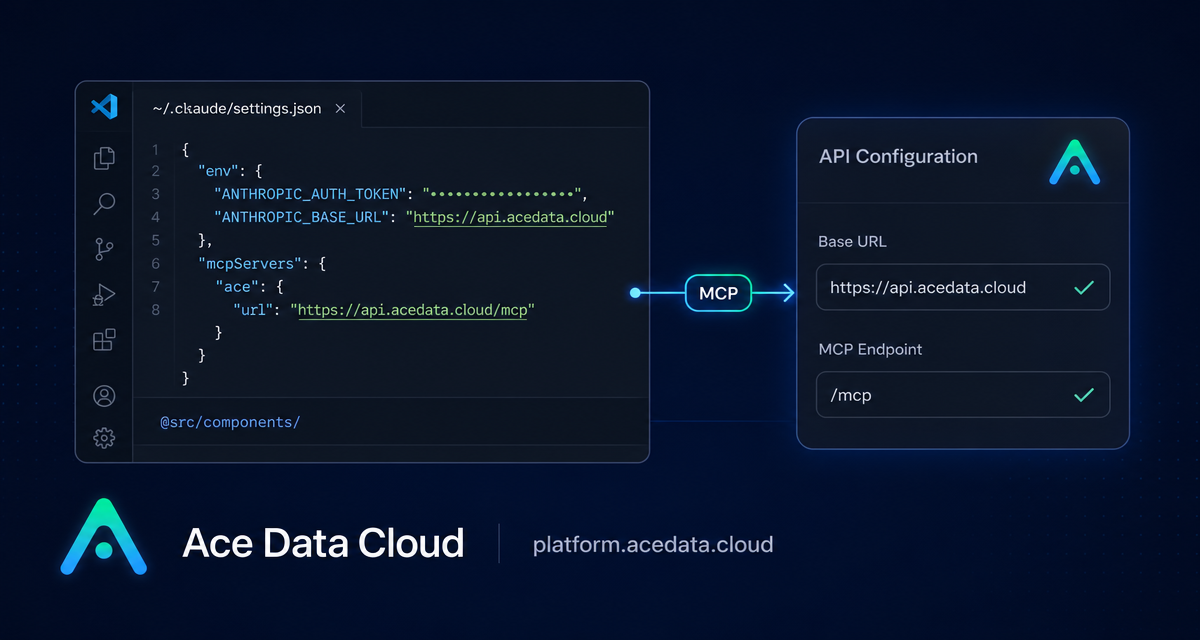
If you already live in VS Code, the friction in using an agentic coding tool is usually not the model itself — it is getting the editor, project context, file diffs, and approval flow to feel natural. Claude Code’s VS Code extension gives you that native workflow, and Ace Data Cloud can be configured as the API base so the extension talks to https://api.acedata.cloud instead of asking you to complete the default Anthropic login flow.
What you can do
With this setup, Claude Code runs inside VS Code or Cursor as an editor-native coding agent. The documented workflow supports a graphical panel, inline diff review, file and directory references with @-mentions, slash commands, conversation history, and several permission modes for controlling how changes are applied.
- Ask questions about the current codebase in natural language.
- Reference files such as
@filename.pyor directories such as@src/components/. - Use
@terminal:nameto bring terminal output into the conversation. - Review edits in a diff view before accepting or rejecting them.
- Switch modes such as
Default (Ask),Plan,acceptEdits, orbypassPermissions.
How it works
The extension reads environment configuration from Claude Code settings files. The two important fields are ANTHROPIC_AUTH_TOKEN and ANTHROPIC_BASE_URL. The token is your Ace Data Cloud API token, and the base URL is documented as https://api.acedata.cloud. Once those values are present, the VS Code extension can use the proxy API configuration without requiring the official login prompt.
You can configure this globally for your user account or locally for a single project. User-level configuration lives in ~/.claude/settings.json. Project-level configuration lives in .claude/settings.json or .claude/settings.local.json in the project root. The project-level file takes precedence over user-level configuration, which is useful when different repositories need different settings.
Install the extension
The documented requirement is VS Code 1.98.0 or higher. Cursor is also supported because it is compatible with VS Code extensions. Open the extension view with Cmd+Shift+X on macOS or Ctrl+Shift+X on Windows and Linux, search for Claude Code, choose the extension published by Anthropic, and install it.
If the extension does not appear immediately after installation, reload the window from the command palette with Developer: Reload Window, or restart the editor. After installation, you may see a trust prompt; confirm it so the extension can run inside your workspace.
Configure the API base
For a user-level setup, create or edit ~/.claude/settings.json:
{
  "env": {
    "ANTHROPIC_AUTH_TOKEN": "{token}",
    "ANTHROPIC_BASE_URL": "https://api.acedata.cloud"
  }
}
For a repository-specific setup, put the same structure in .claude/settings.json or .claude/settings.local.json:
{
  "env": {
    "ANTHROPIC_AUTH_TOKEN": "{token}",
    "ANTHROPIC_BASE_URL": "https://api.acedata.cloud"
  }
}
Use .claude/settings.json when the configuration is meant to be shared by the team. Use .claude/settings.local.json for personal configuration, especially when the file contains sensitive values. The documentation notes that the Bearer prefix is added automatically when ANTHROPIC_AUTH_TOKEN is sent to the server, so the value in the file should be the token itself.
Open the Claude Code panel
After configuration, reopen the Claude Code panel. There are several documented entry points:
- Click the spark icon in the editor toolbar when a file is open.
- Click
✱ Claude Codein the status bar. - Open the command palette with
Cmd+Shift+PorCtrl+Shift+Pand search for Claude Code. - Use
Cmd+Escon macOS orCtrl+Escon Windows and Linux to switch focus.
The extension uses an editor view as the chat area by default. That gives long responses, diffs, and plans more room than a narrow sidebar, although you can still drag the panel elsewhere if that fits your layout better.
Use context deliberately
The best results usually come from giving the agent a small, relevant slice of the project. Instead of asking “fix the app,” reference the files and outputs that matter:
Review @src/components/CheckoutForm.tsx and the failing output in @terminal:test.
Find the smallest change that fixes the validation bug, then show me the diff.
You can also select a range of code in the editor and press Option+K on macOS or Alt+K on Windows/Linux to insert a reference such as @app.ts#5-10. That is a practical habit: it keeps the conversation grounded in the exact code you want changed.
Control how much autonomy the agent has
Claude Code provides several permission modes. Default (Ask) asks before each operation and is the safest starting point. Plan makes the agent produce a plan and wait before executing. acceptEdits automatically accepts file edits while still requiring confirmation for terminal commands. bypassPermissions skips prompts and should only be used in trusted project environments where you understand the risk.
For day-to-day work, I like starting in Plan for broad refactors and switching to Default (Ask) or acceptEdits for smaller, well-scoped fixes. The diff review is the key safety valve: treat it like a pull request from a teammate, not a magic patch.
Useful slash commands
The extension exposes slash commands from the input box. The documented commands include /new for a new conversation, /model for switching models, /compact for compressing context, /mcp for configuring MCP services, /config for settings, /usage for usage, /memory for memory management, and /help for help.
That gives you a simple rhythm: start a focused session with /new, reference the files you care about, ask for a plan, review the diff, and use /compact when the conversation becomes long.
Troubleshooting checklist
- If the connection fails, check
ANTHROPIC_AUTH_TOKENandANTHROPIC_BASE_URLin the relevant settings file. - Confirm that the token is valid in the Ace Data Cloud console.
- Verify that your network can reach
https://api.acedata.cloud. - Restart VS Code or run
Developer: Reload Windowafter changing configuration. - If the spark icon is missing, make sure a file is open and your VS Code version is at least 1.98.0.
That is enough to turn VS Code into a practical agentic coding workspace without changing your editor habits. Start with a narrow task, keep context explicit with @-references, and let the diff view be your review layer. For the full setup reference, read the Claude Code VS Code integration guide.


Comments
Post a Comment