How to Use NanoBanana MCP from Codex CLI for Image Generation and Editing
If you already use Codex CLI as your working terminal assistant, the most annoying part of image generation is often not the model itself. It is the context switching: opening another tool, copying prompts, pasting image links, and then bringing the result back into your development flow. NanoBanana MCP gives you a small, practical way to keep image generation and image editing inside the same Codex CLI conversation.
What you can do
The NanoBanana MCP integration is designed for image work that benefits from direct conversational control. According to the source document, the server is based on Gemini’s multimodal image model and is suited for complex instructions, fine editing, and coherent consistent characters.
In practice, that means you can ask Codex CLI to call NanoBanana MCP for tasks such as:
- generating an image from a text prompt, for example an orange cat wearing a spacesuit and eating a burger on the moon;
- editing an existing portrait from a link while preserving the person’s features;
- creating product-style visuals, such as a steaming cup of coffee on a wooden table with backlight and film texture.
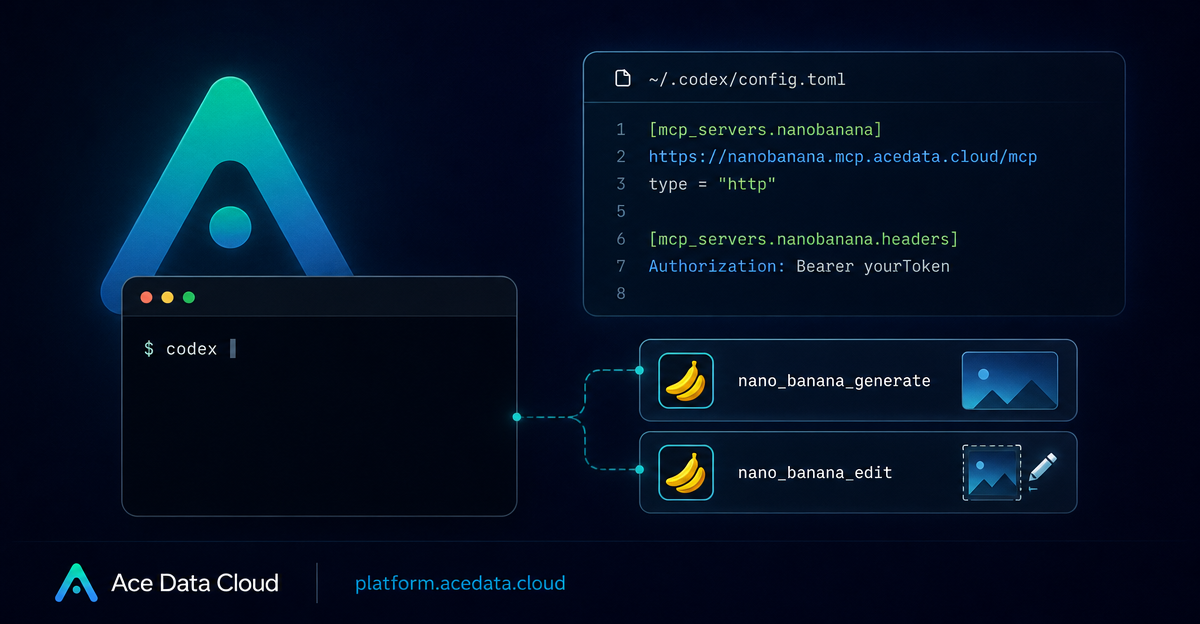
The documented MCP server exposes two tools: nano_banana_generate for text-to-image generation with nano-banana, nano-banana-2, or nano-banana-pro, and nano_banana_edit for image editing. This guide stays within those documented capabilities.
How it works
Codex CLI can load MCP servers from its configuration file. For NanoBanana MCP, the documented configuration uses an HTTP MCP server endpoint and passes your Ace Data Cloud API token through the Authorization header.
The important pieces are:
~/.codex/config.tomlis the Codex CLI configuration file you edit.[mcp_servers.nanobanana]defines the MCP server entry.urlpoints tohttps://nanobanana.mcp.acedata.cloud/mcp.typeis set tohttp.http_headerscarriesAuthorization = "Bearer yourToken".
After the file is saved, the document says the tool is automatically loaded the next time a codex session starts. From that point, you can invoke NanoBanana in natural language from the conversation instead of switching to a separate image UI.
Step 1: Get an Ace Data Cloud API token
The document instructs you to register an account on the Ace Data Cloud Platform and copy the API token from the homepage. The same token is used in the MCP server configuration as a bearer token.
You should treat that token like any other API secret. Do not hard-code it into public repositories, screenshots, or shared terminal logs. The example below uses the placeholder yourToken exactly as shown in the documentation; replace it locally with your real token.
Step 2: Configure Codex CLI
Open ~/.codex/config.toml and add the NanoBanana MCP server entry:
[mcp_servers.nanobanana]
url = "https://nanobanana.mcp.acedata.cloud/mcp"
type = "http"

http_headers = { "Authorization" = "Bearer yourToken" }
This is the core integration. There is no SDK setup in the source document, and there is no separate endpoint list to wire by hand. Codex CLI talks to the MCP server, and the MCP server exposes the image generation and editing tools to the assistant environment.
Step 3: Restart Codex CLI and use natural-language requests
Once the next codex session starts, you can keep the task phrased as a normal request. The useful pattern is to describe the output, the constraints, and any image link that should be edited.
For text-to-image, a request can be simple:
Generate an orange cat wearing a spacesuit, eating a burger on the moon using NanoBanana.For image editing, include the source image link and the preservation requirement:
Turn this portrait photo (link xxx) into an ink wash painting, preserving the person’s features.For product visuals, specify the scene and visual treatment:
Generate a product image: a steaming cup of coffee, backlit, wooden table, film texture.These examples are intentionally close to the documented usage examples. They show the kind of instruction NanoBanana MCP is expected to handle: generation, style transfer, and product-like visual composition.
When this setup is useful
I would use this workflow when the image is part of an engineering or content task rather than a standalone design session. For example, you might be drafting documentation, preparing a README, creating a quick product mockup, or iterating on a blog cover while the surrounding text and code are already in your terminal workflow.
The benefit is not that MCP magically removes the need to write good prompts. The benefit is that it puts image tools closer to where builders already make decisions. You can ask for an image, revise the instruction, attach a source link for editing, and keep the result connected to the task you are working on.
A few practical notes
- Keep the MCP server name stable. In the documented configuration it is
nanobanana. - Use the documented URL exactly:
https://nanobanana.mcp.acedata.cloud/mcp. - Keep the authorization header in
http_headersso Codex CLI can authenticate the MCP request. - Use
nano_banana_generatefor text-to-image work andnano_banana_editwhen an existing image should be transformed.
That is enough to get started: configure the MCP server, restart Codex CLI, and ask for image generation or editing directly in the conversation. For the original setup details, see the Codex CLI integration with NanoBanana MCP documentation.


Comments
Post a Comment