How to Use Claude Code from the Terminal with Ace Data Cloud
If you already live in the terminal, the fastest way to use an AI coding agent is not another dashboard. It is a command you can run from inside the project you are debugging, reviewing, or refactoring.
This guide walks through a practical setup for using claude, the Claude Code terminal CLI, with Ace Data Cloud as the API base URL. The goal is simple: configure the CLI once, keep your project context local to the terminal, and use natural language for day-to-day engineering tasks such as reviewing diffs, writing tests, and creating commits.
What you can do
The Claude Code CLI is designed for agentic coding workflows from a shell. Once installed and configured, you can:
- Start an interactive coding session with
claude. - Run one-off tasks such as
claude "fix build error". - Ask a question and exit with
claude -p "explain this function". - Continue the most recent conversation in the current directory with
claude -c. - Restore a previous conversation with
claude -r. - Create a Git commit with
claude commit.
The useful part for builders is that these commands run where your code already is. You can inspect a repository, pipe command output into the agent, and turn a messy terminal investigation into a repeatable workflow.
How it works
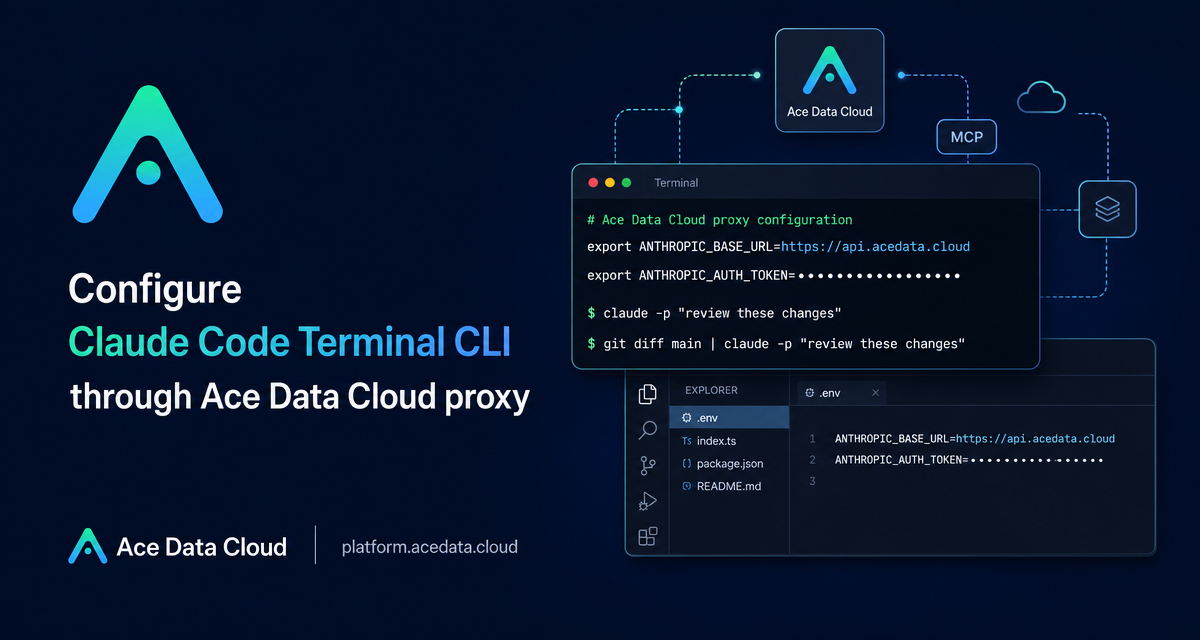
Claude Code normally prompts you to log in to an Anthropic account. For this setup, the CLI is pointed at Ace Data Cloud by setting two environment variables documented for the terminal integration:
ANTHROPIC_AUTH_TOKEN: the token used for the custom authorization header. The CLI automatically adds theBearerprefix when sending it.ANTHROPIC_BASE_URL: the API base URL, set tohttps://api.acedata.cloud.
You can set these globally in your shell configuration or only for Claude Code in ~/.claude/settings.json. The second option is cleaner if you do not want other programs in the same shell to inherit the same variables.
Install the CLI
The native installer is the recommended path in the source guide. It supports macOS, Linux, and Windows through WSL. Node.js is not required because the native installation handles dependencies.
curl -fsSL https://claude.ai/install.sh | bashOn Windows PowerShell, use:
irm https://claude.ai/install.ps1 | iexOn Windows CMD, use:
curl -fsSL https://claude.ai/install.cmd -o install.cmd && install.cmd && del install.cmdThe same document also lists Homebrew and WinGet alternatives:
brew install claude-codewinget install Claude.ClaudeCodeConfigure the Ace Data Cloud endpoint
If you want the configuration to apply whenever you open a terminal, add the following to ~/.zshrc, ~/.bashrc, or ~/.bash_profile. Replace {token} with your Ace Data Cloud API token.
# AceData Cloud - Claude Code Proxy Configuration
export ANTHROPIC_AUTH_TOKEN="{token}"
export ANTHROPIC_BASE_URL="https://api.acedata.cloud"
Then reload your shell configuration:
source ~/.zshrc # or source ~/.bashrcIf you prefer to scope the configuration only to Claude Code, create or edit ~/.claude/settings.json instead:
{
  "env": {
    "ANTHROPIC_AUTH_TOKEN": "{token}",
    "ANTHROPIC_BASE_URL": "https://api.acedata.cloud"
  }
}
This keeps the proxy configuration tied to the tool rather than your whole shell session.
Start with project-level tasks
From a repository, start an interactive session:
cd /path/to/your/project
claude
In the session, you can ask direct engineering questions. The source guide gives examples like:
> what does this project do?
> there's a bug where users can submit empty forms - fix it
> write unit tests for the calculator functions
> refactor the authentication module to use async/await
> commit my changes with a descriptive message
> create a pr for this feature
For me, the best first task is usually not “build a new feature.” It is “explain the current code path” or “review this diff.” Those prompts are small enough to validate the setup while still producing useful context.
Use pipes for review and automation
The CLI also supports piping, which makes it fit naturally into Unix-style workflows. For example, you can review the current branch against main:
git diff main | claude -p "review these changes"Or monitor logs and ask the agent to watch for unusual behavior:
tail -f app.log | claude -p "notify me if an anomaly is detected"The important design pattern is to send the smallest useful context. A diff, a failing test log, or a focused file is usually better than asking the agent to infer everything from the entire repository.
Add project memory with CLAUDE.md
For recurring conventions, create a CLAUDE.md file in the project root. Claude Code loads it at startup, so it is a good place for coding standards and project assumptions.
# Project Description
This is a full-stack project using Django + Vue.js.

## Coding Standards
- Use Python 3.12
- Follow PEP 8 coding style
- All APIs need to have unit tests
This is especially helpful on teams: instead of repeating the same style instructions in every prompt, keep them versioned beside the code.
Troubleshooting checklist
- If connection fails, confirm that
ANTHROPIC_AUTH_TOKENandANTHROPIC_BASE_URLare set correctly. - If the CLI cannot be found, reopen the terminal, check
PATH, or reinstall with the native installer. - If you need to manage the session, interactive commands include
/help,/clear,/config,/model,/mcp,/compact,/memory,/login, andexitorCtrl+C.
The terminal is still the most composable developer interface we have. A CLI-based coding agent works best when you treat it like another command-line tool: pass it focused context, keep project memory close to the repo, and review the changes before committing.
Read the full Ace Data Cloud reference here: Claude Code Terminal CLI Integration Guide.


Comments
Post a Comment