How to Generate Background Music from VS Code with Suno MCP
If you build tutorials, demos, podcasts, or indie game prototypes, the hard part is often not writing code. It is the small production work around the code: finding usable background music, checking licensing, downloading files, trimming clips, and then returning to the editor where the real work is happening.
The VS Code + Suno MCP workflow keeps that loop inside your development environment. From GitHub Copilot Chat in Agent mode, you can ask for a track in plain language, route the request through the Suno MCP server, and use the result as supporting audio for technical content or product demos.
What you can do
The documented workflow is intentionally simple: install the Suno MCP extension, save an Ace Data Cloud API key in VS Code, and ask Copilot Chat to use Suno for an audio task. The doc describes several practical jobs that map well to everyday builder work:
- Generate light, upbeat background music for a programming tutorial.
- Create a 20-second electronic opening track for a demo day video.
- Generate a song with custom lyrics and a requested style, such as lo-fi hip hop.
- Continue an existing song from a timestamp, for example from
01:40, while changing the arrangement. - Separate vocals and accompaniment when you need stems for editing.
The key idea is not that your editor becomes a music studio. It is that the first useful draft of audio can happen where your project context already lives.
How it works
MCP, or Model Context Protocol, lets an AI assistant call external tools through a server configuration. In this setup, VS Code and GitHub Copilot Chat act as the interface, while the Suno MCP endpoint provides music-related tools through Ace Data Cloud.
The extension path is the easiest route. In VS Code, open the Extensions Marketplace with Cmd+Shift+X, search for Suno MCP or the extension ID acedatacloud.mcp-suno, install it, and reload the window if prompted.
Then open the command palette with Cmd+Shift+P and run Suno MCP: Set Ace Data Cloud API Key. Paste your API key when prompted. The document notes that the key is stored in VS Code SecretStorage or the system keychain. If you need to rotate it later, run Suno MCP: Clear Ace Data Cloud API Key and set it again.
Verify the connection in Copilot Agent mode
After setup, open GitHub Copilot Chat and switch to Agent mode. The first request should explicitly mention Suno so the assistant routes the task through the extension. A minimal test prompt can be:
Use suno to help me complete this task: generate a light and upbeat background music track for a programming tutorial, with a steady rhythm that does not distract from narration.For a tutorial video, I would start with short, descriptive prompts like this rather than trying to over-specify the composition. Mention the content type, the role of the track, and the constraint that matters most. For narration, that constraint is usually “steady but not distracting.”
Manual configuration with .vscode/mcp.json
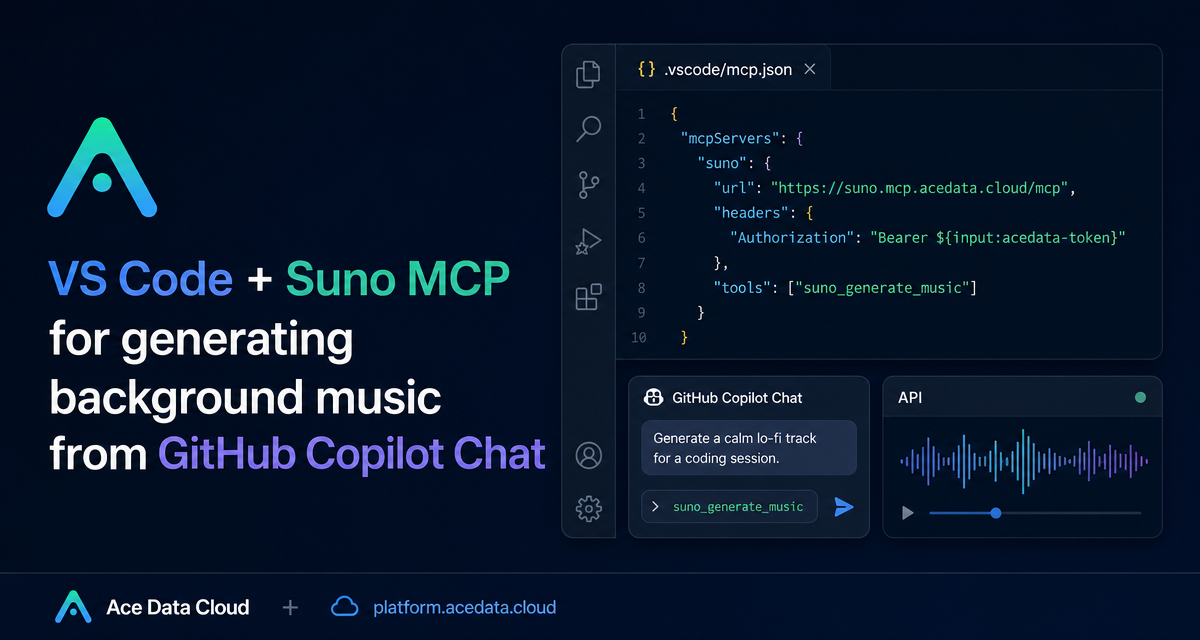
If you prefer configuration-as-code, the document also provides a manual MCP setup. Add a .vscode/mcp.json file to your project and define a Suno server that points to the hosted MCP endpoint:
{
  "servers": {
    "suno": {
      "type": "http",
      "url": "https://suno.mcp.acedata.cloud/mcp",
      "headers": {
        "Authorization": "Bearer ${input:acedata-token}"
      }
    }
  },
  "inputs": [
    {
      "id": "acedata-token",
      "type": "promptString",
      "description": "Ace Data Cloud API key",
      "password": true
    }
  ]
}
This is useful when you want the MCP server definition to travel with a repository while keeping the actual token out of source control. The inputs block asks VS Code to prompt for the API key, marks it as password, and injects it into the Authorization header as a bearer token.
Use the right tool for the job
The doc lists a handful of Suno MCP tools, and the names are a good guide to how you should phrase requests:
suno_generate_musicgenerates a whole song from a single sentence description.suno_generate_custom_musicsupports your own lyrics, style, and vocals.suno_extend_musiccontinues an existing song from a timestamp.suno_cover_musiccreates a cover in another style.suno_mashup_musiccombines two songs.suno_stems_musicseparates vocals and accompaniment.suno_generate_lyricscreates lyrics.suno_create_personasaves a voice style.
For example, if you are editing an indie game devlog and already have a main loop, ask Copilot to use suno_extend_music from a specific timestamp and describe the change: more drums, stronger strings, or a faster rhythm. If you are making a podcast intro, suno_generate_custom_music is a better mental model because lyrics, style, and vocal direction matter.
A practical workflow for builders
My recommended loop is small and repeatable. First, generate a short draft for the exact context: “20-second tech-style opening music, mainly electronic synthesizer, powerful but not noisy.” Second, listen only for fit: does it support the demo, or does it compete with the voice? Third, iterate with one change at a time, such as reducing energy, adding rhythm, or extending from a timestamp.
This keeps audio generation from becoming another rabbit hole. The value is the tight loop: prompt, listen, adjust, and return to the tutorial, demo, or product work.
If you want to reproduce the setup, start with the official VS Code integration with Suno MCP guide.


Comments
Post a Comment