How to Generate and Edit Images from Claude Code with NanoBanana MCP
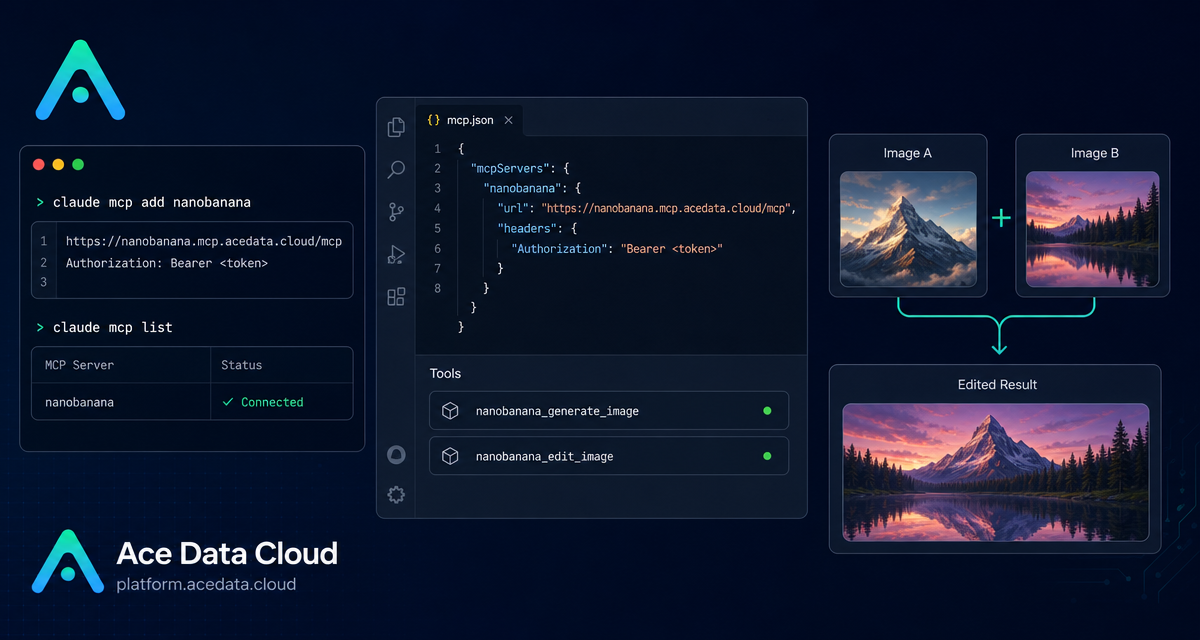
When you are working in a terminal-based coding flow, even a small image task can break focus: open a browser, find the right tool, upload references, copy results back, and then return to the codebase. This guide shows how to wire NanoBanana MCP into Claude Code so image generation and image editing become part of the same terminal workflow.
What you can do
The NanoBanana MCP integration described in the Ace Data Cloud documentation gives Claude Code access to two image tools:
nanobanana_generate_imagefor text-to-image generation.nanobanana_edit_imagefor image editing, including multi-image input.
The practical difference is that you are not only asking for a brand-new picture. You can also give Claude Code existing image URLs and ask it to reason about their contents. The documentation gives a useful example: put the phone from one image onto the desk in another image, then adjust angle and lighting so the result looks natural. That is the kind of task where an assistant needs to understand both the object and the destination scene.
How it works
Claude Code can connect to external capabilities through MCP servers. In this case, the server name is nanobanana, the transport is http, and the MCP endpoint is:
https://nanobanana.mcp.acedata.cloud/mcpYou authenticate the connection with an Ace Data Cloud API token passed as an HTTP authorization header. The important implementation detail from the documentation is that the header flag must be uppercase -H. Lowercase -h is interpreted as help, not as a request header.
Configure NanoBanana MCP in Claude Code
Run this command in your terminal, replacing YOUR_TOKEN with your Ace Data Cloud API token:
claude mcp add nanobanana --transport http https://nanobanana.mcp.acedata.cloud/mcp -H "Authorization: Bearer YOUR_TOKEN"By default, if you do not pass -s, Claude Code uses the local scope. The documentation describes three scope options:
local: default behavior. It is effective only in the current project directory and is stored in~/.claude.json.user: enabled with-s user. It applies globally across projects and is stored in~/.claude.json.project: enabled with-s project. It writes configuration to.mcp.jsonin the project root, which can be shared with a team.
If you work across many repositories, -s user is convenient. If you want a team to share the same MCP setup, -s project is more explicit. Just do not commit real tokens to a public repository. Use environment-variable placeholders instead.
Verify the connection
After adding the server, check whether Claude Code sees it:
claude mcp listThe expected result is that nanobanana appears as connected, shown in the documentation as ✓ Connected. I like doing this before trying any generation task because it separates setup problems from prompt problems. If the server is not connected, revisit the endpoint, the --transport http option, and the uppercase -H authorization header.
Use case 1: compose two images
Multi-image composition is where this workflow becomes especially useful. In a Claude Code session, you can describe the edit in plain language and include the relevant image URLs. The documented example is:
Put the phone from the first image onto the desk in the second image, adjusting angle and lighting to make it look naturalFor builders, this is useful when preparing product mockups, blog illustrations, landing page visuals, or internal design drafts. The key is to be specific about which image provides the object, which image provides the scene, and what should be preserved.
Use case 2: clean up a screenshot
The documentation also describes editing an image to remove unwanted text, such as a watermark or label in a corner:
Edit this image to remove the text watermark in the bottom right corner, filling the backgroundThis is a small but common developer-content task. You may have a screenshot that is otherwise useful, but one overlay distracts from the actual UI. Running the edit from Claude Code keeps the asset work near the writing or documentation work.
Use case 3: generate a page illustration
For a pure text-to-image task, call the generation capability with a clear prompt. The documentation gives this example:
Generate an illustration of a small dinosaur crouching next to a crack in the ground looking down, for use on a 404 pageThis kind of request works well when you include the target context, such as 404 page, so the model can make choices about composition and mood. For production assets, I usually iterate with constraints like aspect ratio, visual density, background simplicity, and whether the result needs to leave room for UI text.
A practical workflow
- Add the MCP server with
claude mcp add nanobanana. - Verify it with
claude mcp list. - Start with a small generation or edit request.
- For multi-image editing, name the role of each image: source object, target scene, style reference, or final layout.
- Keep prompts operational: what to change, what to preserve, and what the output will be used for.
The value of this setup is not that image generation exists; it is that it becomes callable from the same environment where you are already building. Claude Code can help you create an illustration, clean a screenshot, or test a visual idea without pulling you out of the terminal.
For the original setup notes and examples, read the Ace Data Cloud documentation: Claude Code integration with NanoBanana MCP.


Comments
Post a Comment