How to Edit Images from Claude Code with NanoBanana MCP
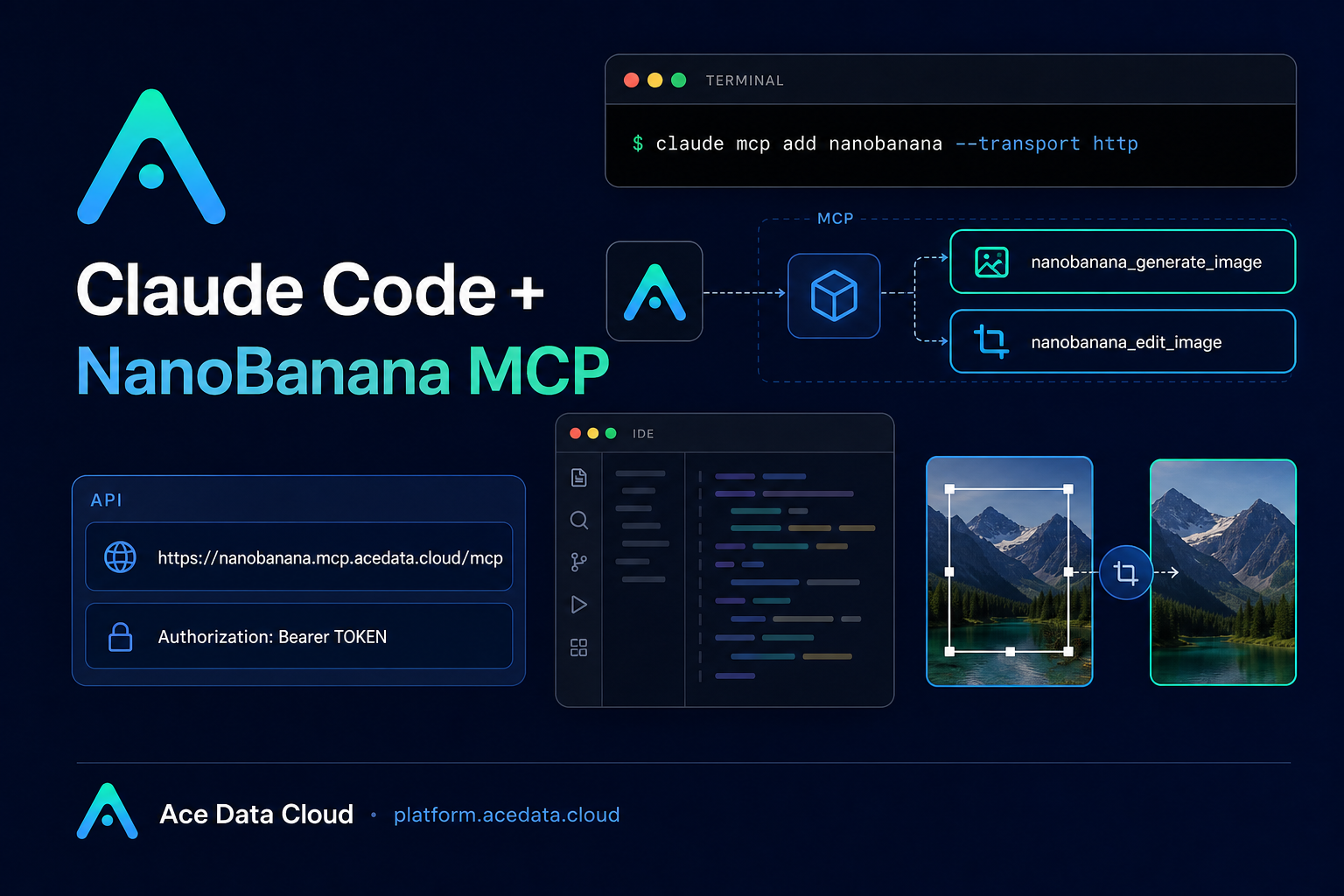
When you are already working in a terminal, switching to a separate image tool can break the flow: copy a prompt, upload references, download the result, then return to your project. NanoBanana MCP gives Claude Code a more direct path: ask for an image generation or editing task in the same session where you are coding.
This guide walks through the practical setup for using Ace Data Cloud's NanoBanana MCP server with Claude Code. The goal is not to treat image generation as a separate design app, but as a tool you can call while building: creating a 404 illustration, cleaning a screenshot, or composing multiple reference images into one asset.
What you can do
The source document describes two available MCP tools for NanoBanana:
nanobanana_generate_imagefor text-to-image generation.nanobanana_edit_imagefor image editing, including multi-image input.
The interesting part is the editing workflow. The documentation highlights that NanoBanana can understand image content well enough to combine intent across images. For example, you can provide one image containing an object and another image containing a scene, then ask Claude Code to place the object into the scene while adapting angle and lighting.
That makes the workflow useful for builders who need lightweight visual assets during product work: UI placeholder artwork, documentation illustrations, edited screenshots, or small campaign visuals. You stay in Claude Code and express the task in natural language, while the MCP server handles the image operation.
How it works
Claude Code can connect to remote MCP servers. For NanoBanana, the server URL from the documentation is:
https://nanobanana.mcp.acedata.cloud/mcpAuthentication is passed as an HTTP header:
Authorization: Bearer YOUR_API_TOKENOnce the server is registered, Claude Code can discover and call the NanoBanana tools during a session. You do not need to write a custom image-generation client or wrap a separate API for this workflow. The operational interface is the MCP tool call exposed inside Claude Code.
Configure NanoBanana MCP in Claude Code
After you have an Ace Data Cloud API token, add the MCP server from your terminal. The documented command is:
claude mcp add nanobanana --transport http https://nanobanana.mcp.acedata.cloud/mcp -H "Authorization: Bearer YOUR_API_TOKEN"One small detail matters: the header flag is uppercase -H. The documentation calls this out because lowercase -h is interpreted as --help, not as a request header.
By default, if you do not pass -s, Claude Code uses the local scope. The document lists three scope options:
local: the default, effective only in the current project directory, stored in~/.claude.json.user: available across all projects, also stored in~/.claude.json.project: written to.mcp.jsonin the project root, so the configuration can be shared with the team.
If you choose project, do not commit real tokens to a public repository. The documentation recommends using ${ENV_VAR} placeholders together with environment variables instead.
Verify the connection
After adding the server, verify that Claude Code can see it:
claude mcp listThe expected result is that nanobanana appears as connected. At that point, you can start a Claude Code session and ask for image work directly in natural language.
Use case 1: compose multiple images
For multi-image composition, use nanobanana_edit_image. A practical prompt from the documented workflow is:
Put the phone from the first image onto the desk in the second image, adjusting angle and lighting to make it look naturalThis is useful when you are preparing product visuals and already have separate source images: a device, a background, a workspace, or a UI mockup. Instead of manually describing every pixel, you can point the model at the source images and describe the relationship between them.
Use case 2: clean up screenshots
The document also gives a simple editing case: removing unwanted text or a watermark from a screenshot. In Claude Code, the request can be as direct as:
Edit this image to remove the text watermark in the bottom right corner, filling the backgroundFor documentation writers and builders, this is often enough to clean an internal screenshot before placing it into a README, blog post, or product note. Keep the instruction narrow: say what to remove, where it is, and what should happen to the background.
Use case 3: generate a small page illustration
For new assets, call the generation flow with a concise prompt. The documentation's example is:
Generate an illustration of a small dinosaur crouching next to a crack in the ground looking down, for use on a 404 pageThis pattern works well for application states where you need a quick, contextual visual: empty states, 404 pages, onboarding cards, and documentation diagrams. The important part is to include the intended placement, such as "for use on a 404 page", so the result fits the product surface.
A builder-friendly workflow
The most useful way to think about NanoBanana MCP is as a small image capability embedded into your coding loop. You configure it once, verify it with claude mcp list, and then call nanobanana_generate_image or nanobanana_edit_image when the project needs a visual asset.
If you want the full setup notes and related examples, read the Ace Data Cloud documentation for Claude Code integration with NanoBanana MCP.


Comments
Post a Comment