How to Build a Reliable Image Editing Workflow with the OpenAI Images Edits API
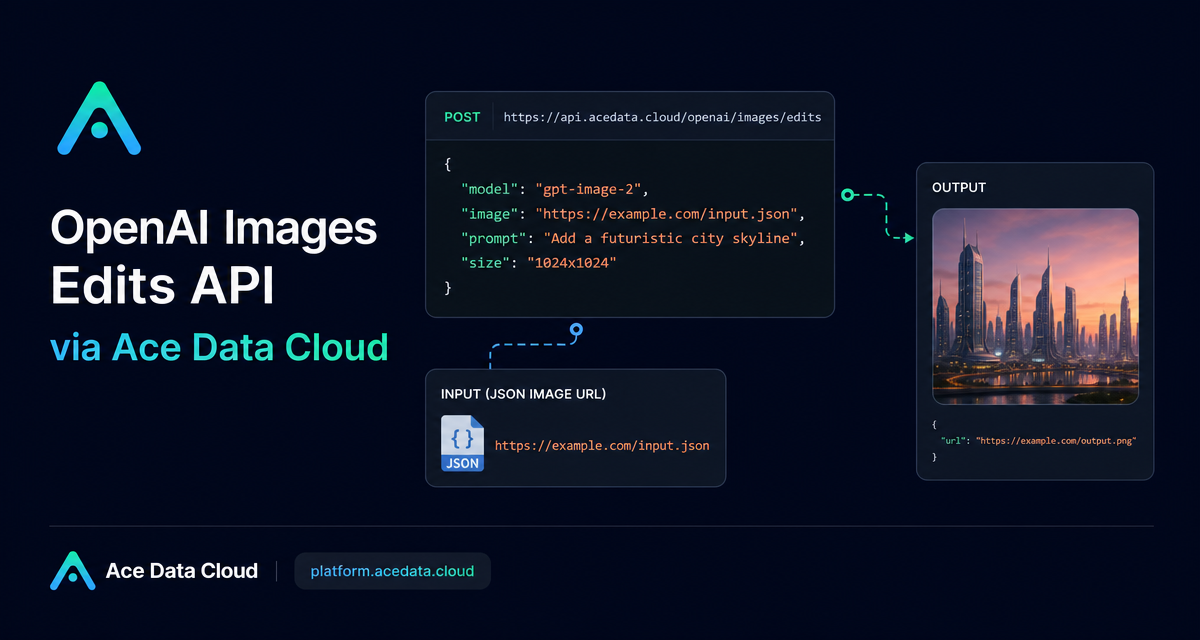
Image editing APIs are easy to demo, but harder to put into a dependable builder workflow: you need stable structure, predictable inputs, sensible output sizes, and a way to run the same edit from a backend job instead of a design tool.
This guide walks through a practical way to use the OpenAI Images Edits API through Ace Data Cloud for common engineering tasks: dark-mode variants, product composition, structure-preserving style changes, and asynchronous image jobs.
What you can do
The Images Edits endpoint lets you send one or more source images plus editing instructions, then receive an edited image result. The same interface supports several model families, including dall-e-2, gpt-image-1, gpt-image-2, and the nano-banana series.
For most new editing workflows, gpt-image-2 is the most useful starting point because the documentation highlights several practical improvements:
- It keeps layout and composition more stable when changing colors, backgrounds, or visual style.
- It is better at preserving readable text in posters, menus, and infographics.
- It supports direct image URL input in JSON, so backend services do not need to download and re-upload files.
- The
imagefield can also accept base64 input, includingdata:image/png;base64,.... - The
sizeparameter can request 1K, 2K, 4K, or custom dimensions within the documented constraints.
How it works
The main endpoint for the recommended JSON workflow is:
POST https://api.acedata.cloud/openai/images/editsYou pass an authorization token, choose a model, provide an image, write a prompt, and optionally use size. With gpt-image-2, the image value can be a URL string, an array of image URLs, or base64 data. That makes it a good fit for server-side pipelines where images may already live in object storage or a CDN.
The response includes fields such as success, task_id, trace_id, created, data, and elapsed. In the synchronous JSON example from the documentation, the edited image URL is returned at data[0].url, and the final prompt is available as data[0].revised_prompt.
Use case 1: create a dark-mode variant without rebuilding the design
A common builder task is converting an existing infographic or product visual into a dark-mode version while keeping the information architecture intact. The key is to make the prompt explicit about what may change and what must not change.
curl -X POST "https://api.acedata.cloud/openai/images/edits" \
  -H "Authorization: Bearer {token}" \
  -H "Content-Type: application/json" \
  -d '{
    "model": "gpt-image-2",
    "image": "https://platform.cdn.acedata.cloud/gpt-image/5c9fa635-8794-4c6d-88f8-584d7f4716c6_0.png",
    "prompt": "Convert this infographic to dark mode: dark navy background, light cream text, deep gray rounded module cards with soft shadows. Keep all layout, structure, and module arrangement identical — only invert the color scheme.",
    "size": "1024x1536"
  }'
The important part is not only the color instruction. It is the constraint: “Keep all layout, structure, and module arrangement identical.” That gives the model a clear boundary between stylistic change and structural preservation.
Use case 2: combine multiple references into one output
The image field can also be an array. The documentation notes that up to 16 reference images can be passed for multi-image editing. This is useful for catalog, ecommerce, and creative assembly workflows where a final image should incorporate multiple source assets.
payload = {
    "model": "gpt-image-2",
    "image": [
        "https://example.com/item1.png",
        "https://example.com/item2.png",
        "https://example.com/item3.png"
    ],
    "prompt": "Combine all the items above into a single 'Relax & Unwind' gift basket on a clean white background, photorealistic, soft natural lighting.",
    "size": "1024x1024"
}
In a production flow, those URLs would usually point to your own uploaded product images. The same pattern can be used to build bundles, mood boards, thumbnails, or campaign visuals from a controlled group of inputs.
Use case 3: choose output size deliberately
For gpt-image-2, size may be auto, omitted, or written as WIDTHxHEIGHT. Custom sizes must follow the upstream constraints: width and height are multiples of 16, the long side is at most 3840, and the total pixel count is at most 8,294,400.
The documented recommended sizes include 1024x1024, 2048x2048, and 2880x2880 for square outputs; 1792x1024, 2048x1152, and 3840x2160 for 16:9 landscape; and 1024x1792, 1152x2048, and 2160x3840 for vertical 9:16. If you are building a pipeline, encode these as presets instead of letting every caller invent dimensions.
Use case 4: handle long-running edits with callbacks
Image editing may take time. If you do not want an HTTP client to hold the connection open, the API supports an asynchronous callback pattern with callback_url. You include the callback URL in the request, receive a task_id immediately, and later receive a POST JSON result that also contains the same task_id.
curl -X POST "https://api.acedata.cloud/v1/images/edits" \
  -H "Authorization: Bearer {token}" \
  -F "model=gpt-image-1" \
  -F "image[]=@test.png" \
  -F "prompt=Create a lovely gift basket with these items in it" \
  -F "callback_url=https://webhook.site/3d32690d-6780-4187-a65c-870061e8c8ab"
The immediate response can be as small as:
{
  "task_id": "6a97bf49-df50-4129-9e46-119aa9fca73c"
}
When the task completes, the callback payload includes success, task_id, trace_id, and a nested data object with the image result. Store task_id in your own database so your webhook handler can attach the final image to the right user, asset, or job.
A few implementation notes
- For default or reverse-route
gpt-image-2,n > 1is not supported; the request returns one image. If you need multiple candidates, run multiple requests concurrently. gpt-image-2:officialis a separate route that supportsn > 1and true 2K / 4K behavior, but route availability is explicit and unavailable routes return an error rather than falling back.- For
nano-bananamodels on this endpoint, the supported parameters aremodel,prompt, andimage; unsupported parameters such asmask,n,size, andresponse_formatare ignored. - Handle documented errors such as
401 invalid_token,429 too_many_requests, and500 api_errorexplicitly in your client.
Wrap-up
The practical pattern is simple: keep source images addressable, make the prompt specific about what must remain unchanged, choose output sizes from a small preset list, and use callback_url when edits may run longer than your request budget. That turns image editing from a one-off demo into a workflow you can safely call from a product backend, automation script, or internal creative tool.
Read the full reference in the OpenAI Images Edits API Integration Guide.


Comments
Post a Comment