How to Build a Reliable Image Editing Pipeline with gpt-image-2
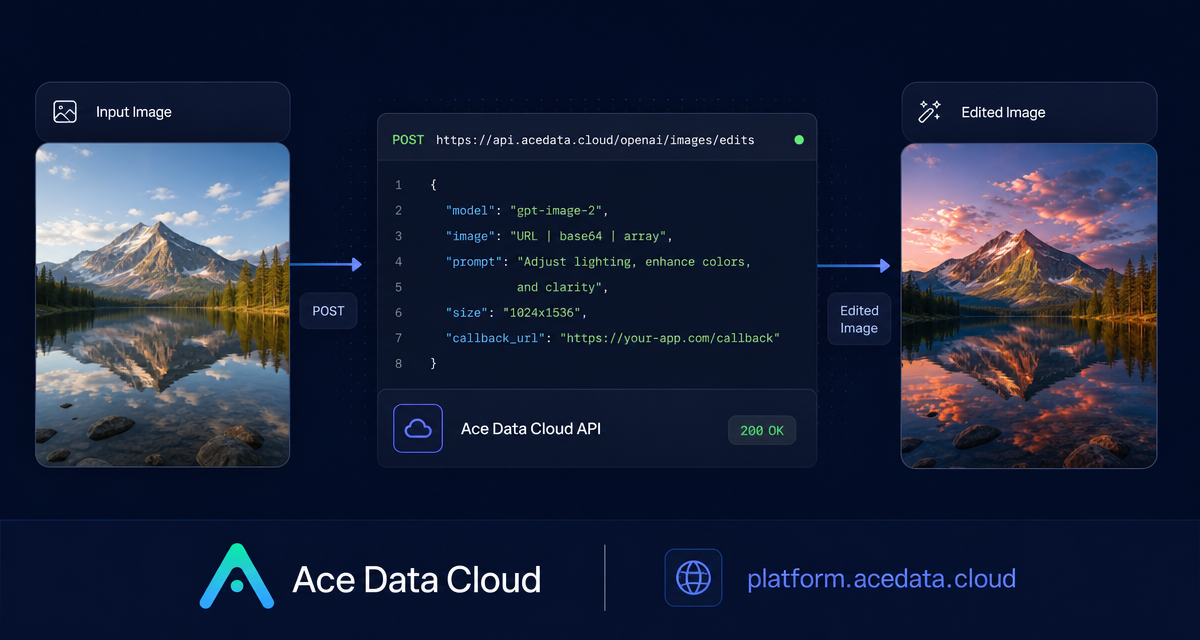
Image editing is easy to demo once, but harder to turn into a dependable workflow: you need to preserve layout, keep text readable, pass images from a server-side pipeline, and handle long-running edits without blocking your app.
This guide walks through a practical way to use Ace Data Cloud's OpenAI Images Edits interface with gpt-image-2. The goal is not to generate random images from scratch. It is to take an existing image, apply a controlled instruction, and return a modified image that still respects the original structure.
What you can do
The Images Edits API lets you send one or more input images plus an editing instruction, then receive edited image output. Through the same endpoint, the document lists support for dall-e-2, gpt-image-1, gpt-image-2, and the nano-banana model family.
For builder workflows, gpt-image-2 is especially useful because the documented behavior focuses on structure stability, text retention, direct image URL input, base64 input, and high-resolution redraw through the size parameter.
- Turn a light infographic into a dark-mode version while keeping the same layout.
- Replace a background or surface while preserving object arrangement.
- Use multiple reference images by passing an array in
image. - Send local images as
data:image/png;base64,...when you do not want a separate upload step. - Use
callback_urlwhen the edit may take longer than a normal request window.
How it works
The main endpoint for the documented JSON workflow is:
POST https://api.acedata.cloud/openai/images/editsFor a minimal gpt-image-2 request, you provide:
model: for example,gpt-image-2.image: an image URL, a base64 image, or an array of image references.prompt: the edit instruction.size: optional forgpt-image-2, usingautoor aWIDTHxHEIGHTvalue.
The API token is sent as a bearer token in the Authorization header. The document also notes that the OpenAI SDK style can be used by setting OPENAI_BASE_URL to https://api.acedata.cloud/openai and OPENAI_API_KEY to your token.
Start with JSON + image URL
The simplest server-side integration is to pass the source image URL directly in JSON. This avoids downloading the asset to your backend just to upload it again.
curl -X POST "https://api.acedata.cloud/openai/images/edits"   -H "Authorization: Bearer {token}"   -H "Content-Type: application/json"   -d '{
    "model": "gpt-image-2",
    "image": "https://platform.cdn.acedata.cloud/gpt-image/5c9fa635-8794-4c6d-88f8-584d7f4716c6_0.png",
    "prompt": "Convert this infographic to dark mode: dark navy background, light cream text, deep gray rounded module cards with soft shadows. Keep all layout, structure, and module arrangement identical — only invert the color scheme.",
    "size": "1024x1536"
  }'
A successful response includes fields such as success, task_id, trace_id, created, data, and elapsed. The edited image URL is returned in data[0].url.
{
  "success": true,
  "task_id": "cb104e35-af1f-45be-9fac-b62e2b256753",
  "trace_id": "3e5c77c6-6c2e-4bba-a42d-98ea049b58a8",
  "created": 1777048863,
  "data": [
    {
      "revised_prompt": "Convert this infographic to dark mode: dark navy background, light cream text, deep gray rounded module cards with soft shadows. Keep all layout, structure, and module arrangement identical — only invert the color scheme.",
      "url": "https://platform.cdn.acedata.cloud/gpt-image/cb104e35-af1f-45be-9fac-b62e2b256753_0.png"
    }
  ],
  "elapsed": 83.859
}
Use base64 when the image is local
If your input image is generated inside your own system or stored in a private workflow, base64 input can remove the need for temporary public hosting. The image field can accept data:image/png;base64,... or raw base64.
import base64
import requests

b64 = base64.b64encode(open("input.png", "rb").read()).decode()

payload = {
    "model": "gpt-image-2",
    "image": f"data:image/png;base64,{b64}",
    "prompt": "Convert this infographic to dark mode.",
    "size": "1024x1536"
}

response = requests.post(
    "https://api.acedata.cloud/openai/images/edits",
    json=payload,
    headers={"authorization": "Bearer {token}"}
)
print(response.text)
Choose sizes deliberately
For gpt-image-2, size can be omitted, set to auto, or provided as WIDTHxHEIGHT. The documented custom-size constraints are precise: width and height must be multiples of 16, the long side must be no more than 3840, and total pixels must be no more than 8,294,400.
Useful documented examples include 1024x1024, 1024x1536, 2048x2048, 3840x2160, and 2160x3840. This makes the endpoint practical for blog graphics, product mockups, thumbnails, and high-resolution redraws from smaller source images.
One operational detail matters: for the default or reverse gpt-image-2 route, n > 1 is not supported and is silently ignored. If you need several candidates, run multiple requests concurrently instead of relying on n.
Handle slower edits with callbacks
Image editing can take long enough that holding a single HTTP connection open is not always ideal. The documented async pattern adds callback_url to the request. The initial response returns a task_id, then Ace Data Cloud sends the final result to your webhook as POST JSON.
curl -X POST "https://api.acedata.cloud/v1/images/edits" -H "Authorization: Bearer {token}" -F "model=gpt-image-1" -F "image[]=@test.png" -F "prompt=Create a lovely gift basket with these items in it" -F "callback_url=https://webhook.site/3d32690d-6780-4187-a65c-870061e8c8ab"The immediate response can be as small as:
{
  "task_id": "6a97bf49-df50-4129-9e46-119aa9fca73c"
}
Your webhook then receives a JSON payload containing the same task_id, which lets you associate the finished image with your internal job record.
When to use Nano Banana through the same interface
The document also shows that the nano-banana series connects to /openai/images/edits. For those models, the supported parameter range is narrower: model, prompt, and image. Parameters such as mask, n, size, and response_format are not supported and are ignored.
That makes the model choice straightforward: use gpt-image-2 when you want more control over URL/base64 inputs and sizing; use the Nano Banana family when your workflow fits the smaller parameter surface documented for that adapter.
Wrap-up
A reliable image editing pipeline is mostly about keeping the interface boring: pass a source image, describe the exact change, choose a valid output size, and store task_id / trace_id for debugging. Ace Data Cloud's OpenAI Images Edits interface is useful here because the same endpoint supports direct JSON URL input, base64 input, multipart uploads, and webhook-style async handling.
Read the source documentation here: OpenAI Images Edits API Integration Guide.


Comments
Post a Comment