How to Build Native Claude Workflows with the Messages API
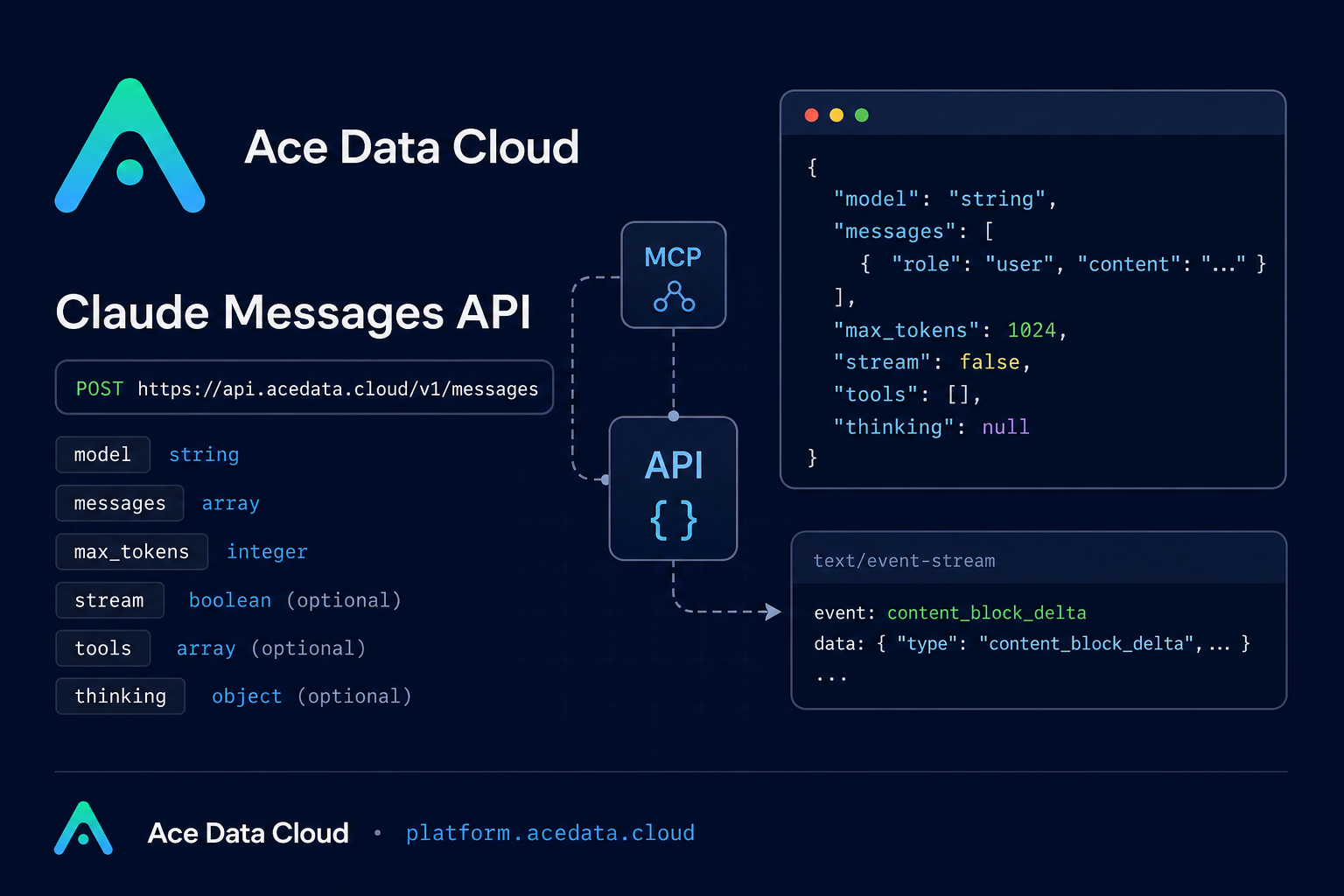
When you are building with Claude, the hard part is often not sending the first prompt. It is choosing the right API shape for the product you are actually building: a simple chat box, a streaming UI, a vision workflow, a tool-calling agent, or a reasoning-heavy assistant.
Ace Data Cloud exposes Claude through the native Anthropic-style Messages API at POST https://api.acedata.cloud/v1/messages. That matters because the request and response structure is not just another chat-completions wrapper. The native format gives you first-class fields for system behavior, streaming events, multimodal content blocks, tool definitions, and extended thinking.
What you can do
The Messages API is a good fit when your application needs more than a one-off text response. According to the public integration guide, the same endpoint supports:
- Basic Claude conversations with
model,messages, andmax_tokens. - A separate
systemfield for defining role, behavior, and context. - Streaming responses by setting
streamtotrue. - Multi-turn conversations by passing prior
userandassistantmessages. - Extended thinking with the
thinkingobject andbudget_tokens. - Image input using content blocks whose
sourceis eitherbase64orurl. - Tool use through
tools,tool_choice, and JSONinput_schemadefinitions.
In practice, this makes the endpoint useful for product features such as support copilots, document review tools, image explanation flows, terminal assistants, and small agent loops that call your own functions.
How it works
The core request is intentionally small. You send a model name, a token limit, and an ordered list of messages. The documented examples use models such as claude-sonnet-4-20250514 and claude-opus-4-20250514. Message roles are user and assistant, while the system prompt is supplied separately through system.
A minimal request looks like this:
curl -X POST 'https://api.acedata.cloud/v1/messages'   -H 'accept: application/json'   -H 'authorization: Bearer {token}'   -H 'content-type: application/json'   -d '{
    "model": "claude-sonnet-4-20250514",
    "max_tokens": 1024,
    "messages": [
      {
        "role": "user",
        "content": "Hello, Claude"
      }
    ]
  }'
The response is a message object. The useful fields to handle in your app are content, stop_reason, and usage. The content field is an array, so you should not assume there is always one plain text string. It can contain blocks such as text, thinking, or tool_use, depending on the feature you enabled and the model output.
Use a system prompt for predictable behavior
For production features, avoid burying operating instructions inside the user message. The native Messages API supports a top-level system field, which is cleaner when you want stable behavior across turns.
import requests

url = "https://api.acedata.cloud/v1/messages"
headers = {
    "accept": "application/json",
    "authorization": "Bearer {token}",
    "content-type": "application/json",
}

payload = {
    "model": "claude-sonnet-4-20250514",
    "max_tokens": 1024,
    "system": "You are a professional Chinese translation assistant. Please translate the user's input from English to Chinese.",
    "messages": [
        {"role": "user", "content": "The quick brown fox jumps over the lazy dog."}
    ],
}

response = requests.post(url, json=payload, headers=headers)
print(response.json())
This pattern is useful for translators, support assistants, review bots, and any workflow where the application owns the behavior and the user owns the input.
Stream tokens into a real UI
If you are building an interactive app, waiting for the full response can make the product feel slow. Set stream to true and read the response incrementally.
import requests

url = "https://api.acedata.cloud/v1/messages"
headers = {
    "accept": "application/json",
    "authorization": "Bearer {token}",
    "content-type": "application/json",
}

payload = {
    "model": "claude-sonnet-4-20250514",
    "max_tokens": 1024,
    "stream": True,
    "messages": [{"role": "user", "content": "Hello, Claude"}],
}

response = requests.post(url, json=payload, headers=headers, stream=True)
for line in response.iter_lines():
    if line:
        print(line.decode("utf-8"))
The stream is returned as Server-Sent Events. The documented event types include message_start, content_block_start, content_block_delta, content_block_stop, message_delta, and message_stop. For a chat UI, you usually concatenate the text carried by content_block_delta events and update the visible answer as chunks arrive.
Pass conversation history explicitly
The Messages API does not magically remember previous turns for you. To build multi-turn chat, include the relevant history in messages and alternate the user and assistant roles.
{
  "model": "claude-sonnet-4-20250514",
  "max_tokens": 1024,
  "messages": [
    {"role": "user", "content": "Hello, my name is Alice."},
    {"role": "assistant", "content": "Hello Alice! Nice to meet you. How can I help you today?"},
    {"role": "user", "content": "What is my name?"}
  ]
}
In a real application, this is where you decide how much history to keep. For example, you might store the full transcript, summarize older turns, or only send the last few messages plus structured context from your database.
Add tools when Claude needs your system
Tool use is the step that turns a chat response into a workflow. You define tools with a name, description, and input_schema. If Claude decides to call one, the response content can include a tool_use block and the stop_reason can be tool_use.
{
  "model": "claude-sonnet-4-20250514",
  "max_tokens": 1024,
  "tools": [
    {
      "name": "get_weather",
      "description": "Get the current weather in a given location",
      "input_schema": {
        "type": "object",
        "properties": {
          "location": {
            "type": "string",
            "description": "The city and state, e.g. San Francisco, CA"
          }
        },
        "required": ["location"]
      }
    }
  ],
  "messages": [
    {"role": "user", "content": "What's the weather like in San Francisco?"}
  ]
}
Your app then executes the tool and sends the result back as a tool_result content block with the matching tool_use_id. This explicit loop is a good boundary: Claude decides when a tool is needed, but your code decides what actually runs.
Handle images and deeper reasoning carefully
For visual workflows, set message content to an array and include an image block plus a text block. The image source can use type: "url" with a URL, or type: "base64" with media_type and encoded image data. The documented supported formats are image/jpeg, image/png, image/gif, and image/webp.
For complex reasoning tasks, the guide shows a thinking object:
{
  "model": "claude-sonnet-4-20250514",
  "max_tokens": 16000,
  "thinking": {
    "type": "enabled",
    "budget_tokens": 10000
  },
  "messages": [
    {"role": "user", "content": "What is the sine of 30 degrees? Show your reasoning."}
  ]
}
One important constraint from the guide: when using thinking, max_tokens needs to be greater than budget_tokens. If you expose this as a product setting, validate that relationship before sending the request.
Errors worth handling first
The documented error cases include 400 token_mismatched, 400 api_not_implemented, 401 invalid_token, 429 too_many_requests, and 500 api_error. A typical error response includes success: false, an error object with code and message, and a trace_id. In your logs, keep the trace_id; it is the field you will want when debugging a failed request later.
If you are starting from scratch, begin with the minimal request, then add one capability at a time: system, then stream, then multimodal input or tools. That keeps the integration understandable and makes failures easier to isolate.
For the complete source reference, see the Claude Messages API Integration Guide.


Comments
Post a Comment