How to Add Remote MCP Servers to Claude Code for Terminal-Based AI Workflows
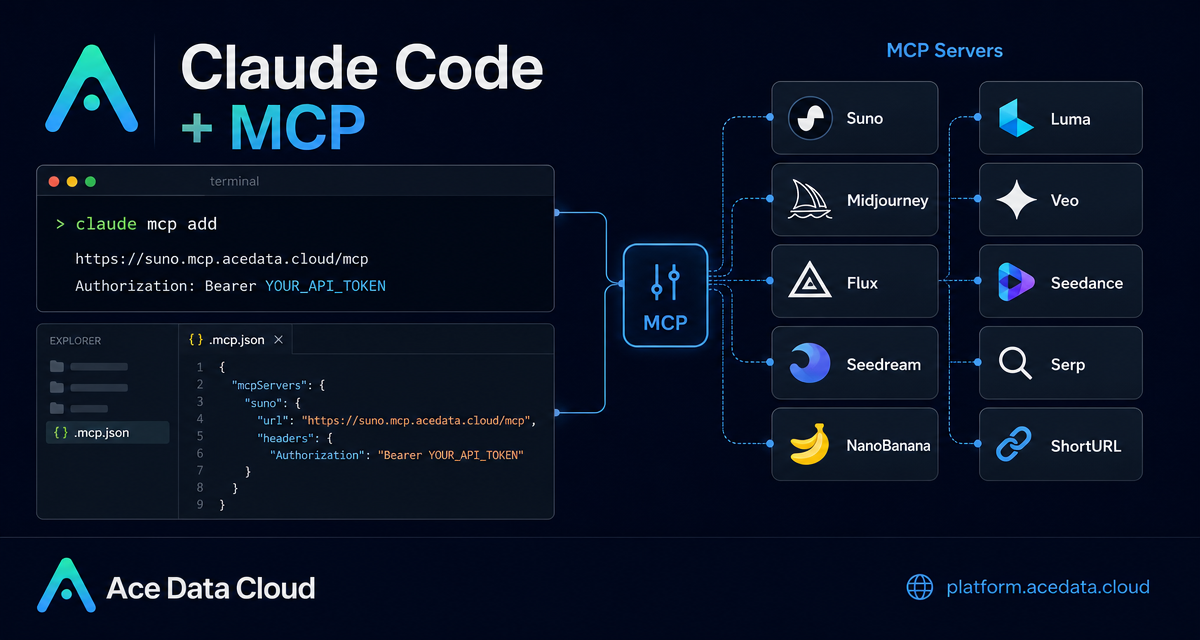
Claude Code is useful when it can read, edit, and reason about a project from the terminal. The moment you need supporting assets, search results, short links, or generated media, the workflow often breaks: you leave the IDE, open another service, copy a result back, and lose the thread. MCP is a practical way to keep those tool calls inside the same terminal session.
This guide walks through a concrete setup pattern from the Ace Data Cloud Claude Code MCP documentation: adding managed remote MCP servers to Claude Code with HTTP transport, an Authorization header, and an optional project-level .mcp.json file. The goal is not to install every tool blindly, but to understand the configuration shape so you can add only the servers that match your workflow.
What you can do
With the documented Ace Data Cloud MCP servers connected to Claude Code, your terminal assistant can call tools across several practical categories while you continue working in a repository:
- Music:
Sunofor text-to-song, lyrics, covers, continuation, vocal separation, and Persona workflows. - Images:
Midjourney,Flux,Seedream, andNanoBananafor text-to-image, editing, image mixing, product backgrounds, and related image tasks. - Video:
Luma,Veo, andSeedancefor video generation workflows, including start/end frame control, native audio, motion generation, or dubbing depending on the server. - Research and utility:
Serpfor Google search andShortURLfor shortening links.
The useful part for builders is that these capabilities are exposed as remote MCP servers. Claude Code stays in the terminal, but it can route a task to a media, search, or utility service when the prompt calls for it.
How it works
The configuration has three moving pieces:
type: the MCP connection type, documented ashttp.url: the remote MCP endpoint, for examplehttps://suno.mcp.acedata.cloud/mcp.headers: an HTTP header object containingAuthorization: Bearer YOUR_API_TOKEN.
You can add servers one at a time with claude mcp add, or store a project configuration in .mcp.json. The command-line approach is fast for personal setup. The JSON file is better when you want a repeatable project configuration that teammates can inspect and adapt.
Option 1: Add a server from the terminal
Start small. If your immediate need is music or background audio for a demo, add only the Suno server first:
claude mcp add suno --transport http https://suno.mcp.acedata.cloud/mcp -H "Authorization: Bearer YOUR_API_TOKEN"The same pattern applies to the other documented servers. The important details are easy to miss: -H must be uppercase, and without an explicit scope the default is local, which means the server is effective only in the current directory. If you want the configuration available across projects, add -s user. If you want it tied to the project, use -s project.
After adding your subset, check what Claude Code sees:
claude mcp listYou should see the servers you added as HTTP MCP servers. If a server is not online, remove it and add it again with the same documented URL and header shape.
Option 2: Use a project-level .mcp.json
For a repository workflow, a project file is easier to reason about. Here is a minimal example with one image server and one search server:
{
  "mcpServers": {
    "nanobanana": {
      "type": "http",
      "url": "https://nanobanana.mcp.acedata.cloud/mcp",
      "headers": { "Authorization": "Bearer YOUR_API_TOKEN" }
    },
    "serp": {
      "type": "http",
      "url": "https://serp.mcp.acedata.cloud/mcp",
      "headers": { "Authorization": "Bearer YOUR_API_TOKEN" }
    }
  }
}
This is also the safer mental model: configure only the tools your project needs. A content repo might use serp, flux, and shorturl. A product demo repo might use midjourney, luma, and suno. You do not need every server in every project.
Do not commit real tokens to a public repository. The documentation recommends avoiding real tokens in shared config; in practice, use placeholders, environment-specific files, or keep local secrets out of version control.
A practical workflow: research, draft, illustrate
Once the servers are connected, you can ask Claude Code to chain work that normally spans multiple browser tabs. For example:
Help me:
1. Use Google Search to find the latest AI video generation technology trends
2. Write a technical blog outline based on the search results
3. Use Flux to generate an illustration for the blog
4. Use ShortURL to shorten key reference links
That kind of prompt works well because each step maps to a documented server category: Serp for search, Flux for image generation, and ShortURL for link shortening. Claude Code can keep the intermediate context in the same terminal conversation instead of forcing you to copy outputs between tools.
Operational notes
If you choose the command-line path, remember the scope rules: local for the current directory by default, -s user for all projects, and -s project for a project-level setup. If you choose .mcp.json, project-level configuration takes precedence over global configuration, which is useful for team-specific overrides.
For troubleshooting, keep it simple: run claude mcp list, confirm the remote URL is the documented one, confirm the header uses Authorization with a bearer token, then remove and re-add the server if needed.
Wrapping up
The best use of MCP in Claude Code is not “connect everything.” It is to bring a few repeatable external capabilities into the place where you already work: the terminal and the repository. Start with one server, verify the connection, then add the next tool only when a real workflow asks for it.
For the full server list and the complete Claude Code setup examples, read the Claude Code MCP overview on Ace Data Cloud.


Comments
Post a Comment